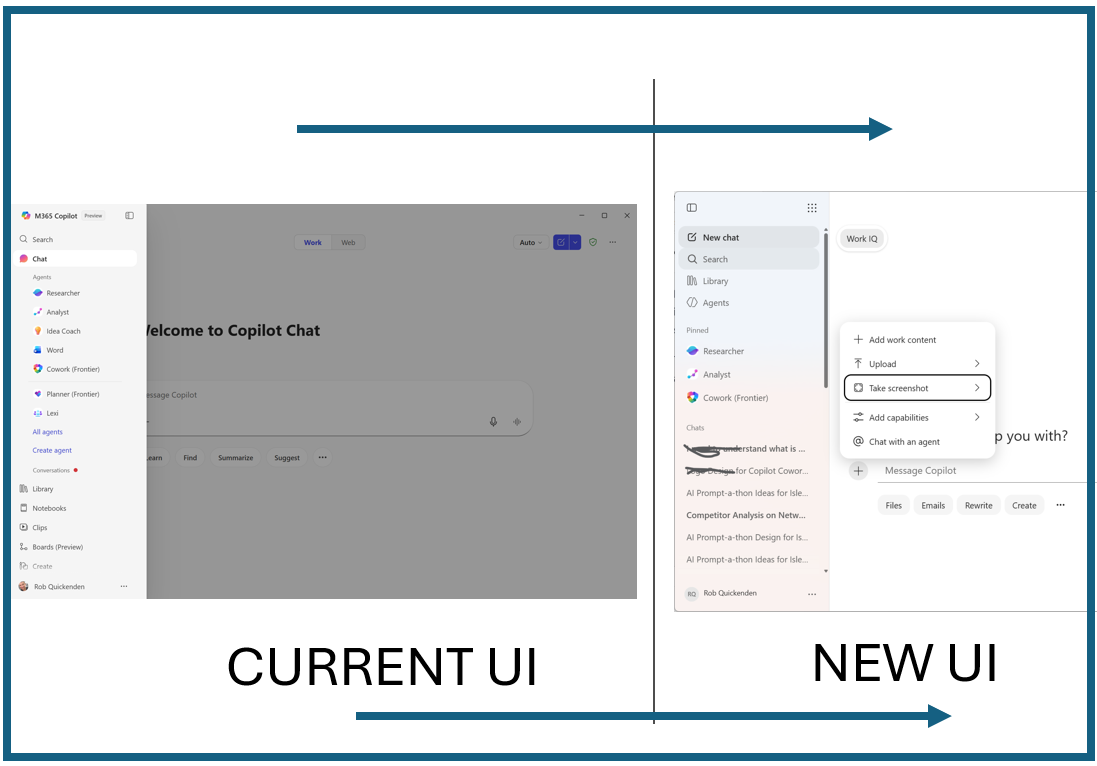

Microsoft has begun rolling out a redesigned Copilot experience across Microsoft 365, introducing a more consistent interface, clearer grounding signals, and a sharper separation between Copilot Chat and Copilot for Microsoft 365.
The update is part of Microsoft’s wider effort to make Copilot feel like a native layer across the suite rather than a collection of app‑specific variations.


A More Unified Copilot Experience
The biggest change is that the Copilot panel is Jo longer a simple text box but a task-aware workspace. The experience also works consistently across Word, Excel, PowerPoint, Outlook and Teams too.
Quick‑action buttons for summarising, rewriting, formatting and analysing content are surfaced directly in the panel, reducing reliance on prompt‑driven workflows.
Grounding indicators make it clearer when Copilot is using organisational data, the current document, or no context at all.
This redesign aligns with Microsoft’s goal of creating a “task‑aware workspace” that adapts to what the user is doing, rather than forcing them to learn different Copilot behaviours in each app.
“The prompt surface can expand to fill the experience, making room for deeper work: pasting content, retaining structure, and using inline formatting before sending.
John Fieldman | Head of Design | Microsoft
Rather than presenting every path at once, this design organises what matters first and reveals more capability in context, making the experience easier to navigate, understand, and trust over time.”
Skills, Agents and the New Prompt Gallery
As Copilot expands beyond simple prompts into skills (discrete capabilities) and agents (multi‑step, long‑running workflows), the UI is shifting to accommodate these new patterns.

The prompt gallery is also becoming more dynamic, surfacing context‑relevant actions based on the document, email thread or dataset in front of the user.
These changes are intentional – Copilot is moving from “AI that answers questions” to AI that helps you complete work. That requires a different interface and a different mental model.

Users Will Experience Confusion
Any major UI change brings friction, and early user commentary reflects that. People will notice that buttons have moved, the panel behaves differently, and the distinction between skills, agents and chat isn’t always obvious at first glance and we don’t all read the blogs and release notes!
This is the same pattern we’ve seen with every major Microsoft UX shift – the Ribbon, Teams replacing Skype for Business, the new Outlook. Familiarity takes time, and the early noise is part of the process.
As always, in the work space, Adoption and Training is important. Microsoft are good at keeping us informed about major changes, but there are so many, organisations need to know what to educate and train users on and what not too. Most users (IMO) that are heavy M365 Copilot users, will get the hang of the new UI pretty quickly.
My View: Short‑Term Noise, Long‑Term Clarity
Despite the initial confusion, the direction is the right one.The redesign is grounded in real user feedback about consistency and transparency.
Skills and agents are becoming more visible because they’re central to Copilot’s future.The prompt gallery is evolving because Copilot is becoming more context‑aware.The experience across apps is becoming more predictable, not less.In short – this is a platform in motion, and motion always creates questions. But the long‑term trajectory is positive. Copilot is becoming clearer, more capable and more aligned to how people actually work.
We have seen lots of changes over the few years Copilot has been a thing, but I do agree that the redesign is a necessary step toward a unified, intelligent workspace.
It may feel unfamiliar at first, but it’s built on real user feedback and a clear vision: to make Copilot a seamless, grounded, and transparent part of everyday work.
Leave a Reply