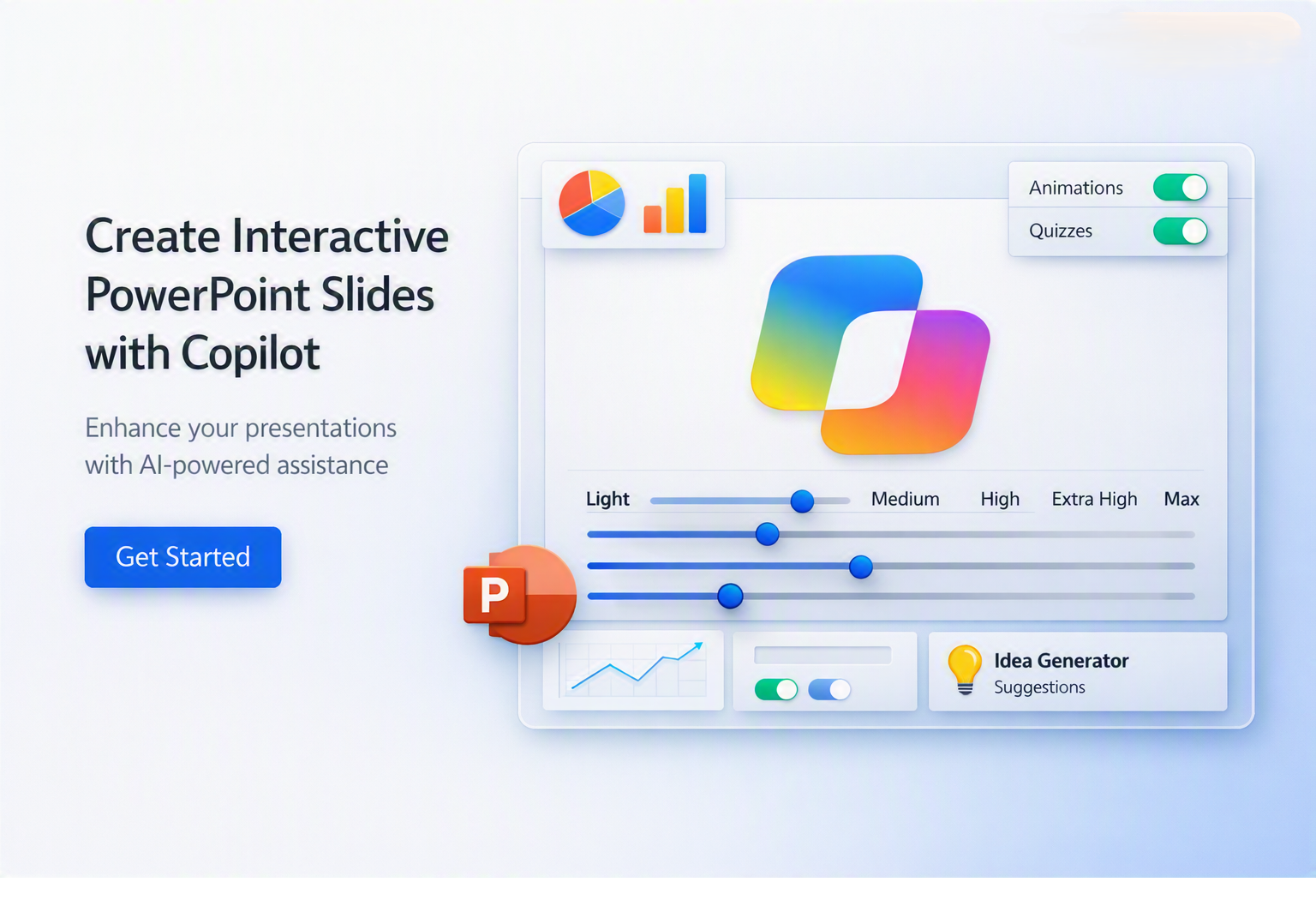

Microsoft is bringing the ability to create interactive slides to PowerPoint via a new Copilot skill and it’s really powerful.

The “Create Interactive Slides” skill is currently rolling out to users for organisations enrolled in the frontier preview, which will then come to other users “later”.
This new “skill” can turn ideas, concepts, timelines, information sources, comparisons, and data into full-slide interactive visuals, stories, quizzes etc.
Here is an example of what you can create – A interactive map of the Solar System with planetary information fully clickable and drillable in the theme of the Star Trek LCARs computer system 🙂

All PowerPoint skills can be accessed through the skills menu using the 3-dots menu in the Copilot pane in PowerPoint or using the “@create-interactive-slides” prompt in Copilot. You must be in “edit mode” of course.
What can the Interactive-Slides Skill do?
You can be super creative with this skill. You can use it on individual slides or multiple slides, and you can leverage WorkIQ to surface and visual data from your work data, specific files, web content, SharePoint lists etc.
It transforms complex concepts, timelines, comparisons, systems and data into full‑slide interactive visuals that your audience can explore. Copilot can turn a simple prompt into clickable timelines, branching decision paths, interactive maps, scenario flows, quizzes, and even game‑style experiences. For example, you can ask PowerPoint to build a dynamic product comparison slide, or a visual system diagram where each component reveals more detail on click. These interactive elements help you explain multi‑step processes, break down dense information, and make presentations more engaging and memorable.
I’ve played around with this for a few days and seen some other great examples from other Microsoft MVPs too. Summarising some of the best use cases I have seen include:
- Create Clickable timelines and SmartArt‑style flows – Copilot can replace static bullet lists with interactive timelines or process diagrams that reveal steps on click.
- Branching slides / decision trees – Copilot’s Create Interactive Slides skill can generate branching paths, letting viewers choose different routes through your content.
- Turn slides with options and steps into interactive quizzes – this could be used to better explain something, creating trivia challenges/quizes, puzzles, and scenario‑based learning flows directly inside PowerPoint.
- Dynamic data visuals – turn structured data into interactive infographics or visual summaries that fill the entire slide in any style you like – my example below was based on planets in the solar system using the StarTrek LCARs style.
- System diagrams with clickable components – Copilot can draft diagrams where each part expands or links to deeper content, helping explain complex systems.
Create a Visual Business Case Example
Here’s an example I created about presenting values around a hiring business case. This was just an experiment, and I did it all via a prompt. Ideally, you’d get the skill to reference an excel file or document you had with this information in it, but you can see how well it work – the prompt I used in at the end of this post.

Yet another example of hours of work down to just minutes (this took <5 mins to create) and this time, being able to harness this innovation inside a PowerPoint slide.
Try this prompt from PowerPoint
Feel free to copy and paste or copy, edit and paste this for your own example. Tell me what you think in the comments or share your examples.
@create-interactive-slides that compares building an internal Copilot Agent team versus relying on external partners.

I want a full‑slide interactive experience with branching paths, clickable cost breakdowns, and scenario‑based exploration.

Proposed Internal Team Scenario
- Team of 3 Copilot Agent developers
- £85,000 salary each
- Include loaded costs (NI, pension, overhead, tooling)
- Show total annual cost
- Highlight benefits:
  - Retained IP
  - Internal capability growth
  - Long‑term cost efficiency
  - Faster iteration and innovation
  - Reusable assets and accelerators
  - Higher margin opportunities

ACME Partner Scenario
- £850 per day partner rate
- Day rate sell £1,100 per day
- Show annualised cost for typical utilisation (e.g., 120–180 days per year)
- Highlight drawbacks:
  - No retained IP
  - No internal skill development
  - Dependency risk
  - Lower margin
  - Slower iteration
  - Limited reuse of work

Interactive Elements to Include:
- Clickable cost comparison model
- Branching “choose your path” slide showing long‑term financial impact
- Timeline showing capability growth over 12–24 months
- System diagram showing how an internal team accelerates Copilot Agent delivery
- Interactive margin calculator
- Pros/cons panel that reveals details on click
- Final recommendation slide that adapts based on the chosen path

Tone & Style :
- Professional and business‑focused
- Clear visuals, icons, and diagrams
- Make interactive elements obvious and easy to navigate

Goal: A compelling interactive model that demonstrates why building an internal Copilot Agent team delivers better long‑term value, higher margins, and strategic capability compared to relying on partners.
Leave a Reply