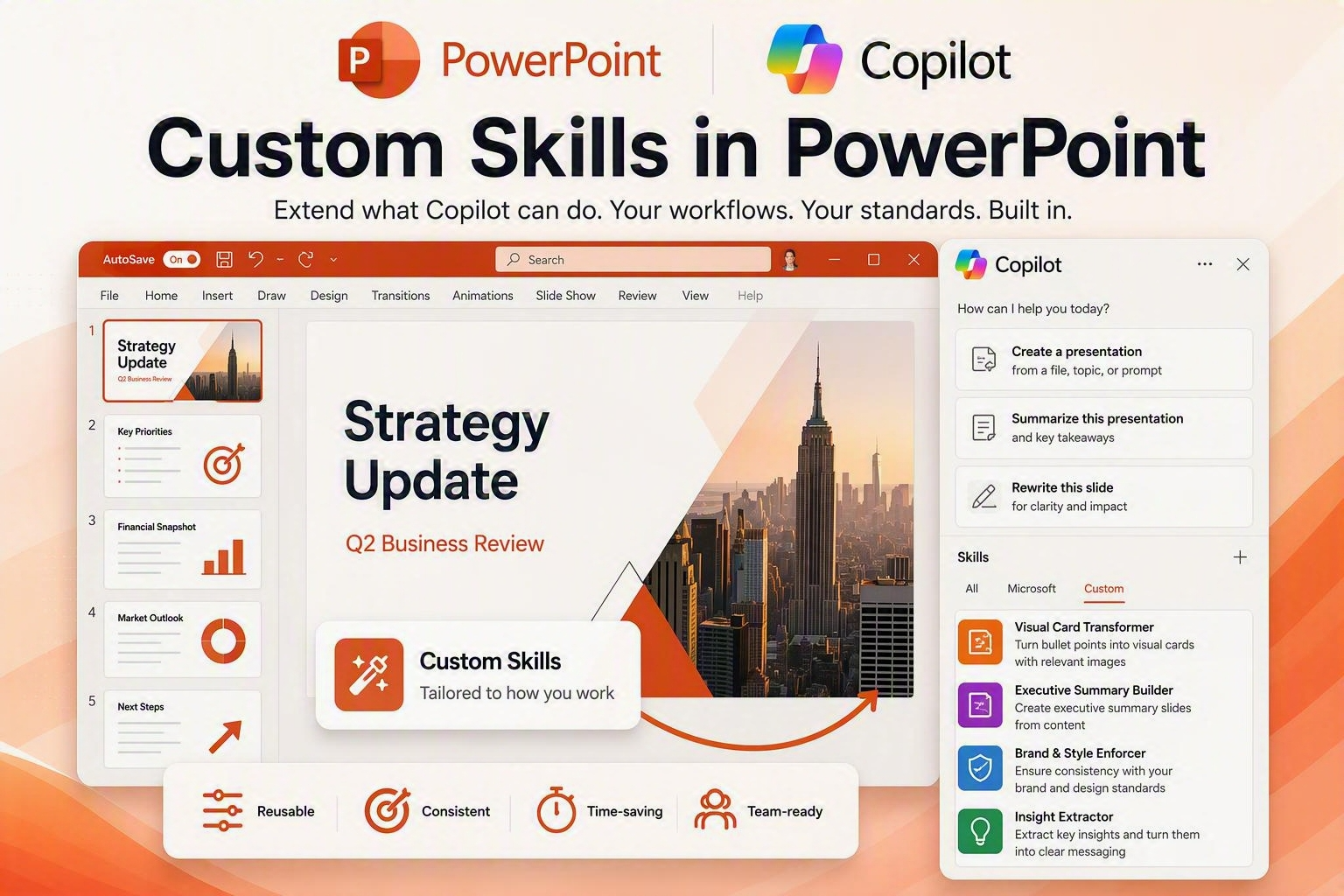

What are Skills in PowerPoint?
Copilot Skills in PowerPoint are reusable instruction-based capabilities that extend what Copilot can do inside PowerPoint. You can think of them as specialist playbooks rather than new AI models or specific agents.
A skill gives Copilot additional guidance on how to perform a specific task, such as creating an executive summary slide, restructuring content, or applying a consistent presentation design approach. Skills are not PowerPoint add-ins, macros, custom code, or standalone AI agents. Instead, skills provide structured instructions that help Copilot execute repeatable tasks more consistently and in a way that aligns with your preferred workflow.
Like Copilot in PowerPoint, Skills require a Microsoft 365 Copilot License.
Built-in Skills in PowerPoint
Microsoft includes a number of built-in skills and also allows users to create their own custom skills. Out of the box, these skills help Copilot perform common presentation tasks and can be selected directly from the Copilot pane or invoked using an @mention.
Organisations and individuals can also create / build their own skills, which are stored in OneDrive, to automate presentation-specific activities such as executive summary creation, content restructuring, branding compliance, or converting bullet-heavy slides into visual card-based layouts. This effectively allows you to tailor Copilot in PowerPoint to your own design standards, business processes, and storytelling style while still working within the existing PowerPoint experience.
You can get to the skills menu in PowerPoint by opening Copilot, clicking the 3 dots and choosing Manage skills. When custom skills are enabled, you will see the Custom Skills toggle set to “on” – you can disable them if needed.

Creating a Custom Skill in PowerPoint
Skills are instructions written in Markdown format (.md) files and are stored in your OneDrive folder along with other Copilot and Cowork (if you use it) skills.
You can create skills manually and import them into PowerPoint or use the simple “create skill” feature in PowerPoint directly to create simple skills using your instructions. Both work, but I like to do it manually (with help) and import them. You’ll see why ….
One of the easiest ways to create a skill is to use Copilot Chat to help you create the skill(s) you need and then ensure it is written in the correct format. Once you have done this you can check it and tweak it as needed.
In the example below (credit to my friend Ami Diamond for the idea), I want to create a skill that can take boring bullet-based slides and turn them into visual cards. I took a little bit of time to think about what I want (and do not want) and then asked Copilot to create me a skill along with the instructions for adding to PowerPoint.
Feel free to follow along with this example or your own.

When the prompt finished (and this is one of the benefits of using Copilot to get you started, is that it not only created the skill for me to download and review but it can then give you instructions how to use it and add it to PowerPoint.
Here’s what Copilot did for me:

Checking and Amending our Skill
The skill created is an .md file which you can open in Notepad (in syntax mode) or a dedicated MD file viewer. I tend to just use Notepad.
A segment of the .MD file is below so you see the format of these. Worth reviewing the instructions and how its written and adapting as needed. The thing you may want to change is the name. For example, you might want to rename this to just “VisualCard” or something easier to remember.

I tend to save a copy of the skill file into a library that I can then share with others later. I called this for ease VisualCardSkill.md. Don’t worry PowerPoint will sort it out once I import it…
Importing the Skill into PowerPoint
To create or import an existing skill you have created (as above), open the skills dialogue in PowerPoint using the three dots to get to skills. The first time you do this, PowerPoint will ask you if it can create the skills folder in your OneDrive. Once you have done this you are ready to create or import a skill. For reference skills are stored in OneDrive – Documents – Copilot – Microsoft PowerPoint – Skills

From here you can create skills manually using the mini UI or import one you have created, been shared, downloaded from a friend or github etc.
Once your skill has been created/imported, you can enable Custom Skills and even toggle the ones you want to use on or off.

Using Custom Skills in PowerPoint
Once your skill(s) are active, you can use them within PowerPoint to take action.
In the example below I have a simple bullet point list which I want to use my Visual Card Creator skill to transform.
To use the skill, we simply type @ in the Copilot prompt and select or type the name of the skill we want to use. In this example I am transforming a bullet point heavy slide into visual cards using the skill we created.


You can see how Copilot has followed our skill, preserved the formatting, colours, themes etc.
So there you go – Skills in PowerPoint.
Leave a Reply