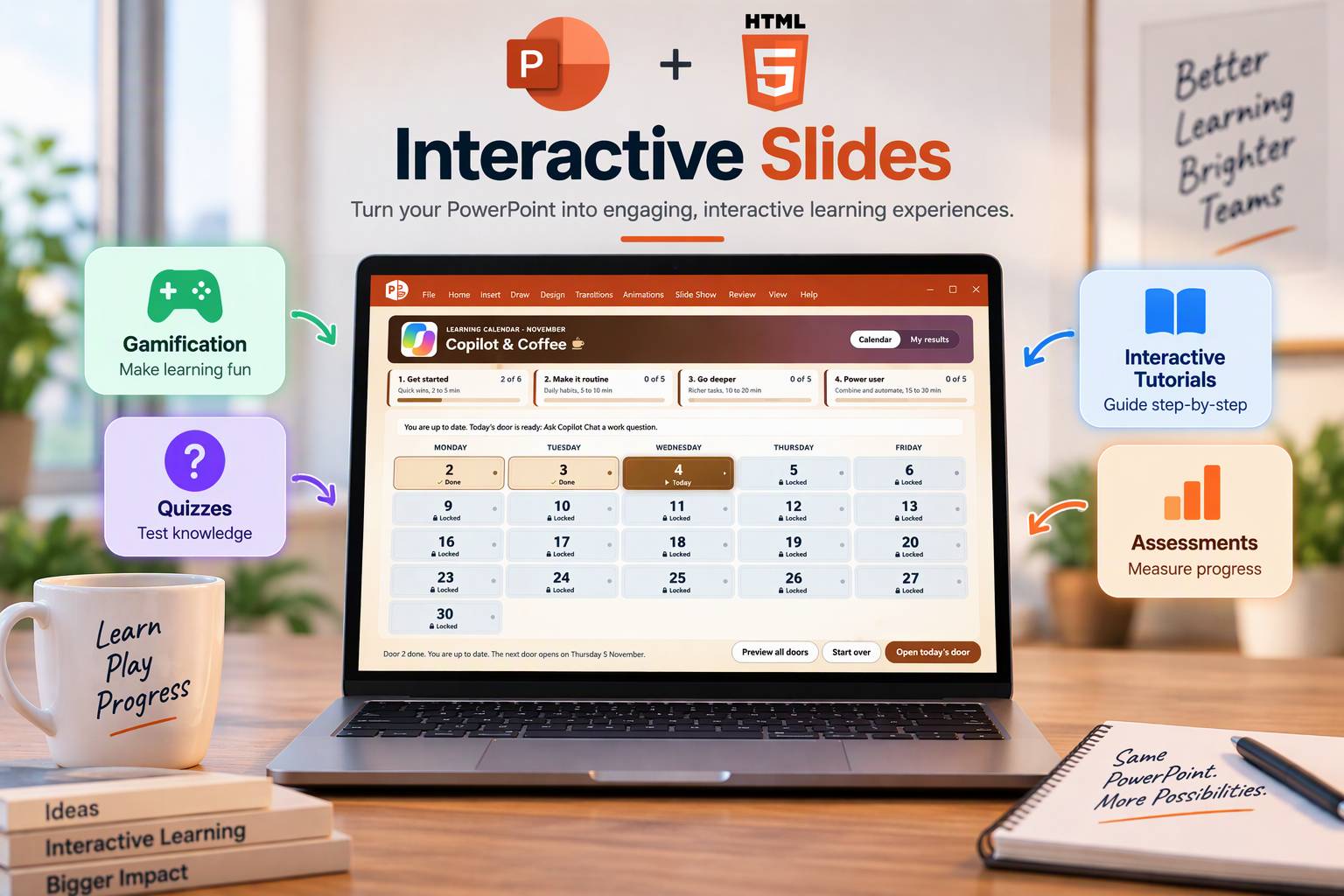

Skills are reusable instructions or recipes for how do a particular task and can be used across Chat and Office apps. This post talks you though the awesome “interactive-slides” skill.

I find skills really valuable is in PowerPoint.
To access skills, open Copilot, select the + menu, choose plugins, and select a skill.
You can also invoke one with an @mention. In my build, this skill appeared as @create-interactive-slides.
You need a Microsoft 365 license and a Microsoft 365 Copilot license to use this feature by the way.
In a previous blog I showed how you can create interactive dashboards that bring slides worth of content into a single interactive experience, but…
There are so much more interactive slides can do and after reading a really awesome blog by fellow MVP Josh I wanted to share some of this and link to his wider blog (as he deserves all the credit here).
In my previous blog, I showed how easily these interactive slides can produce polished explainers. The second pushed the same feature into quizzes, timed simulations, design tools, and an architecture workshop.
Frontier matters here. Microsoft says Frontier features are preview and subject to change. Frontier is controlled at the tenant level: an admin can enable it for all users or selected users, and users without a Microsoft Copilot license are not shown Frontier features. Interactive skills are part of (currently preview, Frontier).
NB: Interactive slides also work really well in Live meetings on Teams.
Below I will take you on the next part of the interactive-sides journey, moving from how Copilot can make information easier to understand and explore to creating almost and app inside your slides… Think a scorable quiz, score decisions, run a timer, build a data model, or running and interactive workshop though PowerPoint.
Interactive Slides “Nube” Level-up
Each selection changes the main explanation, highlights the current step, and updates the progress bar. The intended path and the path actually taken remain visible, so the audience can inspect the difference without jumping between slides.
This is the most natural starting point for interactive slides. It replaces a click-by-click animation sequence with a visual the presenter can explore in any order.
Try this to get an idea of what you can do.
- Open PowerPoint and start with either an existing slide deck that has lots of information you usually present. Can be sales numbers, product launch information, anything.
- Open Copilot or click on the “interactive slides” button from the toolbar. This essentially opens Copilot for you with a simple prompt. You will see PowerPoint includes a few examples. You can adjust these as you need.
- Watch in amazement as Copilot analyses your slides, understands the content and creates you a an interactive slide.
- Like anything with Copilot, you can keep prompting to tweak what you need.
You can see examples of this in my previous blog
Interactive Slides – Let’s get funky
As part of some our internal Copilot Level up training, we talked about creating a Xmas Advent Calendar. As part of planning, it we though “let’s do this in Copilot” a new Copilot Tip Every day. As we built it in November, we wanted to use it right away. This adapts each month – colours, theme and questions. Users can track their results and see their skills evolve.
Have added the prompt I used (and perfected below).


HERE's MY INITIAL PROMPT / INSTRUCTIONS
Build one self-contained HTML page (inline CSS and JavaScript only, no external libraries, fonts or network calls) that fills a 16:9 slide and scales with the window. Title: "Copilot & Coffee" learning calendar, with the current month in the banner and a Calendar / My results switch. Warm coffee-brown banner, cream background, and a subtle, slow animation of shapes that suit the month (leaves in autumn, snow in winter, petals in spring). Respect reduced motion.

Calendar: one door per working day, Monday to Friday only, shown as weeks with no weekend columns, for the current month from the real date. Doors unlock by date: today and earlier doors open, future doors show Locked and can be previewed only. If someone opens the calendar after the first working day, a Catch up banner states today's full date (for example Tuesday 3 November) and which earlier doors are waiting, without implying the calendar started on that day. A pulsing Catch up button lets them open earlier doors in any order, never later ones; any earlier door not yet done or skipped counts as waiting. Spread about 24 tips across the working days in four stages with progress bars: Get started (2 to 5 min), Make it routine (5 to 10 min), Go deeper (10 to 20 min), Power user (15 to 30 min).

Each door opens a tip card: app (Outlook, Word, Excel, PowerPoint, Teams, Copilot Chat), time, title, why it helps, three numbered steps and a copy-ready prompt with a Copy button. Examples: Draft an email with Copilot; Summarise a long email thread; Catch up on a recorded meeting you missed. Write the full set yourself, from light to in-depth. After each tip ask Did you try it? with a one-line reflection, and ask for overall feedback at the end.

Buttons: Preview all doors, Start over, Open today's door. Save progress in the browser when allowed and say so, otherwise say progress is not kept between visits. My results shows completed doors, feedback and a Copy my results button. Style: Segoe UI, dark coffee-brown, amber accent, keyboard accessible, WCAG AA contrast. The calendar shoud auto theme based on the time of year, for example autumna theme in automum, xmas theme in December, new year Jan, etc etc. It doesnt impact the tips but just visually.

When ready tell me and I will upload the logo we want to use in the calendar.
Now – you can also create similar in Copilot Chat. This took a bit longer (several interactions) but i was able to take the same prompt and create an HTML version that I could host on SharePoint. The HTML uses a local device cookie to track the users progress… (as long as they use the same device each day).

Leave a Comment