M365 Copilot Image Generation Levels Up, and Video Summaries are coming to Copilot Notebooks

Microsoft has kicked off 2026 with two significant enhancements to Microsoft 365 Copilot – both providing a clear signal to how improvements in multi-media creation in AI will support creativity, communication, and knowledge sharing across the workplace.

The first is a major upgrade to Copilot’s image generation capabilities with the rollout of OpenAI’s GPT‑Image‑1.5 model. The second is a new capability that turns Copilot Notebooks into automatically generated video summaries (in addition to the voice / podcast over views). These are both in preview for organisations enrolled into the Copilot Frontier Preview.

Whilst subtle – these make Copilot more useful, more expressive, and more multi-modal in the flow of work. Read on for more detail.

GPT‑Image‑1.5 Creation comes to Microsoft 365 Copilot

Microsoft is good at getting new features into Copilot Quickly. Just before Xmas 2025, Copilot was updated to support the latest GPT5.2 models and now they are replacing OpenAI’s GPT‑4o with GPT‑Image‑1.5 across the Copilot’s image generation experiences. This will gradually roll out through January 2026. This includes Copilot Chat and the wider “Create” module in Copilot.

For organisations already using Copilot to create internal comms assets, presentation visuals, campaign concepts, or quick mock‑ups, this upgrade is most welcomed. The quality gap between “AI‑generated” and “designer‑produced” continues to narrow, and the speed improvements make Copilot even more viable for rapid ideation. Image creation in AI tools has come on massively in just a few months.

One of the key upgrades is the ability to updates aspects of an image (via a prompt) or take over and edit with Microsoft’s Image Designer Tools directly from Copilot. You can see the difference in the example below (you’ll need to zoom in sorry)!

What is GPT-Image-1.5?

This latest model from OpenAI is their answer to Google’s highly regarded Nano Banana image models – This is (according to experts), “on par” in terms of fidelity, instruction following, and realism, plus it’s included at not additional cost to Microsoft 365 Copilot users.

According to Microsoft, once rolled out, users can expect:

  • Sharper prompt adherence – especially for composition, style, and on‑image text
  • More precise region‑specific editing with fewer unintended changes
  • Higher‑quality visuals with more realistic lighting, textures, and detail
  • Faster generation – up to 4× quicker for many prompts
  • Better consistency when iterating on faces, colours, and lighting.

Video Overview in Copilot Notebooks

Microsoft is introducing Video Overviews – the ability for Copilot to automatically generate a short, narrated video summary of a Notebook’s content. This adds to the current audio overview feature and is rolling out to organisations enrolled in the Frontier Preview, Other organisations will get this in due course – keep an eye on the official Roadmap for this one.

This enhanced the existing overview feature, allowing Copilot Notebook users to:

  • Analyse the full Notebook
  • Extract key insights
  • Generate visuals
  • Produce a narrated video summary in first person, interview or podcast style

Think of it as a dynamic, visual executive summary – ideal for sharing updates, explaining concepts, or turning long‑form thinking into something more digestible.

Copilot Notebooks are a powerful space for iterative thinking, brainstorming, and structured problem‑solving in solo or shared mode. But they’ve also been static, plus you still had to read them. The ability to have audio or video overviews make these much more digestible, quicker to consume and are great for helping consume content in their preferred way.

Whilst Google’s NotebookLM has had this feature for a month or so, this is the first time Copilot is turning your content into multimodal output without requiring any video editing skills (or even prompting) at all. It’s a glimpse of a future where:

  • Documentation becomes auto‑summarised
  • Content is consumable in ways that meet the user’s need.
  • Knowledge becomes more accessible

I’m personally really interested to see how well Copilot handles narrative flow, visual selection, and pacing. If Microsoft gets this right, it could become one of the most impactful features in the Copilot.

Summary

In short, these subtle but impact updates point to the same trajectory of where Copilot is heading – becoming a fully multi-modal assistant, not just a text‑based one.

  • GPT‑Image‑1.5 – higher‑fidelity visual creation
  • Video Overviews – automated multimedia storytelling

Excel’s new “Agent Mode”

Agent Mode in Excel is a new “preview” feature Excel (online) for Microsoft Copilot Subscribers (Microsoft 365 Commercial, Personal, Family and Premium) that enables users to build and edit workbooks along side Copilot. 

When you’re updating budgets, creating financial models, or analysing data, Agent Mode uses Excel’s most powerful tools like tables, charts, PivotTables, and formulas to help you get the job done. As part of Microsoft’s Frontier program, Agent Mode gives you early access to cutting-edge AI capabilities.

What I love most is you don’t need Excel skills at all (other than knowing how to enable this feature) which you need to do before you can use it!

The new “Agent Mode” transforms Copilot from a one-shot assistant into a collaborative AI partner capable of orchestrating multi-step tasks across your office apps.

Microsoft.

Agent Mode updates your workbook using Excel’s built-in features, so your content stays editable and synced with the latest changes. It works with you and you can see it’s reasoning thinking and what it’s doing in real time!

Enabling the Agent Mode in Excel

Currently, to use Agent Mode in Excel, you need to be using Excel on the Web (and must have a paid Copilot License). To use the agent, you then need to head to “Add-ins”, search form, and then add the “Excel Labs” as shown below.

Adding the “preview” for Excel Labs in Excel on the Web.

The first time you do then, you will be presented with the following message. I’d suggest you have a read and accept. You can then open the agent to get started! You will see there are two options for use – Agent Mode and an Advanced Formula Environment.

Using Agent Mode in Excel

  1. Select the Excel Labs button
  2. In the Excel Labs task pane, choose Agent mode.
  3. Start working with the Agent to create your project.

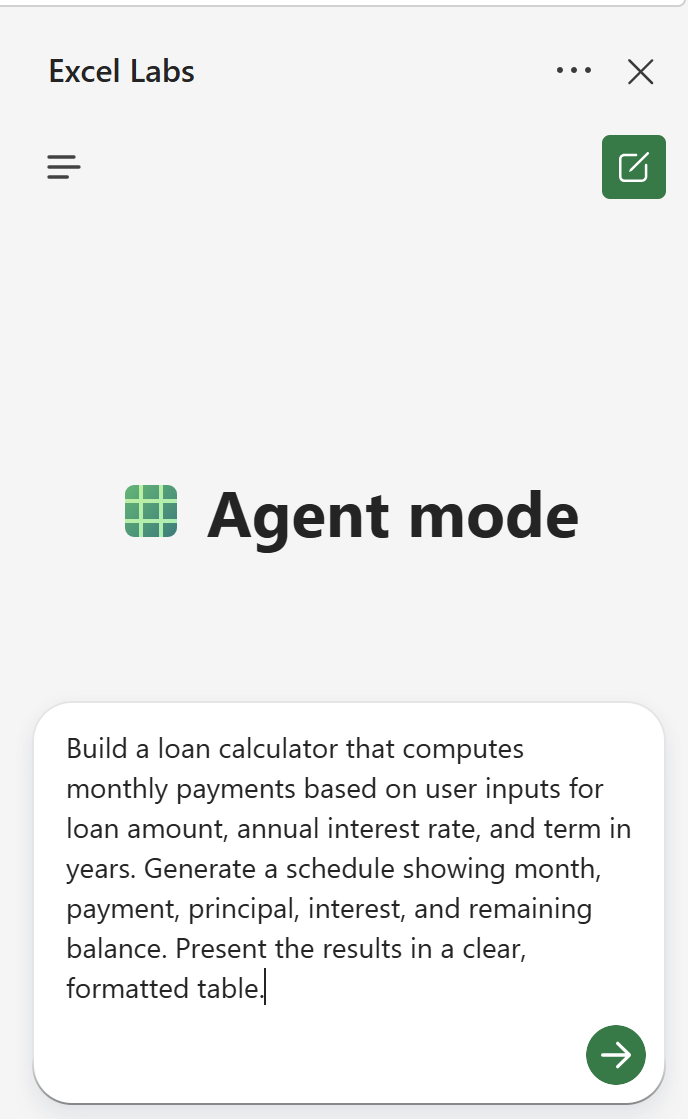
    An example, Microsoft provide is to “Build a loan calculator that computes monthly payments based on user inputs for loan amount, annual interest rate, and term in years. Generate a schedule showing month, payment, principal, interest, and remaining balance. Present the results in a clear, formatted table“. You can see this in the prompt to the left (you can cut and paste this if you like!).

Watch Agent Mode in Excel in action.

I have built a video to showcase the example above which you can watch at your leisure. You’ll see how I work with it, tweak the calculator and add more functionality as I go… This to be mirrors how most people work. Build, check, reflect, enhance…

Excel Agent in action

How is Agent Mode Different to Copilot Chat in Excel?

Agent Mode is really designed to work for more complex, multi-step tasks such as reshaping data, merging sheets, or creating reports with multiple elements. For simpler, one-step tasks like adding a chart or PivotTable, talking about data, help with formulas etc can be quicker.

Because of the way Agent Mode works, it also takes a little longer to provide an initial response and refine it, particularly for more complex requests. But… It’s leaps ahead of what you can do in Copilot Chat alone..

Remember, for more conversational assistance or tasks that don’t make lots of modifications to your workbook, Copilot Chat is a much more suitable option.

Agent Mode in Excel: Availablility and Limitations

Availability: At time of writing (October 2025), Agent Mode in Excel is available on Excel for the web via the Excel Labs add-in in English. Support for other platforms, and additional languages will be included in the future.

It’s still AI.. You need to work with, but what I love is you can now build quite complex models, calculators or calculations with no code, no formatting experience, no charting skills…

It is still in preview, expect it to get perfected.

You can read more at the Official Microsoft site here: Agent Mode in Excel (Frontier)