Copilot to be a core part of Windows 11.

Yesterday at Microsoft Build, Microsoft announced that is making its’ inevitable step in the future of Windows – making AI an integral part of Windows 11 with Windows Copilot.

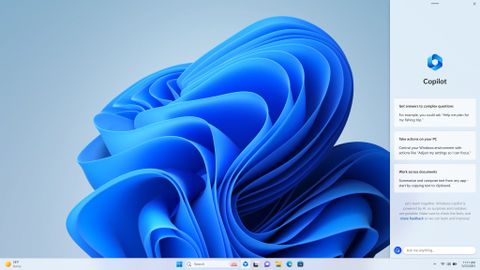
In the (to be expected) incredible sizzle video from Microsoft (see below), we saw how the new Windows Copilot tool will live within the Windows sidebar and will be able to offer contextual actions and suggestions based on what’s currently on screen. The user will also be able to ask natural language questions and Copilot will respond much like Bing Chat does.

Microsoft said initial previews of Windows Copilot will begin as soon as next month with Windows Insiders and Windows MVPs.

It will see Microsoft AI becoming front and centre across more than 1.4 billion Windows users in the coming months.

What will Windows Copilot be able to do?

Microsoft say the Copilot will make all Windows users Power Users. It can be used to accomplish tasks within the OS such as turning on or off wireless, changing between light and dark mode, changing projection mode etc, all without having to fumble around trying to find the specific setting. Windows Copilot will also function as a true AI assistant, summarising documents, opening apps, and even sending documents via email. In short – Windows Copilot is the Cortana that never was.

Microsoft Windows Copilot Announcement Video

Initially, Windows Copilot will launch as a text-only tool, but in the announcement, Microsoft’s envisions that it will evolving into something you can interact with in other ways, like voice – like Cortana once did #RIPCortana.

Extensibility and Third-Party Apps

As was another common theme at Build2023, Windows Copilot, just like Bing Chat, will also support the same third-party plugins that OpenAI’s ChaptGPT uses. This is huge, since it means that in time, any application developer will be able to easily connect their applications and services to Windows Copilot, which is vital for Windows Copilot to not just be limited to its stock apps and Operating System functions.

This means that users will soon be able use Copilot to perform cross-application tasks. For example, it could review and shorten a document, create a Spotify playlist or share a recent photo to your social media platforms or an email all through a single prompt.


AI is going to be the single largest driver of innovation for Windows in the years to come… It’s going to change the way you work, change your interaction models to make it easier. It’s going to understand so much about what you need.”

Panos Panay | Chief Product Officer & CVP | Microsoft.

One thing I will say is that by bringing AI front and center of the Windows 11 operating system, (as they will be doing with Office apps and services, I honestly believe this has the potential to totally change the landscape of how we use and interface with our apps and devices.

What about Security and Privacy

We don’t currently know where the AI processing for Windows Copilot take-place will. It is conceivable that this max be a blend of local processing and within Microsoft’s data centres. We also do not yet know if you must be connected/online to the internet for Windows Copilot to work.

From a privacy perspective, we also do not yet have information about whether things like chat history will be preserved, or if there will be a “private mode”. More I am sure will be made available in coming weeks and once it starts being tested with Windows Insiders next month.

I would image also, that the initial Windows Insiders preview will only be available to the US, as is usually the case when these previews first hit.

Microsoft says Windows Copilot will be available in a preview version for Windows 11 users in June. The feature will then roll out some time later this year.

Will it Cost?

We expect this to be “included” within the Windows 11 license for consumers. Less is known about commercial customers at this point.

What do you think?

I’d love to know your thoughts and feedback. What do you think about the flood gates of AI being injected into every application we use. Is it too soon? What are the potential issues?

ChatGPT vs Bing Chat | Why you need to try Bing Chat!

Image of Bing Logo and ChatGPT logo

Everyone has been talking ChatGPT, but here I want to talk about the similarities, differences, and in my view, the HUGE ADVANTAGES OF BING CHAT OVER CHATGPT. Whilst both look similar in the way they work, are both powered by the OpenAI’s Generative AI technology and are conversational based, the speed, accuracy, quality of their responses and capability differs hugely.

Both Bing Chat and ChatGPT are based on the OpenAI GPT technology.

Natural language chatbot ChatGPT, quickly become the focal point in the tech industry since it was annouced and released to the masses at the backend of 2022. Whilst most initially saw it as a “fun way” to write poems, essays, answer exam questions and even generate computer code, 6 months later we are starting to see the true potential of AI as digitial assistants

We now have a plethora of AI tools, with new ones (it feels) coming every day. Outside of this fun stuff, the AI technology behind these tools is capable of so much more, and we are just at the beginning of what will change the way we interface with our devices and apps such as Microsoft Copilot – more on that here:

ChatGPT debuted in Nov 2022, and in Feb 2023, Microsoft their new AI powered version of Bing with Bing Chat being its’ standout feature, powered by the same technology (be it a Peter, better version) behind ChatGPT – a generative artificial intelligence algorithm created by Open AI. Recently Google had also released their AI chat tool Bard, which is not based on OpenAI GPT technology.

ChatGPT debuted in Nov 2022.

In Feb 2023, Microsoft their new AI powered Bing Chat, powered by the technology behind ChatGPT, a generative artificial intelligence algorithm created by Open AI.

Bing Chat vs ChatGPT – What’s the difference?

Bing Chat and ChatGPT both fall under the category of generative AI, which means they can generate brand-new text that has never been written before.

This kind of AI is useful since rather than leveraging keywords to look for text and return results based on a ranking, it works by providing the answer to the question you ask. Of course, it is only able to do this if it can provide accurate information. To do this is needs access to an entire world of data – like the Internet! So how does it work?

Both Bing Chat and Chat GPT are both built on a large language model (LLM), developed by OpenAI, of which Microsoft now own a majority share.

  • ChatGPT’s model, known as GPT-3.5, has been trained on billions of articles from across the internet but only as recent as end of 2021.
  • Bing Chat uses a newer, advanced, GPT-4 language model which can work with more different media types and not just text. Free to use.
  • ChatGPT offers a paid/premium version of its LLM (also using GPT-4), but it is only available today as a $20 per month subscription service.

The first major advantage of Bing Chat is that it, (since it’s also integrated into their native Bing Search, their Edge browser, and Windows 11), is that it can also search the internet for information and references in real-time. This is a huge advantage, because it’s up to date, but can lead also make it less accurate, since any misinformation it finds upon this search can introduce bias or error into its response. In most cases though, Bing Chat does reference its sources at the bottom of each response, which allows you to quickly verify the Bing’s accuracy and appropriateness by clicking on one of the citations.

Who “knows” more? Bing Chat vs Chat GPT

If you’re looking for information on a technical subject or recent event, Bing Chat will always deliver a higher-quality response as it can search the internet in real time so is “up to date”. ChatGPT does not do as well in recent events as it only has knowledge of events prior up to 2021.

This is the second big win for Bing, since it can be used as a copilot for the Internet, for anything from breaking news headline, shopping, days out, and travel since it does not have date limitations and can use the Internet to keep its LLM up to date.

The third key differentiator between the two is that Bing Chat lets you choose from three modes of conversation – Creative, Balanced, and Precise. Creative mode is closest to ChatGPT’s default behaviour.

  • More Creative: Longer, more descriptive, and “imaginative” answers.
  • More Precise: Shorter, straightforward search-focused answers.
  • More Balanced: Default mode – informative, yet friendly – middle of the other styles.

Visually Speaking | Bing Chat vs ChatGPT

The fourth standout feature for me is that you can use Bing Image Creator to generate images based on text prompts as pictured above. OpenAI does offer DALL-E for the same purpose. However, it’s not integrated within ChatGPT currently. What makes Bing Chat great is that you can use it in the flow of the conversation – or can use Bing Chat to create you an image on the fly. Bing uses also uses OpenAI’s DALL-E AI image generator (it is powered by Bing Image Creator) and has fewer limitations that the official OpenAI DALL-E website.

As shown below, by using the “More Creative” conversation style, you can start with a simple question and then elevate to an image all in the same context and without switching to a different tool.

Image showing text and image in Bing Chat

Where can you use it? Bing Chat vs ChatGPT

ChatGPT launched in late 2022 as a web-based tool and whilst there are a few third-party browser extensions the browser remains the main mode of use.

Bing Chat is free and available to all and accessible via the new Bing home page at https://www.bing.com.

The fifth standout feature for me, is all the other places you can access Bing Chat from. For example, there is a dedicated Bing app, you can access it via the Skype app, directly from the Edge Brower, from the Windows 11 search and via the SwiftKey keyboard app.

Current limitations | Bing Chat vs ChatGPT

Bing Chat is free and available to all and accessible via the new Bing home page at https://www.bing.com. as well as via Skype, Edge, Windows 11 and more. Bing Chat uses he newer, more powerful GPT-4 model and supports image search and image creation.

ChatGPT is also free but available only via the web and is limited to Text and uses GPT-3.5, though you can pay for the premium version ($20 a month) where you get higher-quality responses, thanks to the GPT-4 model and should also get priority access to the service, faster response times, and early access to new features. as they become available.

Bing Chat limits conversation length (currently) to twenty conversations per topic before you need to start again, meaning long back-and-forth conversations may not always be possible. Microsoft says that most people find what they’re looking for within five replies or fewer.

ChatGPT doesn’t have such restrictions and imposes very few restrictions on usage (even the free version), allowing for almost unlimited length conversations.

Bing Chat can understand most major languages including French, German, and Japanese.

ChatGPT will also respond in other languages, but the underlying GPT-3.5 model was primarily trained on English samples and text so responses in other languages are not as accurate.

Bing Chat does not impose limits on use and there is no premium tier. Responses are funded by advertising, meaning you may see ads that show up embedded inside the chat responses. For example, if you ask for holiday recommendations, you may see suggestions from local travel agents.

ChatGPT uses a token system, and you are limited to a set number of tokens per day for the free version. The premium (paid) version removes these limitations. Additionally, ChatGPT does not currently use an advertising model so is cleaner not biased.

So which one? Bing Chat or ChatGPT?

So, ok, I may be biased, but that doesn’t mean I am wrong, but in my experience, Bing Chat offers a far more premium offering over ChatGPT. It is free and is (if you like that), integrated across more of the applications, services, and platforms that you most likely use. My reasons to use Bing Chat are:

  1. Bing Chat can be accessed from Windows 11, Skype, Edge, Bing app and SwiftKey
  2. Bing Chat can search the web – it is natively integrated into Bing Search (the new Bing).
  3. Bing Chat lets you tailor your chat experience – providing a richer experience than ChatGPT.
  4. Bing Chat is not just about text chat, it can use images and even create AI powered images
  5. Bing Chat is uses GPT-4 and is still 100% free. ChatGPT 3.5 is also free but not as good and you have to pay $20 a month to use the better GPT-4 version. So just use Bing!

Questions and Answers

Is Bing Chat the “same” as Chat GPT?

No. While both leverage Open AI’s Chat GPT, Bing AI uses a more advanced model codenamed Prometheus that has more capabilities than ChatGPT. Prometheus is a proprietary technology from Microsoft that uses Bing and GPT to generate responses based on real-time data. Microsoft’s new Bing also leverages real-time information and OpenAI’s next-generation GPT-4 model to generate responses and can also search the internet. You cannot do this with ChatGPT, though there are browser extensions which provide some search functionality.

What does GPT stand for?

GPT stands for Generative Pre-Trained Transformer. “A GPT is a language model that has been trained on a vast dataset of text to generate human-like text. For example, the “Chat” part of “ChatGPT” refers to it being a chatbot”. [source: HowToGeek]

Who Owns ChatGPT?

ChatGPT was created by OpenAI, a San Francisco-based start-up. The same Large Language Model (LLM) also powers Microsoft’s Bing Chat. Microsoft owns a majority share in OpenAI and is also using the technology along with its propriety Prometheus model to power upcoming features in Microsoft 365 co-pilot.

What’s the difference between Bing Chat and ChatGPT?

Chat GPT uses GPT-3.5. Bing Chat uses, GPT-4 – OpenAI’s latest language model that’s smarter, safer, and more accurate. GPT-4 supports image inputs for the first time, allowing you to submit visual prompts like a drawing, graph, or infographic. GPT-4 is also smarter and more “creative”.

Chat GPT does have a version based on GPT-4 but is a paid-for premium service. Bing Chat uses GPT-4 already. Bing Chat is also integrated into Bing, Edge, Skype, and Windows 11.

What is Generative AI?

Put simply, Generative AI is a term used to describe computer algorithms that can generate text, images, videos, and audio all on their own based on natural language queries.

Before Generative AI, most AI systems weren’t highly creative and would deliver far worse results than a human. However, that’s no longer the case with generative AI. With Generative AI, you can ask an AI tool like Bing Image Creator to create a photorealistic image of a “cute blue AI creature with orange eyes” and it will deliver the results you see above. In this case, the AI has not been explicitly taught or trained to produce this image, it creates a unique image based on what it knows and what it has therefore “learnt” based.

As such generative AI is designed to mimic the way humans perform tasks. The first step is to extract patterns from existing data (the LLM), so if you want an AI that can generate a face for example, you will need a large dataset containing different images of faces. With enough training, the learning algorithm will learn what a face looks like as well as understanding the common features that a face has, such a nose, eyes ears, and lips. From here, it can start working on smaller details like expressions, facial hair, and skin tones to create unique images.

Image of people, created by Bing Images.

Summary

Hope you found this blog useful and informative and above it, that it’s made you want to try to Bing Chat. As a reminder, here’s how Bing Chat differs from ChatGPT.

  1. ChatGPT and Bing Chat both use GPT as their large language model (LLM), but Microsoft has adopted a more advanced model for Bing Chat which is more accurate and faster (currently) than Chat GPT.
  2. Since Bing Chat is built into Bing Search, the new Chat feature is more up to date that ChatGPT since it can also leverage web results to feeds it LLM. ChatGPT (currently) does not have knowledge of most recent events like up-to-date news.
  3. Bing Chat is available on more platforms than ChatGPT which seamless integration into Edge, Bing Search, Skype and even SwiftKey keyboard for iOS and Android.
  4. Whilst ChatGPT is great with text-based stuff, Bing Chat also has in-built AI image generators powered by Bing Image Creator (try it – it’s awesome).
  5. Bing Chat uses GPT-4 and is free whereas to get equivalent premium access to ChatGPT, you need to pay circa $20 a month which gives you priority usage and other benefits which include GPT-4 LLMs.
  6. Bing provides three different Chat modes (Creative, Balanced and Precise), while ChatGPT does not have any settings or fine-tuning its output and response mode.
  7. Bing Chat always provides links to its’ data sources whereas ChatGPT does not.
  8. Bing Chat supports many non-English languages and is trained on more than English. Whilst ChatGPT can understand non-English languages, its training was primarily on US English words and samples.

Set and change work hours and location from Outlook

Microsoft has announced a new feature to Outlook (initially on the web) that will allow employees to set up their work hours and location (WHL). Originally teased almost 18 months ago, the feature (tagged 88822 in the Microsoft 365 Roadmap) will let users specify the hours they will be working, and if they will be in the office or working remotely.

The feature is rolling out now (May) to preview users and will be generally availability by June 2023.

This comes because, according to Gartner, from the home office to flexible working, to days in the office and to the front line – the way we work continues to change and evolve. There’s more permanence in the flexibility people have come to expect in how they work.

By the end of 2023, 39 percent of global knowledge workers will work hybrid, up from 37 percent in 2022.

Gartner 2023

An “Outlook” for flexible work

With more people working longer days, shorter weeks or flexible hours, employees will be able to specify different working hours per day, or multiple work slots in a day (for example to fit around school / childcare). For those organisations using Microsoft Teams, which have this feature enabled in Outlook, the location status will also be displayed on their Teams profile card.

The new WHL also impacts how “suggested times” work when creating a meeting event in Outlook on the web. Suggested times will take into account the WHL of the attendees before suggesting times when people are available.

Microsoft.

Other employees within the in the organisation will be able to see their team and colleagues, working hours, and whether they are working in the office or remote when using the Scheduling Assistant in Outlook on the web or in the Teams profile card.

Work hours and location in Outlook.

If users don’t set up WHL, nothing will change.

This feature lays the foundational groundwork needed to support the upcoming Microsoft Places.

Setting your work hours and location

To set your work schedule in Outlook on the web, you simply need to: 

  1. Select SettingsView all Outlook settings Calendar.
  2. Choose Work hours and location, and then define your work schedule by choosing days, times, and locations. 

When your schedule changes, you can make the changes in the Calendar view in Outlook or directly from within Microsoft Teams.

Viewing others work schedules

You can view others’ locations when scheduling from Outlook or when viewing their profile card in any the Office apps.

From Outlook, when scheduling a meeting, any employee that has set up their work hours and location, will have their work location and availability shown in the Scheduling Assistant, as shown below. This is also great for shift and part time workers.

Viewing team office hours

What is Semantic Index for Copilot?

Semantic Index for Copilot promises to help organisations get ready for AI within their workplace. What is it? How does it work? and Why will we need it?

Last week as part of Microsoft’ annoucement about the next stage of the early previews of Copilot, they also annouced Semantic Index for Copilot, which will allow organisations to better prepare their data and users for Copilot by creating a “sophisticated map” of user and corporate data.

Image (c) Microsoft

This map is formed by encoding and indexing the keyword searches by uses into a vector that combines the phrsses, meanings, relationships and context of the data. This map is used to help Microsoft 365 Copilot to essentially learn more about your organisation (privacy and data protection being preserved of course), allowing it to better respond to user queries or “prompts.”

Available soon (for no additional cost) for Microsoft 365 Enterprise [E3 and E5] customers as well as Microsoft 365 Business Standard and Premium, it will work with the Copilot subsystem and the Microsoft Graph to create a sophisticated map of all the users, data and content in your organisation. It’s purpose will be to identify relationships between people and data, helping it to create important connections between them. Organisations will be able to use this to test the responses, answers and deductions formed by Copilot to help clean up, secure and better govern data eliminating the “garbage in, garbage out”, ensuring it will be able to deliver relevant, actionable responses to prompts based on data held within the company. This little video from Microsoft helps bring the process to life:

Microsoft video on Semantic Index for Copilot

Copilot’s new Semantic Index feature should help the chatbot locate and fetch the correct data requested by a user rather than spitting out every result based on a keyword search.

As the technology community eagerly anticipates the wider release of Copilot, Microsoft’s ongoing efforts to enhance its functionality and expand its accessibility represent a significant step forward in harnessing the power of AI to empower users and streamline work processes. Last week the early preview was extended to 600 (invite only) organisations across the US.

Microsoft also shared new upcoming improvements to their existing products which will become AI infused. These annoucements include the integration of Copilot into Whiteboard, Outlook, OneNote, Loop, and Viva Learning. They also said that new image generation features powered by DALL-E are coming to PowerPoint.

Finally, a reminder from Microsoft that they are committed to ensure tbeir AI solutions adhere to their strict Responsible AI Standard while providing meaningful benefits to their customers.

Microsoft’s Work Trend Index reenfoced our ‘need’ for AI

In order to further remind us, why we lift like Copilot is needed in today’s work environments, Microsoft also revealed the results of their 2023 Annual Work Trend Index.

This report is based on surveys of 31,000 individuals spread across 31 countries. Microsoft’s findings this year indicated that there has been a drastic increae in the volume of assigned work and the pace required from employees. The report claims that leaders, managers and workers are more looking towards AI solutions to reduce their respective workloads, rather than being scared about jobs it may replace.

The work trend index also highlights the following key points..

  • 62% of employees spend unnecessary time searching for information, as well as communicating and coordinating across teams, leaving little focus time
  • Nearly two-thirds of the respondents noted that they did not find enough time to do their actual job
  • 70% of respondents would prefer delegating some of their workload to AI copilots
  • With the rise in AI-powered solutions, 49% are concerned about job security
  • Managers are 2x more likely to empower their employees with AI rather than replace them with it
  • 82% of enterprise leaders believe that their employees will require new skills in this age of AI, including prompt engineering and enhancing their workflows by integrating AI
  • There has been a 79% year-over-year increase in LinkedIn job postings which have used words like “GPT” and “GAI” (generative artificial intelligence)

More reading..

Preparing for Microsoft Copilot

Everyone got very excited when Microsoft introduced the world to Microsoft Copilot back in March this year and just yesterday they reached a new milestone, after annoucing a private preview with just 600 global customers.

But… One of the questions I get asked a lot (between colleagues, partners and customers) is “…are there things we need to do to be ready for Copilot when it becomes available”.

The simple answer is yes – if you want it to work as expected

The longer answer is “it depends” on if you plan to use it, how well your current data is structured, organised and governed, and what processes you have in place around user education, training and change management.

Based on the work I have been doing with Microsoft, this list is aimed to provide the key things, suggestions and considerations for IT, managers and leadership on things you’ll want to get ship-shape while we wait for Copilot to be more generally available, which my sources tell me will be late 2023 to Q1 2024.

1. Get your data in shape.

The reason Microsoft 365 is the productivity suite of choice for so many (arguably most) organisations is because it brings together applications, data, groups, users and services into a common and integrated suite, as well as providing thousands of connectors to allow organisations to connect third-party apps and data into mix.

Powered by the Microsoft Graph, Microsoft 365 already has the power to connect people, teams, and organisations across all their apps and services in an intelligent and context aware, with AI powered services scattered across the Microsoft 365 apps and services you use every day….

With Microsoft Copilot….this will move to a whole new level.

Copilot will put conversational AI at the front and centre of every app and service you know and use. Leveraging personal context, re-generative learning and of course the Microsoft Graph, Copilot will make its’ own deductions on what you ask, what you mean, and how you work. Whilst it will learn and evolve, it will of course, still be dependent on your organisational data, and how its structured, governed and secured.

This means if you have say 50 different documents spread out in 15 different locations that talk about your company strategy or business objectives, and only one of them is the up-to-date version. How will Copilot know which version is correct when it needs to surface information based on a request? In the same way, if the management and reporting structure, job titles and other information is incorrect in Azure AD, Copilots’ decisions and advice around people will also likely be incorrect.

To help, organisations get AI-ready, Microsoft have announced that they will soon start to roll out a service known as Semantic Index for Copilot. This is a new service coming to Microsoft 365 which will create a sophisticated map of your data to help you test how Copilot will ingest and act on your data. Image for example a sales manager asking for “FY23 Sales Report,”. Copilot will be data and context aware, meaning that it will not simply look for documents that contain keywords in the filename or text body. Instead, Copilot will try to “understand” and “learn” about who within the organisation produces such reports, when they are shared, and where they are shared to.

Microsoft say that Semantic Index for Copilot will be a vital tool to help organisations ensure that employees will get predicable, relevant, accurate, and actionable responses to their asks of Copilot and will help your organisation to “tweak” their data lifecycle and governance to ensure that the data Copilot acts on is correct and accessible (or not) by the right people.

What should you do?
1. Check and refine your SharePoint and Teams lifecycle, governance and compliance policies
2. Speak to your Microsoft partner about a funded data governance workshop
3. Review and update Active Directory (or connect to HR to ensure these are up-to-date)
4. Look out for the release of Semantic Index for Copilot to "test your data"

2. Get your security in order

In a similar fashion to making sure our data is correct from a version and validty perspective, if we dont get our security and access control polcies in shape, we risk Copilot duiscovering data that a employee or team may not “meant to have access to”.

In the much the same way that the Office 365 apps “discover” the data around you – presenting files that your collegaues and teams are working on together, Copilot will do the same but on a whole new level, as what is searches for, indexes and uses, will be instructed by the user rather than simply surfaced.

Just like the rest of Microsoft 365, Copilot will adhere to the security, privacy, data governance and data sensitivity policies that has been set-up within your organisation, and will not provide information that the user doesn’t have access to. It may suggest for, example, “you dont have access to that, you may need to request this from Pam in accounts”.

The potential problem of course is that many (ok most) organisations have a sprawl of Teams sites, poor or inconsistent data governance, and inadequate user training, meaning that put simply, you may not realise the sheer amount of information and documents that is being shared within your organisation, and more importantly who actually has access to what data and how many copies may exist and where!

We all worry about Security – do we have MFA? Do we have conditional access configured? Are account protected? Is sensitive information protected? etc. We know the slogan “hackers dont hack in, they login” – just imagine if you have Copilot, and a users’ identity gets compromised. They log in, and with Copilot at their fingertips, they don’t need to worry about where stuff is stored as Copilot will do all the discovery for them!

So what can you do?
1. Review and refine your document management, security and privacy policies - perhaps introduce or enforce DLP and Data Classifcation - aka Microsoft Purview
2. Review your security posture, MFA enforcement, risk based conditional access etc
3. Create straightforward instructions and train people where to store documents and how to protect and secure them
4. Run a pilot and look at adoption data loss prevention and information classification to protect sensitive data.
5. Speak to your Microsoft partner about a funded workshop for 1, 2 and 3.

3. Explore, Plan, Experiment – but treat it as organisational change!

The release of Microsoft Copilot is still a little way away (it is a closed Private Preview today with around 600 global organisations) and there are currently no dates on the roadmap for a public preview mainstream release. There is also no pricing yet about pricing.

What we do know is – it is coming and it will fundamentally impact and change how your people and teams will work. Yes, there is still an element of hype, lots of desire to test it out, loads and loads of questions and lots of unknowns.

Communication and training is going to be a key part of sucess. How do you interface with AI? Yes its’ intelligent, but it’s not a human, therefore people need to be taught how to best work with Copilot. Bear in mind most people use around ten percent of the functionality of say Teams (with most just using basic functions like chat and calling), but to get the most from it, users need to know what to expect, how to use it and how the organisation wants (or not) employees to use it…

Create a pilot group and mini success team. Use this team to keep up-to-date with the news and blogs and above all make sure leadership, management and IT are “in the know”.

Start communicating your plans for Copilot and AI in general. Employees will and should have questions. Are there roles that might change or not be needed? Will you stop hiring? Will you wait and see? It will be important to talk to, and listen to employees, and ideally form a “success with AI” unit, bringing people together from different parts of the business, to discover the challenges they face in their everyday work and how they think and hope AI will help them.

Above all – think of this like a project (one of continual change). Depending on your business, AI will have an impact, and the whole organisation will need to understand and embrace this change (once we have it all working of course). Consider an AI abmassador and follow your usual approach to change management with a roadmap, PoCs, pilots and feedback groups so you hit it head on, with ideas, and a solid vision but with room for hiccups, course changes and surprises on the way.

That sounds like a lot - what can we do?
1. Build a success unit (could be a Team site of Viva Community)
2. Get onto early adoptor programmes when availble, go to the AI conferences and start to leverage demos etc when available.
3. Talk to your peers, partners, and Microsoft Team and look out for funded workshops which will likely be available from summer.
4. Read Microsoft's Worklab report on working with next generation AI (it's a good read).

4. Keep Calm – it is coming but there is time to prepare

Microsoft has just announced the launch of their Microsoft 365 Copilot Early Access Program. It’s an invitation-only, paid preview program that’s set to roll out to only 600 clients across the globe at first in the coming weeks.

They say that they have received overwhelming feedback from their initial early preview clients, they have been “testing the concepts” with. They say those clients have indicated huge benefits to business and the ways in which it can transform and reshape work. In recent months, Microsoft have also released further information around how Copilot will will impact other applications such as Viva, Dynamics 365, Teams and more with new capabilities being announced almost weekly.

This new generation of AI will remove the drudgery of work and unleash creativity…There’s an enormous opportunity for AI-powered tools to help alleviate digital debt, build AI aptitude, and empower employees

Satya Nadella |Chairman and CEO |Microsoft

We will know more as we move forward – there are lots of moving parts – previews, public previews, (potentially) governments getting in the way, data soverignty issues (today data is only processed in the US and not local in local geo), licensing prices and of course availabilty….

In fact – this is probably already out of date as its a rapid moving landscape, and this is just the tip of the iceberg and just Microsoft.

What should you do?
1. Keep checking with your Microsoft team,. your partner and the Microsoft 365 Roadmap
2. Start thinking roles that will be positively affected by AI in the workplace. Speak to users, buid your success team.
3. Think about new skills your teams will need to work along side AI.
4. Read Microsoft's Worklab report on working with next generational AI (it's a good read).

What is next in CoPilot?

A good question….

When Microsoft annouced Copilot in March, where they showed the value concepts in apps like teams, Powerpoint and Excel, they said that this was “just the beginning”. Over the last couple of months, Microsoft have continued to tease new Copilot capabilities to bring AI to every part of Microsoft apps and services. The key annoucements (since the actual annoucement include):

  • Copilot in Whiteboard – which will make Microsoft Teams meetings and brainstorms more creative and effective. Using natural language, you will be able to ask Copilot to generate ideas, organize ideas into themes, create designs that bring ideas to life and summarise whiteboard content.
  • Copilot in Outlook will offer coaching tips and suggestions on clarity, sentiment and tone to help users write more effective emails and communicate more confidently.
  • Copilot in OneNote will use prompts to draft plans, generate ideas, create lists and organize information to help customers find what they need easily.
  • Copilot in Loop will helps your team stay in sync by quickly summarising all the content on your Loop page to keep everyone aligned and able to collaborate effectively.
  • Copilot in Viva Learning will use a natural language chat interface to help users create a personalized learning journey including designing upskilling paths, discovering relevant learning resources and scheduling time for assigned trainings.

Q&A – This will evolve

QuestionWhat we knowSource
Where will the data be processed by Copilot?Microsoft have said that currently all processing will take place is the US. It will eventually be regionalised based on customer tennant. No time scales yetMay 2023: Microsoft 365 Conference
Will Copilot respect data seciuroty and soverienty?Yes -Microsoft have made it clear that Copilots’ sphere of access will be limited to the user context in which it runs, goverened by your organisation’s policies. May 2023: Microsoft 365 Conference.
When will Copilot enter public preview?No dates annouced yet. Be sure to keep an eye on the Microsoft 365 Roadmap.
Will there be charge for Copilot.No offical news but the expectation is yes.
Q&A Table.

What do you think?

Like you, I am still working out what this means for our business, my teams and my people. I welcome your feedback, thoughts and ideas.

Getting started with Microsoft Loop [preview]

Microsoft Loop was originally announced back in late 2021 and a “next-generation co-creation app that connects teams and tasks across your tools and devices. It’s a new way of working – so you and your team can think, plan, and create together from anywhere!” | Microsoft.

Microsoft Loop “launch video”

Loop introduces a new collaborative way for people to come together and collaborate in new and simple way, breaking down the traditional barriers and issues of over emailing, co-authoring, and sharing. The flexible interface means employees can organise their workspace the way that works best for them.

Microsoft have been working for years to create a new kind of dynamic Office document, known as fluid. The core idea is to transform the tables, graphs, and lists that you typically find in Office documents into living, collaborative blocks of content that exist anywhere.

For me, what makes Microsoft Loop different is the sheer ways and places in which live collaboration can take place – from any Office App

One loop component shared in many places.

This means for example, that you can create and share loop components (a pool, list, paragraph etc), a loop page (consisting of multiple loop components), or a loop workspace (multiple loop pages) via any, or multiple methods such as in an email, a Teams chat or within say a Whiteboard. The loop component exists once, and all changes and updates are therefore update in real time no matter where they are.

Getting started with Loop

You can get started with Microsoft Loop by signing in with your work (or personal) account at https://loop.microsoft.com. You can also download the Loop mobile app for Android and iOS to access Loop on the go. I’d also strongly suggest pinning the Loop webpage as an app to make it easier to access like you would Word or Teams. You can do this from the tool bar in Edge.

Pinning Loop as an App

Microsoft say that the primary goal of loop is to help “break down silos between apps, people, teams, tools, and devices – enabling your people to be more efficient when creating or organising content” when compared to the current method of document sharing and co-authoring (though there are similarities to the latter).

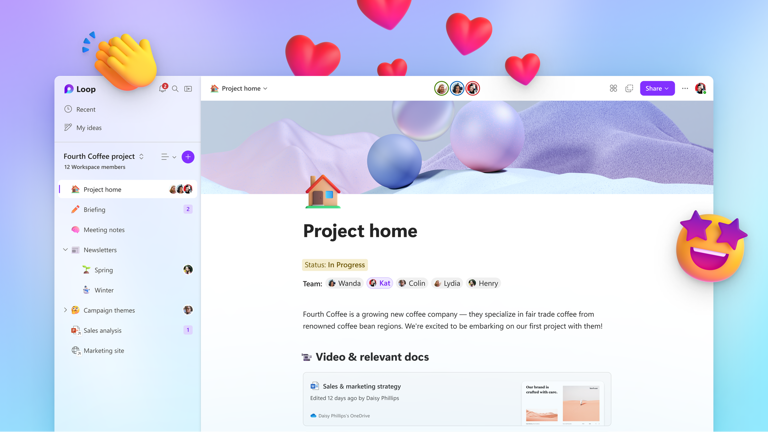
Microsoft Loop has three main elements, which are made up of components, pages and workspaces.

Loop workspaces: shared spaces that allow you and your team to see and group everything important to your project. You can easily catch up on what everyone is working on and track progress toward shared goals. These contain loop pages.

Loop pages: flexible canvases in the Loop app where you can bring together people and all your components, links, tasks, and data. Loop pages can start small and grow to match the size of your ideas. You can share them across Microsoft 365 apps as a link or as an embedded Loop component. These contain loop components.

Loop components: are portable pieces of content that stay coordinated across all the places they are shared. They can be lists, tables, notes, and more. You can use them in your preferred app, like Microsoft Teams, Outlook, Word, Whiteboard, and the Loop app.

Loop | Image (C) Microsoft

So, you might be in a Teams chat and working on a quick table or list with a couple of a whole team of people. Rather than all send out multiple versions or create a formal document, you can quickly create a loop component in Teams and then if you need wider input, share that component in an email for others to review and edit – the table will be updated for everyone wherever it’s embedded or updated from.
Check out the example below.

Similar Products: Microsoft Loop is designed with collaboration and co-creation in mind. The main interface looks a lot like Notion, a workspace app that is used by Adobe, Figma, Amazon, and many other businesses. What makes Loop different is the seamless integration across the rest of the collaboration tools employees use in Microsoft 365. 

Benefits of using Loop

Microsoft Loop can help you work better with your team in many ways. Here are some of the benefits of using Loop to work:

Stay coordinated without switching apps: Loop lets you get more done from where you are working without needing to switch apps since Loop components synchronise across apps in real time meaning no copying and pasting information or switching between apps.

Get started quickly: Loop lets you kick off projects or discussions with intelligent suggestions and page templates along with quick access to add the other components you need to work together.

Work together wherever, whenever: Loop is all about collaborating on ideas asynchronously. Loop is simple to use, fluid and intuitive meaning people can come together regardless of time zone, location, and work preference.

Seamless integration across Microsoft 365 Apps: Loop lets you also assign tasks, have task lists, and therefore assign actions. As you’d expect these are fully integrated into the native project and task management features across Microsoft 365. This means teams can create progress trackers and custom labels and have these automatically synchronised up to Planner and To-Do.

Loop Use cases

Ok, so why might you want to use Loop? Afterall, people have been collaborating, brainstorming, working on stuff together for ever using the tools we already have. Since Loop is about breaking away from the constraints of the app and instead focusses on collaborate content, there are some notable examples of where organisations are using Loop to help with:

Brainstorming ideas: Loop is a great space to use components, such as lists, tables, or notes, to quickly create and share your ideas with your team. When available, Copilot will be able to be used to get AI-powered suggestions.

Creating a project plan: Loop pages can be used to make a dynamic project canvas. Since Loop page can leverage sync components such as Todo lists, planner boards and other components, you can create a flexible canvas for the project that is more creative. From here you can easily add components, such as tasks, calendars, roadmaps, and charts, and you can even link to other loop pages, files, or websites to pull all the project resources together in one place.

Preparing a Presentation or Executive Summary: Rather than sharing files and emailing back and forth, you can use Loop components, such as paragraphs, images, lists etc to draft and refine a presentation or document summary. You’ll also be able to use Copilot to improve your writing and generate content or create a starting point from another document. You can also insert Loop components directly into other office apps meaning they can contribute and review without needing access to the full document. This can also be useful for sensitive docs with limited audience.

Running a Meeting: This will soon be how meeting notes work in Teams – but, Loop components, such as agendas, notes, or polls, are a great way to plan and run meetings in real time. Since you can then share the agenda, actions, and other information into other apps like email and teams, these components (such as actions) can be updated easily from anywhere.

Loop Adoption tips

As with anything new that changes how we work, the key with evaluating the use cases of Loop are to start in a confined group.

Start small and simple: Loop is a new way of working together, so it might take some time to get used to it. Start with simple use cases, such as brainstorming ideas, creating checklists, or sharing notes. Use Loop components in your existing apps, like Teams or Outlook, to see how they can enhance your collaboration.

Show the value and benefits: Loop can help people work more efficiently and creatively. As you find use cases of your own, showcase these and spread the loop love. Show others how Loop can save time, reduce app and context switching, and keep everyone aligned. Share examples of how Loop makes the process easier than for example sending emails back and forth.

Be flexible and open-minded: Loop is a flexible and dynamic platform that can adapt to the diverse needs and preferences of different people, use cases and needs. Be open to trying new ways of working together and experimenting with different components and pages. Loop is designed to empower you and your team to co-create like never before.

Get feedback and support: Loop is new and in preview, so it’s not yet a finished product. Ensure you discuss issues and feedback using the feedback section in the Loop app. There are also loads of useful help articles and user groups on linked in and in the Microsoft Tech Community.

TIP: Modern Work Mentor does some great videos and tips on Microsoft 365 apps including Loop - make sure to follow him on his YouTube channel

Current Limitations

Yeah – it’s still in early preview so several things are not where they will be. For me one, the things I hope come soon are the ability to use Loop with guests/external users as today they are “internal only”. It would also be nice to be able to use Loop within Teams Channels (when used in a chat, the Loop is stored in the users OneDrive which is pain). I know both are high on the agenda for Microsoft.

What about Copilot?

Copilot will also be coming to Loop at some point (they do like to tease it) and is currently in private preview with a subset of organisations. Microsoft say that users will be able to use AI-powered suggestions to create a “brainstorm or blueprint”, with Microsoft adapting its Copilot to support a multi-user mode where people can work together with Copilot and ask it questions and manipulate the responses.

Microsoft takes on Canva with Designer (in Edge)

Microsoft Designer Logo

Microsoft Designer was first announced back in August of 2022 and has been available in a limited preview to since January this year to gain early feedback from users.

This week however, Microsoft announced that (whilst still in preview), the AI driven social media content creation platform would be available for anyone to try. Microsoft also announced plans to include the tools into their Edge browser in much the same way they have provided the ability to use the new Bing AI search.

Screen showing sign-up for Designer social media creation tool

Introducing Microsoft Designer

Microsoft Designer is a “Canva-like” designer tool aims to provide a simple, sleek and AI infused tool to help business and consumers quickly produce high quality online content such as social media posts, greeting cards, banners, branding, alerts, promotions etc.

Powered by DALL·E and built as a progressive web app, Microsoft Designer is the latest AI powered tool now in ‘preview-mode, which joins Bing Chat and Bing Image Creator along with many other tools which can be accessed on their own or from within the sidebar of their Chromium powered Edge browser.

Available from https://designer.microsoft.com or from the Edge side bar, users can use Designer to manage and create animations, impressive visuals, text, and design templates specifically for sharing on social media sites like Twitter, Facebook, TickTok and Instagram, or of course on enterprise social tools within an organisation like Viva Engage [aka Yammer].

Example of a Microsoft Designer Page for my upcoming fireside chat!
Example Designer design (c) Rob Quickenden

Here’s some of the great things you can do today in Designer.

  • Easily create designs with >20 different social media layout sizes across Instagram, Facebook, and LinkedIn.
  • Automatic (manual override) of elements such as text, video and images to best accommodate your chosen layout, reducing time needed to manually format you posts.
  • Wide range of animation features including auto text transitions and animated backgrounds.
  • Save or share directly with social media your finished creations.

Being in preview there is still more to come and the app will continue to evolved based on user feedback and their development lifecycle. Here’s more AI powered tools that Mcirosoft are working on which will be coming “soon”.

  • New Fill tool that allows users to select an area of a design and quickly place an object in that location
  • Simple erase function which will allow the user to brush over a person/object in the design and have Designer remove the object, generate and replace it with another image
  • Expand Background tool, which will be able to quickly fill any gaps within the foreground of your design, and
  • Replace Background which will be able to switch the background to a new one preserving the rest of your design.

Why integrate into Edge?

Microsoft say that by integrating Designer into Edge, they are bringing these capabilities straight into where people work. Since it will be accessible directly via the edge sidebar, users can access it by simply clicking on the Designer icon. Microsoft say this makes the tools accessible and “in the flow of creativity“, meaning users can quickly create unique designs instantly by simply describing the graphic you want without needing to leave the page they are, switch windows, load apps, or download custom extensions to the browser.

Coming soon - designer integrated into Microsoft Edge.
Coming soon: Designer integration directly into Edge sidebar. Image (c) Microsoft.

The aim is to improve the workflow and “keep you in the moment” – since whilst creating a social media post, Designer in Edge will provide AI-powered design suggestions to include in the post, which can then be customised and published without needing to leave the browser of switch apps.

As with any preview, Microsoft encourage users to feedback on their experience of using designer – both as a dedicated service and as a Edge browser integrated experience.

Competing with the Design giants

Designer is still in preview and there is lots Microsoft need to do to get it to the level of comparison with other apps like Canva and Adobe, both of whom have recently released their own AI-powered features. Microsoft have done a great job so far and by opening the preview up to the masses and with their recent investment in OpenAI, I expect a plethora of enhancements and new features to keep coming.

Windows 11 beta 22624 previews new widgets experience.

Microsoft has released Windows 11 Insider builds ( 22621.1680 and 22624.1680) with fixes and new features. Build 22624.1680 gets fixes and new features whereas 22621.1680 just gets fixes this time round. The full release notes are here.

Evolved Widgets Board

Microsoft say they are starting to revamp the widget board  experience (based on user feedback).

Image showing updated widgets board in Windows 11 beta build 22624

This includes a larger (dynamic) canvas (3-columns if supported by the device) and introduction of new zones to provide quick access to new glanceable widgets from their apps and services. Users will also be able to take a high-value break with their personalised feed which will more personalised and customised that the current version.

Feedback request

As always (and an ask from the Windows Insider community and Dev team is) “please file your feedback” on the new experience using the Feedback Hub (🪟 + F, Desktop Experience, Widgets).

Spatial Audio brings next generation audio to Teams

Decorate logo

Now in public preview, you can now make your Microsoft Teams calls now sound much more pleasing to the ear as Microsoft gives Teams a huge audio quality upgrade in the form of spatial audio support.

What is spatial audio?

Spatial audio works by virtually positioning sounds in the space around you which makes communication sound and feel more natural, inclusive and focused. It makes a significant difference and once you’ve experienced it, you won’t want to turn it off.

Spatial audio can make audio within the Teams meeting more natural, inclusive and focused for all. Spatial Audio is already used by lots of video and media platforms to improve the audio quality in films and music etc. For Teams, it now makes sound though stereo devices sound much more immersive and realistic, significantly improves the quality of virtual meetings.

This means that during a meeting, you can hear exactly where each participant is located, as if they were physically present in the same room. The result is an immersive and realistic sound experience that enhances collaboration and communication.

Another benefit of Spatial Audio is that it reduces background noise and echoes. This creates a clearer and cleaner sound, improving the overall sound quality of the meeting. This is especially useful for people working in noisy environments or with less than optimal acoustics

“This new audio experience spatializes the voices of attendees across the visual meeting stage in the Gallery view. This helps make conversations more natural, increasing the sense of audio presence, and making the conversation easier to follow when multiple people are speaking together”.

Microsoft.

Spatial Audio | Pre requisites

Devices: To use spatial audio within Teams, you need to be using USB-wired stereo headphones, your laptop stereo speakers or external / monitor stereo speakers. Bluetooth audio is not currently supported for spatial audio – but it soon will.

People: To experience this effect, the meeting must have more than two participants in gallery view.

Bandwidth: To preserve audio quality, Teams will turn off spatial audio if your network’s bandwidth or computer memory is too low.

Teams Client: You need to be using the Teams Public Preview (it will be generally released in mid June).

How to turn on Spatial Audio

With spatial audio enables, when people speak, you’ll hear their voices coming from their relative positions on the meeting screen as per the gallery view. Here is how to enable it..

Before the meeting
1. Go to your Teams calendar and select the meeting you’d like to join.
2. Before you join, select Device settings.
3. Under Speaker section, make sure you select your compatible device.
4. Toggle the setting to enable Spatial audio.

During a meeting
You can also activate Spatial in the meeting by
1. More “…” > Settings > Device Settings:

Notes and other info

  • Spatial audio will be enabled in Gallery view
  • For the best exleriwnxe, you need three or more attendees in the meeting.
  • 1:1 calls and large meetings are not yet supported (but will be).
  • Wireless audio devices are not yet supported (but will be).
  • Feature is in public preview now and expected to available to all mid-June ate May to mid-June 2023.
  • This is Microsoft 365 Roadmap ID 107783.

What else is on the Microsoft 365 roadmap?

New features are added or annouced weekly with new ones coming for the collective MVP community and user feedback. The Microsoft 365 Roadmap can be accessed here. https://microsoft.com/en-gb/microsoft-365

What are Edge Workspaces?

Originally announced at Ignite in October 2022, Edge Workspaces provides a new way for people to separate browsing tasks into dedicated windows so you can stay focused and better organised across research and search related tasks.

As example, you might (like me) be planning a family holiday – with each family member doing their own googling (sorry binging) and research around where to go, where to stay, how to get there and where to eat. Now – rather than everyone sharing links on messaging apps, Edge Workspaces aims to provide a streamlined and more synced way to research together – through the creation of “shared workspace in Edge” dedicated to what ever you need to do together. These spaces (you can have multiple) can have their own name and colour, set of tabs and individual favourites. What’s great is that these can be co-authored and updated by everyone, making it much easier to keep in sync and stay focussed by keeping this in its own workspace.

Note: you you don’t have to share them…. Just good for organising….

Create your first workspace…

The first thing you do when you start using it is to create a new workspace [you need to be enabled for the preview first – see below to enable it).

First, if enabled (you need to be running Edge Dev), you will see the workspaces icon on the top left of the Edge browser. Edge will then walk you through getting started – it’s fairly straight forward as you can see below.

Getting started with Edge Workspaces (preview)

I will create a new one.. (yes we need to book a family holiday)

Choose a name and theme colour.

Workspaces then appear at the top of the page (in the colour you chose at set-up)

Research as normal

From here, you can do a bunch of things!!! For example you can add edit the workspace, and most importantly, invite people to your space to start collaborating with you… To do this, simply click the “invite to workspace”.

Let’s share our workspace…

To start sharing, select the “invite to workspace“. Edge creates a unique sharing link and from here you can simply copy and paste the link and send it via email or other preferred method. When they click on the sharing link (assuming they are running Edge Dev too), they will be able to start collaborating.

Staying on the same (web) page

Once the other people you invite accept the invite (see below), they can start adding to your shared workspace with you with the changes happening in real time.

Security First: Each member will only see content that they have access to. You must be signed in with a personal account to use Edge Workspaces, and Microsoft will not share browser or confidential account data like logins, cookies, and passwords with anyone else who has access.

I also wish there was a OneNote or Digital scratch pad in the workspace, to allow members to add notes and comments. – have filed this as feedback.

Does it work on mobile…? Not yet. I’m running Edge Dev on my Samsung phone and currently cant see my shared workspaces… hopefully this will come soon (feedback filed).

Getting access to the public preview

If you’re ready to get on the same (web) page and try out Edge Workspaces, you can access the preview here. The pre requisites are quick short but Microsoft are limiting how many people get access in the first wave!

  • You need to be running Microsoft Edge version 111.0.1661.51 (or higher) and also need to be signed in with your Microsoft account.
  • As a previewer, you get five (5) invites to send to friends and family to allow them to also join the preview.
  • Workspaces are only available on PC and Mac to start with (hence wont be accessible on mobile yet).

Surface Pro 9 5G – how the latest Surface aids hybrid work

Surface Pro device being used in space (AI Generated image)

After using as Surface Pro 9 5G for 6 weeks as my daily device, this blog is my hands-on review of, IMO, an “almost” perfect device for working from “almost” anywhere!

Surface Pro 9 5G is a super thin, every bit premium, two-in-one device that continues to improve over the previous iterations. It has superb battery life and fast, always-on data with support for 5G sim and e-sim.

The Surface Pro 9 5G (SQ3)

The Surface Pro 9 range is beautifully designed, and is the first model of Surface device to come with the option of super-fast 5G support built in. Note that the Surface Pro 9 comes in two variants. The Intel version (without 5G) and the SQ3 [ARM-64] version which features built in 5G chipset along with a new NPU chip which adds additional uniqueness to the device (more on that later).

Surface Pro 9 with 5G
What I loved about itWhat liked less!
✔️ Great battery life and fast 5G connectivity❌ Windows on ARM still needs stability improvements
✔️ Premium build quality❌ Feature differences between Intel and SQ3 (ARM) models is confusing
✔️ Best-in-class kickstand, keyboard and pen / inking experience ❌ Not all colour options available across the range
✔️ NPU – provides advanced AI powered camera and voice call features❌Still need to buy keyboard separately,
✔️ Full HD webcam
✔️ Supports USB-C charging
Surface Pro 9 5G likes and dislikes

Overall look, feel and use

The Surface Pro 9 5G is every bit gorgeous in design and feel as previous Surface devices and looks almost identical to its sister the Surface Pro 9 (Intel version). Both are premium in every way, and feature the impressively thin, aluminium case, 13-inch 120Hz PixelSense display, and perfectly designed (optional) type-covers keyboard which now also houses the (also optional) Surface Slim Pen 2. Both models feature the built-in kickstand, which lets you prop up the screen on a table and adjust is smoothly to any viewing or working angle.

The Surface Pro 9 5G claims to have a 21-hour battery life, positioning it as the ideal choice for remote users who need a slim, sleek device without the need to carry a power supply and use clunky, unsecure coffee shop internet hotpots. This device is simply perfect for that [almost].

In my experience, the battery life was simply the best of any Surface I have ever used. Even in video calls all day and with multiple apps running, a mix of wireless and cellular (5G) usage I still have close to a third battery remaining after a 10-hour day here, there, and everywhere.

On the Surface 🤣 – outside of the internal upgrades and battery, the Surface Pro 9 is almost identical to the Surface Pro 8 and hardly distinguishable from even the older Surface Pro 7. The Surface Pro range works though – so I see no reason to make drastic changes.

Connectivity without boundaries

The Surface Pro 9’s built-in 5G connectivity support both eSIM and physical nano sim card.

Inserting a SIM into Surface Pro 9 5G

I used a physical sim (which can be easily fitted into the Surface Pro 9’s expansion area under the kickstand). My 02 SIM was recognised within about fifteen seconds and being 5G enabled was giving speeds of close to 80Mbps down and 12 Mbps which was rather good. As you can see from the image above, it is also easily to swap out the SSD with a Microsoft supported SSD should you need to in the future.

The ability to have 5G available whenever I needed it is certainly something I could get used too as I didn’t have to worry about trying to join an access point in a café or customer office or tether my mobile phone (not that that is hard to do, but the process is just more seamless and slicker).

Surface Pro 9 5G – AI through its’ Neural Processing Unit

One of the new features in Windows 11 that is bought to life with the Surface Pro 9 5G is new AI enhanced video and audio enhancements known as Windows Studio Effects. Surface Pro 9 5G’s front-facing camera it’s enhanced and assisted by the NPU, that powers feature such as automatic framing, hardware-based background blurring and sustained eye contact during video calls all of which work much better than the native teams (software) experience – the automatic framing super smooth. These features work across any video app too as it happens at hardware as you can see in the example below.

AI powered auto-framing on Surface Pro 9 (5G)

Note: These new AI features are only available with the Surface Pro 9 5G (which runs ARM) – which means the Intel version of Surface Pro 9 cannot take advantage of these features. While Intel’s 12th-gen CPUs are powerful, they don’t have an NPU built-in.

If you do have the 5G Pro 9 (or another OEM device with an NPU) you can access the setting from the Setting App in Windows 11.

Windows Studio Effects in Windows 11 on devices with NPUs

Pricing

Surface Pro 9 with 5G starts at £1,089 (ex VAT) which gets you the entry level device with 8GB of RAM and a 128GB SSD – though another £50 gets you the 16GB / 256GB version. Remember – you also need to add the type of cover keyboard and Surface Slim Pen.

Surface Pro 9 5G generally works out around £100 more than the Pro9 Intel based devices, but bear in mind the Pro 9 5G has, well, built in 5G connectivity. I would say, however, with the current “in-perfections” with Windows 11 on ARM (which is mainly due to lack of apps natively compiled for ARM-64) and that the performance of the Intel chipsets is better than that of the ARM based device, I had hoped that the Pro 9 5G would be cheaper than the intel version.

Changes in port and button layout.

Microsoft has moved the buttons and ports around a little from the previous generations of Surface Pro. For example, there is no 3.5mm headphone jack (which may annoy some). The two USB-C have also moved from the same side as the Surface Connector port to the opposite side, which gives them more space (this is the same as the Surface Pro X). They have also moved the power/sleep and volume rocker from sides of the device to the top of the Surface Pro 9 5G in line with other Surface devices including the Surface Book and Laptop.

“Optional” Keyboard and Pen

For me, the “optional” Typecover keyboard and Slim Pen are a necessity to get the best from a Surface Pro device such as the Surface Pro 9 5G.

The keyboard is full-sized, with comfortable spacing between the keys and 1.5mm of travel on a per-key basis for a satisfying typing experience. The Alcantara cover on the keyboard provides a nice level of comfort when typing, the 4-inch-wide touchpad is nicely positioned and in each reach.

The new type-cover, which was first available on the original Surface Pro X, features built-in storage for the Slim Pen which is a positive change to having a pen magnetically stuck to the side of the device like the previous generation of Surface Pro devices (Pro 3 to Pro 7 range). What’s more the Surface Slim pen automatically charges (no more AAAA batteries) when docked on the keyboard.

Surface Type cover with Slim Pen

To reveal the pen, we just pull the keyboard away from the screen and pluck out the Pen. It’s always fully charged and ready to use with a pen-friendly display.

Overall, this is a more elegant and secure way to manage the pen.

Audio, Sound and Cameras

Surface Pro 9 features dual far-field microphones, which means no one will have any trouble hearing you, while the SQ3’s neural engine brings special background noise-canceling capabilities.

Speaker-wise, you get a pair of 2W Dolby Atmos-supporting stereo speakers that provide a clear and crisp sound with no distortion even at high-volume. The speakers are good for everything from video call meeting audio, to watching films in HD on the crisp 120Hz screen.

At the back of the device is a ten-mega pixel camera which is capable of capturing superior quality images and can also record in 4K.

As with all Surface Devices (except the Laptop Go), you also get Windows Hello Camera, which can be used with Windows Hello and Windows Hello for Business for biometric (MFA) authentication – meaning in short, you can unlock and logon to your device with your face which is highly secure and much better than using passwords.

Display, Touch and Ink

The screen (which follows the usual 2:3 display ration) is vivid and offers dynamic 120Hz refresh and a high resolution of 2880 x 1920 (267 ppi).

Brightness is good for most light conditions with a max brightness of 450 nits and a contrast ratio of 1200:1. This is good but not super bright and other devixes such as iPad Pro do have better. That said, it was fine for my use and I never had any brightness issues which I just left on Windows auto-brightness.

Surface of course, also benefits of being both a touch- and incredible ink/pen screen.

Inking on Surface Pro 9 felt super natural – and when taking notes in OneNote really felt like ink was flowing out of the nib of the Slim Pen 2 and onto the digitial notebook. The latest Surface Slim Pen 2 is the most precise yet and also includes haptic feedback to make it feel as if you’re scratching a pencil across real paper. The Pen is lightweight, comfortable to hold, and never slips from your grip when holding it or writing.

What I love about the Surface Pen experience is that they use both ends of the pen – you get the inking nib and then a digital eraser on the other end, which is both a button and a digital eraser. There’s also a button along the pen body that you can use to activate various features in a number of apps which can be configured by the user – In OneNote, for instance, it can be used to quickly access the eye-dropper colour picker.

Battery and Power Consumption

If battery life and versatility is top of list for your next Windows 11 device, Surface Pro 9 5G does an awesome job.

Microsoft claim “up to 19 hours”, but in my experience I got well over a full day of use. By that I mean I managed a full day of use (starting at home, in the office, client meeting, coffee shop) and then still had 29% battery in the morning which was enough for email on the train and my first meeting before I had to connect it to my portable USB Charger.

Beware of the buts…..

Microsoft’s vision on a creating an ultra-thin, ARM-powered Surface are great, but the vision is not yet a full reality. Don’t get me wrong – this is nothing like the original attempt (if you remember or bought a Surface RT back in 2012). The Pro 9 5 is a great device and runs Windows 11 brilliantly, but there are some practical issues. If you’re at all interested in a new Surface, buy the Intel model and get a hotspot on the side.

I love the Surface Pro 5G, but there are a few things that stop me giving this a 10/10. Some of these are niggles, some of them should attract a cheaper price and some might put you off. Then again – these are my opinions and I welcome yours.

The names can be confusing

Microsoft now has a single product line running on two very different chip designs – one built on Intel’s x86 hardware and another built on Microsoft’s custom SQ3 ARM system-on-a-chip (which is based on Qualcomm’s Snapdragon 8cx Gen 3). This can be confusing for buyers.

Performance and app compatibility needs to be understood

Of course, the Intel-powered Surface Pro 9 can run all the modern and legacy Windows apps you need.

The ARM/SQ3 model, however, can run a fewer set of apps natively (those that are ARM native apps) – whereas all other x86 apps need to run in an x86 emulated mode which naturally leads to slower performance. Windows 11 does fully supports x64 emulation, so the Pro 9 with 5G can pretty much run any x86 apps, but that doesn’t cover many games.

Microsoft claim that performance between the Intel and ARM / SQ3 models should be comparable which they are with native ARM apps, but there is occasional lag with older apps (especially those that are 32bit x86 apps. Microsoft Edge is super quick as a browser (doesn’t use Chrome) being built for Windows 11 and becuase it’s a native ARM app. For SQ3 to really shine it needs more developer support for ARM with native apps..

Do not use the ARM version if you are a gamer.

Buy the Intel version if you want to run/play most games. Since most games aren’t optimised for ARM, they simply will not run well. Advice is…if you are a gamer, you need to stick to the Intel versions or you’ll be disappointed in the performance lag.


Collaborative meeting notes now available in Teams

Microsoft are making pre, during and post meetings more effective with a new capability which aligns and integrates across both Microsoft Teams and the wider Microsoft 365 apps such as Loop, Planner, To Do, Office apps and OneDrive for Business. They will also be supported in wider apps such as Microsoft Dynamics 365.

The aim is to make pre, during and post meeting experience better, more seamless and more integrated across the rest of Microsoft 365, and will be enabled by default when it rolls out (as of June 5th, it is rolling out now). This is part of number of improvements Microsoft are making to the Microsoft Teams meeting experience and also shows the further extensibility of Microsoft Loop.

Collaborative meeting notes in Teams

Using Collaborative Meeting Notes

1. Adding Collaborative notes to a meeting.

When an organiser creates a new meeting from within Microsoft Teams, they will see a new agenda section at the bottom of the meeting form.

This new Collaborative experience uses a Loop component, meaning that rather than being static – they are live and can be updated on the fly before, during and after the meeting. Since these are loop components, they can also be copied / referenced easily outside of the meeting, into chats, emails and other docs.

This makes pre and post meeting follow-up more seamless and inclusive.

2. Using collaborative notes during a meeting

When joining a meeting, a new Notes Button will be visible during meetings that will allow users to leverage the new capability.

Any existing meeting notes will be shown on the right pane of the meeting window and there will also be the ability to pop the window out to make more room or move to your second screen/monitor. This is essential just a loop component.

All meeting participants can read and collaborate with the agenda in real time. They can update the agenda, take manual meeting notes and add tasks or actions. When participants are assigned a task in the meeting, they will also receive an email notification as well as have the tasks synced with Planner and their To Do apps.

Meeting organisers will also see have the ability to add Collaborative notes before meetings, enabling then to recreate an agendas as well keep all meeting materials available in a central place for all to access.

One the meeting has finished, the collaborative notes will remain accessible for all participants on the Teams calendar meeting details page. They can also be shared into other apps like chat or email.

Read more.

This update is associated with Microsoft 365 Roadmap ID 101509

Windows 11 and Windows 365 Cloud PC to become more tightly integrated

Windows 365 should soon be getting new features that will see it more tightly integrated into the Windows 11 OS.

Windows 365 App

First, there is now a native Windows 365 app. This will allow Windows 11 users to power up a Cloud PC from the Task Bar or Start menu without having to head into a browser.

Microsoft Windows and Surface VP, Panos Panay, described these new features at Ignite 2022, as “just the beginning of our Windows and Microsoft cloud integration.” These changes could signal a new direction for Windows, as Microsoft looks to continue to blend Windows 365 and Windows 11 together in the future. This is available for Windows 10 and Windows 11 today and is coming soon to iOS, Android and macOS.

You can see the Windows 365 app experience on Windows 10 below.

Windows 365 Boot

When released later this year, Windows 365 Boot will enable Windows 11 devices to log directly into a Cloud PC instance at startup instead of using the local install of Windows 11.

But why would you want to do this? Well, it is designed for devices that are shared between multiple people or for organisations that allow (or want to allow) their employees to bring their own devices to work (BYOD). This is also good for contractors and temporary staff since it ensures they have a corporate desktop experience and access to all the apps the services without IT having to install VPN software or enroll the devices into their organisations’

“Windows 365 Boot will allow different users to log in directly to their own personal and secure Windows 365 Cloud PC with their credentials”

Wangui McKelvey | General Manager | Windows 365

Windows 365 Switch

….. the name I’m not a fan of, however we will see much deeper integration between Windows 11 and Windows 365 at the OS level. As the name implies, this level of deep integration will allow Windows 365 users seamlessly switch between their local desktop and that of the Cloud PC directly from the Task View (virtual desktops) feature of Windows 11.

Windows 365 Switch | Image (c) Microsoft

In case you are not familiar with “desktops” in Windows 11, then using the task view control in the Windows 11 taskbar allows users to create customise and move between desktops. This update will introduce a new option, which will allow users to quickly switch from the local desktop environment to their Cloud PC directly from the taskbar. Users will even be able to see a preview of what’s running on it. This will work both ways too – meaning when users open task view from the Cloud PC, they will also be able to quickly hop back onto the local device.

Windows 365 Offline Mode

Finally, Microsoft is working on a Windows 365 offline feature, which will enable users to continue to work locally when they do not have an internet connectivity to access their Cloud PC. This will work like a cached mode essentially and will resync automatically resync with the Windows 365 service without data loss when connectivity is restored ensuring that the user experience is consistent and un-interrupted.

Windows 365 Offline Mode | Image (c) Microsoft

Find out more about Windows 365

Cisco Board Pro….. now runs Microsoft Teams

At Enterprise Connect this week, Microsoft and Cisco took to stage again (this is now a serious relationship) and annouced that the Cisco Board Pro is now certified to run Microsoft Teams Rooms natively on the device as well contining of course, the ability to still fully support Webex.

Cisco Board Pro offers advanced AI-powered collaboration features that can now be used in Microsoft Teams meetings for the first time. Organisations can join feature-rich, back-to-back Teams and Webex meetings on the same device from the Teams Rooms home screen – with no reboot or reconfiguration required.

The initial partnership was announced back at Microsoft Ignite in October 2022, where a new look harnessing was unveiled in which Cisco are extending the interoperability of their latest hardware and software portfolio with support and full interoperability with Microsoft Teams, empowering their customers with seamless, connected experiences that can be customised to best suit their needs support native Cisco Webex experience, native Teams experience or both worth seemless meeeting switching without reconfiguration or admin intervention.

With this official certification, both the 55-inch and 75-inch models can be configured at set up to run Teams Rooms as the default experience, allowing their customers to experience Teams’ digital workplace with Cisco’s purpose-built video conferencing hardware.

Cisco Board Pro

The Cisco Board Pro joins a list of other devices and peripherals Certified for Teams including the Cisco Desk Camera 4K, the Cisco Headset 320, and the Cisco Headset 720 which I covered in more detail here.

This comes the same week that Microsoft quiet announced the next generation of their Surface Hub devices.


Pricing and availability

  • 55-inch Cisco Board Pro RRP: $13,995
  • 75-inch Cisco Board Pro RRP: $22,995
  • Cisco also offer a good discount to customers who invest in a Cisco Webex Enterprise Agreement.

For the current list of Cisco devices certified for Teams see here.

https://wwww.webex.com/solutions/microsoft-teams-rooms-cisco-devices.html

Surface Hub 2S – the next generation.

Microsoft has announced they will be launching the next generation of the Surface Hub 2S. Shipping later this year, it will come loaded with a new version of Windows known as “Teams Rooms on Windows” and will follow the current Surface Hub 2S design profile and feature both 50″ and 85″ versions.

The new version of Windows that will ship with the new Surface Hub 2S is called Teams Rooms on Windows, and is a major upgrade over the existing “Windows Teams” OS that Surface Hub 2S uses.

Teams Rooms on Windows will ship on the next generation Surface Hub 2S

Microsoft.

In the blog, Microsoft says that the existing Surface Hub 2S will continue to be supported through to until October 2025, which is when support for the version of Windows that runs on Hub 2S is due to end.

Teams Room on Windows

Teams Rooms on Windows will feature a brand new user design interface, which will be similar to that of Teams Rooms for Windows and Android MTR devices, along with unified management and new collaborative features such as support for FrontRow and the upcoming Copilot for Teams. This will finally bring consistent user experience and management for all Teams Room devices.

“Front Row” | Hub 2S | Teams Room on Windows

This new version of Windows will only be available for the new generation Surface Hub 2S devices but they do mention that Surface Hub 2S users will have a “path” to migrate to this experience at a future date, which I expect will be via the cartridge hardware upgrade – a key sustainability and upgrade selling point of Surface Hub 2S.

More information

Microsoft say in their blog that more information will be released later this year…

New Microsoft Teams client is faster, more efficient and smarter

New Teams Client

Microsoft has starting to roll out the new ( faster and sleeker) preview version of the Teams app for Windows to users enrolled in the Public Preview ring as an option for testing. Microsoft say this will be rolling out in phases and will be available to all customers by June this year. There will also be updates versions to Teams for Mac and for the web later this year.

Toggle for "Try the new Teams"
Toggle for the New Teams Client Preview

It is said to consume 50% less memory and 70% less disk space while being up to twice as fast as the current version.

The new client (which has been in testing for many months) should bring the following improvements:

  • Install apps up to three times faster
  • Launch app up to twice as fast
  • Meeting Join speed up to twice as fast
  • Switch chats/channels up to 1.7x faster
  • Consumes ~50% less memory
  • Consumes up ~70% less disk space

“The new app is built on a foundation of speed, performance, flexibility, and intelligence—delivering up to two times faster performance while using 50 percent less memory so you can save time and collaborate more efficiently. We have also streamlined the user experience so that it is simpler to use and easier to find everything in one place….These enhancements also provide the foundation for game-changing new AI-powered experiences, such as Copilot for Microsoft Teams, announced earlier this month.”

Jeff Teper | President of Collaborative Apps and Platforms | Microsoft
Team Client Performance updates (old vs new)

UI Changes

As well as the performance issues which will be welcomes, this new version includes a number of other enhancements meant to simplify Teams which builds on the more than 400 feature updates that Microsoft delivered to Teams last year. Examples include:

Chat: Microsoft are also experimenting with tweaks to the UI around chat functions whereby Teams will hide several options behind a plus sign that users can click on to expand – a concept that is already common place in other messaging and collaboration apps like Slack.

Video Calls: During Teams video calls, Teams will show every participant on screen in a box of the same size, rather than giving more space to those who have their camera on.

Copilot Ready: ​The new Microsoft Teams also includes the foundations needed to support the newly announced Copilot, Microsoft’s AI-powered assistant which is set to bring new intelligent features like meeting recap into Teams. Depending on what “update ring” you/your users are on will impact if and how you get access to the new preview version

How to get access to the “new preview”

Access to the new preview is controlled in part by the admin settings set by your organisations’ IT. If you are eligible to try to the new preview, you will see a new the “switch to preview” at the top left of the Teams Desktop app. The admin guide for enabling this is here:

Public Preview Ring: Any one enrolled (or opted into the public preview program, will have immediate access to the “Try the new Teams” toggle once your app updates to the latest version [ 1.6.00.6754]

Targeted Release Ring: Users will have access to try out the preview of new Teams from mid-April 2023.

Production Ring: For users on the production ring, IT will have the option to allow users to opt-in by using the Teams update management policy to select which users in the organisation can see the toggle and get access to new Teams. Microsoft expect the new Teams client to be generally available from around June 2023.

To get the preview, make sure your Teams client is updated to the latest version [1.6.00.6754 or later].

If you have access to try out the new preview, you will see the Try the new Teams toggle at the top left corner of the Teams app and then click “Get it now” – be sure to read the full list if changes and current known issues (it’s a preview remember).

Toggle for "Try the new Teams"
Toggle for the New Teams Client Preview

What doesn’t work (yet)?

Remember this is an early public preview. As such Microsoft say that you may encounter some gaps as this preview release only includes the core features available in classic Teams. Things like the ability to search and add additional Microsoft and 3rd party apps, Line of Business (LOB) apps, advanced calling features such as call queues, and advanced meeting capabilities, including breakout rooms, will be coming in later preview release builds.

Microsoft are keen for feedback on the new experience and ask that feedback is provided via the app or here: Teams Feedback.

Microsoft have said they are working on extending the preview of the new Teams to a broader set of customers, including Education, Government Clouds, and platforms such as Mac, VDI, and Web later this year. In the mean time you can check out the Teams roadmap and Teams Blog to stay up to date with the most recent product developments

What is Microsoft 365 Copilot?

Microsoft has just announced Microsoft 365 Copilot, which will combine the power of large language models (LLMs) along with user data and signals from the Microsoft Graph – calendar, emails, Teams chats, documents, meetings etc.

In the sizzle style launch, Microsoft showed how Microsoft 365 Copilot will transform the power of Microsoft 365 apps and be able to turn an individual’s words into the “most powerful productivity tool on the planet“, while leveraging Microsoft’s existing commitments to data security and privacy.

Microsoft described existing AI systems as autopilot systems. Microsoft hopes to differentiate is by offering tools that use AI in a way to support human workers with humans at the center with that they called Copilot.

“We’re moving from autopilot to Copilot. As we build this next generation of AI, we made a conscious design choice to put the human at the centre of the product. Today is the start of the next step in this journey, with powerful foundation models and capable copilots accessible via the most universal interface – natural language – which will radically transform how computers help us think, plan and act.”

Satya Nadella | CEO | Microsoft.

Microsoft 365 Copilot isn’t just a better way of doing the same things – it represents an entirely new way of working. Copilot will be integrated into Microsoft 365 in two ways.

“Today, we are at the start of a new era of computing. Over the past few months, powerful new foundation models have been introduced, together with accessible natural language interfaces. This next generation of AI is fundamentally different from the AI we’ve grown accustomed”.

Sayta Nadella | CEO | Microsoft.
  • Copilot will soon be embedded in the Microsoft 365 apps people use every day – Word, Excel, PowerPoint, Outlook, Teams, PowerBI etc – to unleash creativity, unlock productivity, and uplevel skills.
  • Business Chat, an entirely new experience that works across the LLM, Microsoft 365 apps, and user data to do things that have never been possible before. This will use natural language to allow users to able to spend less time searching for the right document or piece of information and more time creating, collaborating, and innovating.

With Microsoft 365 Copilot, Microsoft has set the stage for the beginning of a new AI revolution that will further reinvent how people work and interact with the tools they use everyday. Microsoft will start this journey with a limited private preview and will provide additional details partners and customers over time…

I’d also expect similar to come into other apps like Visio too. Microsofts’ new Designer App and of course the new Bing are also leveraging Copilot.

Teams Copilot sneak peak

Microsoft shows some of the new AI smarts coming to #MicrosoftTeams too. Some this is expected very soon such as meeting recap in Teams Premium. Here’s the sizzle for the new AI powered Teams Copilot.

Copilot in Microsoft Teams

Will Copilot by free?

From a cost perspective, we simply don’t know yet. Some of the features (such as meeting recap) are available soon in Teams Premium (a premium sku) but we don’t know yet what will be included across the core Microsoft 365 apps).

I suspect (this is just my opinion), Copilot will be incuded free in the core office apps (for personal and business subscribers) but corporate apps like Teams, PowerBI, Power Automate etc will be chargeable, as leveraging the wider OpenAI and ChatGPT APIs that are now available within Azure.

When will Copilot be available?

Microsoft have said the roll out will be controlled and very phased starting with small. Private previews to ensure they perfect the model and make sure the experience is the best it can be.

Update: In May 2023, Microsoft extended the pilot to another 600 US organisations.

More resources

  • Watch the recording of the March 16 event to hear Satya Nadella and Jared Spataro discuss how AI will power the next generationof modern work
  • Get full details about this exciting news by reading posts on the Official Microsoft Blog and the Microsoft 365 Blog.
  • Check out WorkLab to get expert insights and Microsoft’s research about how AI will create a brighter future of work for everyone.

Microsoft is hosting a “The Future of Work: Reinventing Productivity with AI” event

Microsoft is hosting a “The Future of Work: Reinventing Productivity with AI” event this week where they will no doubt start to talk about how their new ChatGPT-like AI will transform and adapt the traditional productivity apps like Word, Outlook, Excel, PowerBI, PowerPoint and of course Teams and Dynamics 365.

After announcing and making available in preview their Prometheus Model which is already available in the “new Bing” and Skype apps, last month, Satya Nadella and Jared Spataro, are running an hour-long online event on Thursday 16th March at 3pm UK time (8am PT) to talk more about the AI in Modern Work.

There’s already AI in some core products

Microsoft Teams has been given some AI love already within the new Teams Premium included new AI driven meeting insights and auto action taking.

Dynamics 365 apps have also seen some AI capabilities announced too, to help human workers delegate tedious tasks to machines. This new AI automation tool come in a preview form in a release called Dynamics 365 Copilot, and Microsoft sees automated content creation and algorithmically driven behaviour to help employees using customer relationship management (CRM) and enterprise resource planning (ERP) systems streamline work.

Copilot brings the power of next-generation AI capabilities and natural language processing to Dynamics 365, working alongside business professionals to help them create ideas and content faster, complete time-consuming tasks, and get insights and next best actions – just by describing what’s needed,” explained Emily He, corporate VP of business applications marketing at Microsoft, in a recent blog post.

What do you hope to see?

With the event just around the corner, followed by Enterprise Connect in a couple of weeks, what do you think will be announced.?

I asked Bing and here’s what it told me.

Microsoft Defender named “Leader” in the latest Gartner Magic Quadrant for Endpoint Protection Platforms

Another Gartner Quadrant another winning result – as yet again, Microsoft continues it’s move up the quadrant – this year storming ahead of their competition in the Endpoint protection category with Defender for Endpoint.

Microsoft Defender for Endpoint is designed to protect every endpoint platform an organisation may use including Windows, Linux, macOS, Android, and iOS. Earlier this year, Microsoft introduced Microsoft Defender for Business which was positioned to provide smaller businesses with a streamlined way to protect their organisations with enterprise-grade security at a price point that is attractive to businesses of this size.

In this latest Gartner Magic Quadrant review which was published last week, Microsoft have been positioned in the most top right position.

Gartner Magic Quadrant for Endpoint Protection Platforms

Why Microsoft Defender

For years, third-party endpoint protection and antivirus vendors have positioned there products as “needed” to protect Windows, as the past 5 years has shown, Microsoft is now probably the biggest the secuity company you didnt know existed with virtually every product catagory they have (from endpoint, to CASB) being gatner magic quadrant leaders.

Further more, as organisations look to consolidate tools, reduce admin overhead and “do more with less”, more organisations are looking at leveraging their investment in Microsoft 365 E5 by taking advantage of the extensive set of security tools included within their subscription. It’s not just about cost either – there is no compromise as Microsoft continues to make enormous investments (to the tune of four billion per annum) to ensure that they have the best security and compliance propositions in the market with products that continue to develop to meet customer expectations and the every growing threat landscape.

What is Microsoft Defender for Endpoint?

Microsoft Defender for Endpoint is an enterprise endpoint security platform designed to help enterprise networks prevent, detect, investigate, and respond to advanced threats.

Microsoft Defender for Endpoint is available in two plans, Defender for Endpoint Plan 1 and Plan 2. A new Microsoft Defender Vulnerability Management add-on is also available for Defender for Endpoint Plan 2 users.

The Microsoft Defender for Endpoint (DFE) features 6 key components (which vary depending on the licensing you have).

Core Defender Vulnerability ManagementBuilt-in core vulnerability management capabilities use a modern risk-based approach to the discovery, assessment, prioritization, and remediation of endpoint vulnerabilities and misconfigurations.
Attack Surface ReductionProvides first line of defence in the stack, by ensuring configuration settings are properly set and exploit mitigation techniques are applied, the capabilities resist attacks and exploitation. This also includes network protection and web protection, which regulate access to malicious IP addresses, domains, and URLs.
Next Generation ProtectionMicrosoft Defender for Endpoint uses next-generation protection designed to catch all types of emerging threats.
Endpoint Detection and Response (EDR)This detects, investigates, and responds to advanced threats that may have made it past the first two security pillars. Advanced hunting provides a query-based threat-hunting tool that lets you proactively find breaches and create custom detections.
Automated Investigation and RemediationIn conjunction with being able to quickly respond to advanced attacks, Microsoft Defender for Endpoint offers automatic investigation and remediation capabilities that help reduce the volume of alerts in minutes at scale.
Microsoft Secure Score for DevicesDefender for Endpoint includes Microsoft Secure Score for Devices to help you dynamically assess the security state of your enterprise network, identify unprotected systems, and take recommended actions to improve the overall security of the organisation
Microsoft Threat ExpertsMicrosoft Defender for Endpoint’s new managed threat hunting service provides proactive hunting, prioritization, and additional context and insights that further empower Security operation centres (SOCs) to identify and respond to threats quickly and accurately.
Key components of Microsoft Defender for Endpoint

Integration across the wider Microsoft Stack

Defender for Endpoint naturally integrates extensively with various other Microsoft solutions, including:

  • Microsoft Defender for Cloud
  • Microsoft Sentinel
  • Microsoft Intune
  • Microsoft Defender for Cloud Apps
  • Microsoft Defender for Identity
  • Microsoft Defender for Office

Defender for Endpoint – Business v Plan 1 vs Plan

Defender for Endpoint is now available in three plans:

  1. Defender for Business
  2. Defender for Endpoint Plan 1
  3. Defender for Endpoint Plan 2 (formerly known as Defender for Endpoint).
FeatureDefender for BusinessDefender for Endpoint
Plan 1
Defender for Endpoint
Plan 2
Centralised Management✔️✔️✔️
Simplified Client Configuration✔️
Microsoft Defender Vulnerability Management✔️✔️
Attack Surface Reduction✔️✔️✔️
Next Generation Protection✔️✔️✔️
Endpoint detection and response✔️✔️
Automated investigation and response✔️✔️
Threat Hunting✔️
Threat Analytics✔️✔️
Cross Platform (Windows, Mac, iOS, Android, Linux)✔️✔️✔️
Microsoft Threat Experts✔️
3rd Party Partner APIs✔️✔️✔️
Defender for Endpoint | Plans and Features

Microsoft re-innovates the Windows Insider program

The Windows Insider program, which launched 9 years ago in 2014, was first used to gain early public feedback on the final stages of the development of Windows 10, is currently undergoing a huge restructure in terms of how testing will be carried out with Windows Insiders including a new “Canary Channel” for testers who want to be at the very forefront of trying the newest Windows features.

New Windows Insider Builds | Image (c) Microsoft

Why the changes? Well, Microsoft now update Windows 11 a little at a time (though moment updates). These will consist of collections of quality and feature updates that will be bundled together and released a few times a year. More extensive changes (those which update the kernel and core underlying OS) will be confined to annual “feature updates”. This is expected to now be the foundation for future changes to Windows.

This blog summarises the key changes. For the verbose version, checkout the official Windows Insider Blog

The “new” Insider Rings

Canary Channel

The existing “Dev” channel, will soon (this month) be renamed to the “Canary” channel in which the newest and more experimental changes and features will be showcased for feedback.

The Canary channel will enable Windows Insiders to gain the earliest access to new builds with minimal validation and little. This build will not be recommended for daily drivers as users are likley to be testing builds that could be unstable, not working correctly and less tested that’ll those in the current Dev Channel.

These will be builds in the 25000 series.

The Dev Channel

The new “Dev Channel” will now be a half way house between the existing Dev and Beta channels. Insiders in this channel will continue to be able to test early features that may never make it to the stable version (release) of the Windows operating system. They will be better tested, will have the level of documentation and build notes that Insiders have become accustomed too and will be more stable.t

These will be builds in the 23000 series.

Beta and Release Channels

The Beta and Release Preview channels are not currently being changes. The Beta channel will remain more stable than the Dev channel, and Microsoft say that features in this build are likely to make it into future final release builds of Windows.

Beta builds will be in the 22000 series.

Getting on the right Channel

The restructuring of the Windows Insider Channels will require some choices to be made.

Anyone / any device currently on the Dev channel will be automatically moved to the Canary channel, where they will continue to receive Windows updates with build numbers in the 25000s range. These will be less stable that the current Dev channel.

Windows Insider Channel Selector (in setting -> Windows Update)


Anyone wanting to move to the new Dev channel (to obtain the 23000 series builds) will require to initiate a clean build (rebuild) of their device and to then re-enrol their device on the new Dev Channel.

Users on the Beta and Release Preview channel will not need to do anything thought they will be able to move to the new Dev channel without needing to reinstall the OS.