All Blog Posts
Select a Category to filter your search or scroll and find what you’d like to read…
- Adoption and Change Management (25)
- Agents (7)
- Anthropic (2)
- Anthropic (4)
- Apple (1)
- Asus (1)
- Automation (10)
- Business (131)
- Cisco (30)
- Cisco Webex (2)
- Cloud and Data Center (54)
- CloudPC (8)
- Collaboration and Productivity (286)
- Copilot (94)
- Copilot+ PC (15)
- Creativity (13)
- Customer Experience (19)
- Data and AI (88)
- Data Protection (6)
- Dell (1)
- Devices (33)
- Education (5)
- End User Compute (78)
- Enterprise Infrastructure (16)
- Finance (1)
- Geeky Stuff (16)
- Google (1)
- Google (4)
- HPE (1)
- Intel (2)
- Juniper (1)
- Low Code (2)
- Microsoft (187)
- Microsoft Surface (15)
- Microsoft Teams (5)
- Observability (2)
- OpenAI (12)
- OpenAI (11)
- Palo Alto (1)
- Qualcomm (4)
- Quantum Computing (1)
- Regulatory Compliance (3)
- Security and Compliance (94)
- SharePoint (1)
- Spunk (3)
- Uncategorised (2)
- Vendor (1)
- Windows 10 (49)
- Windows 11 (96)
- WindowsInsider (22)
-

Microsoft 365 E7 Explained – The new “AI Frontier Suite”
Read more: Microsoft 365 E7 Explained – The new “AI Frontier Suite”Today marks one of the biggest shifts in Microsoft’s productivity and security stack since the launch of Microsoft 365 E5 back in 2015. Microsoft has officially unveiled Microsoft 365 E7:…
-
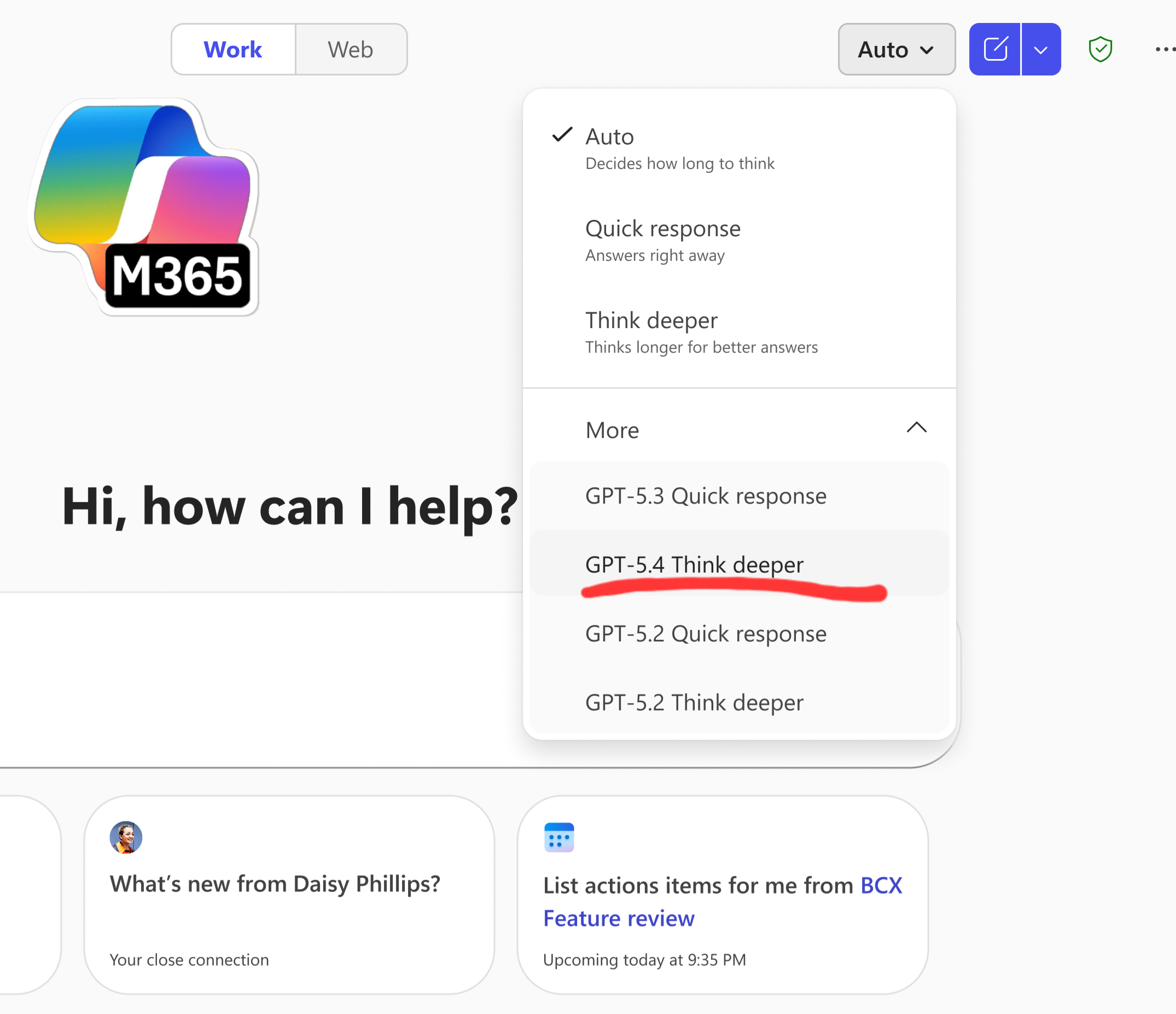
GPT‑5.4 Thinking rolling out in Microsoft 365 Copilot
Read more: GPT‑5.4 Thinking rolling out in Microsoft 365 CopilotHot on the heels of GPT‑5.3 released this week, which I covered in my last blog – Microsoft is now rolling out support for GPT‑5.4 Thinking to Copilot Studio early…
-
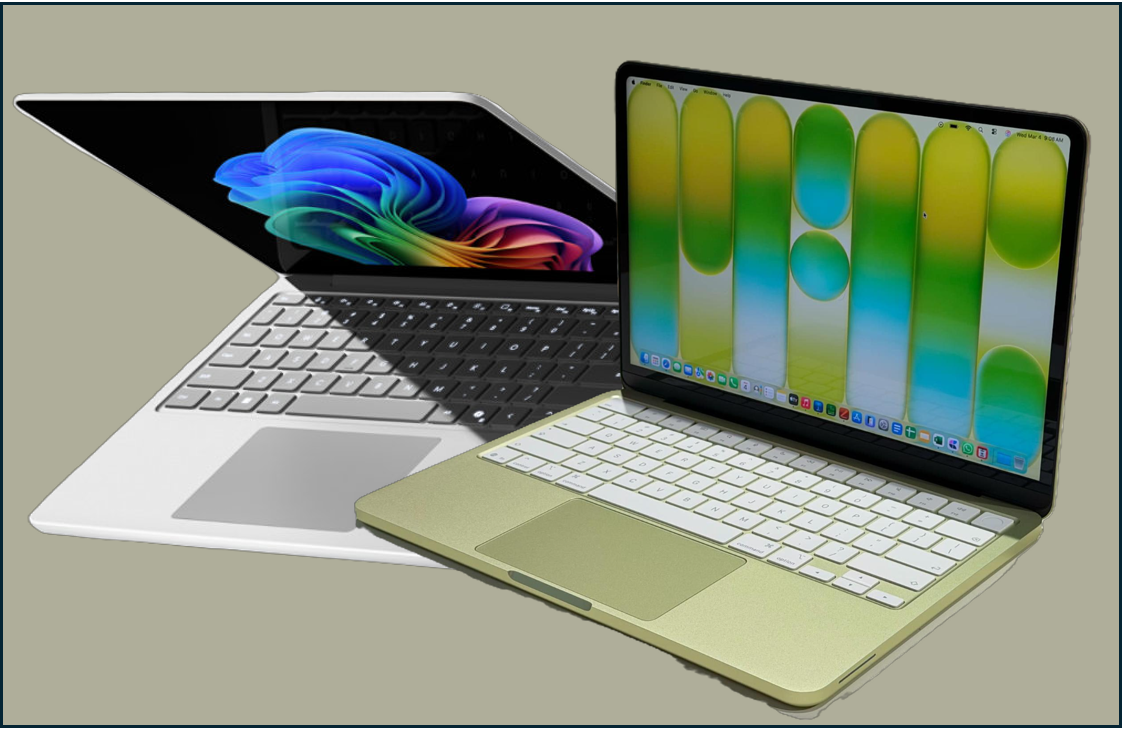
Apple Raised the Stakes – How Microsoft Should Respond with a new Surface Go
Read more: Apple Raised the Stakes – How Microsoft Should Respond with a new Surface GoApple has just reset the entry-level laptop conversation by announcing premium looking MacBook which starts at just $599 (£599 UK). Whilst not a comparison in terms of specs, it will…
-
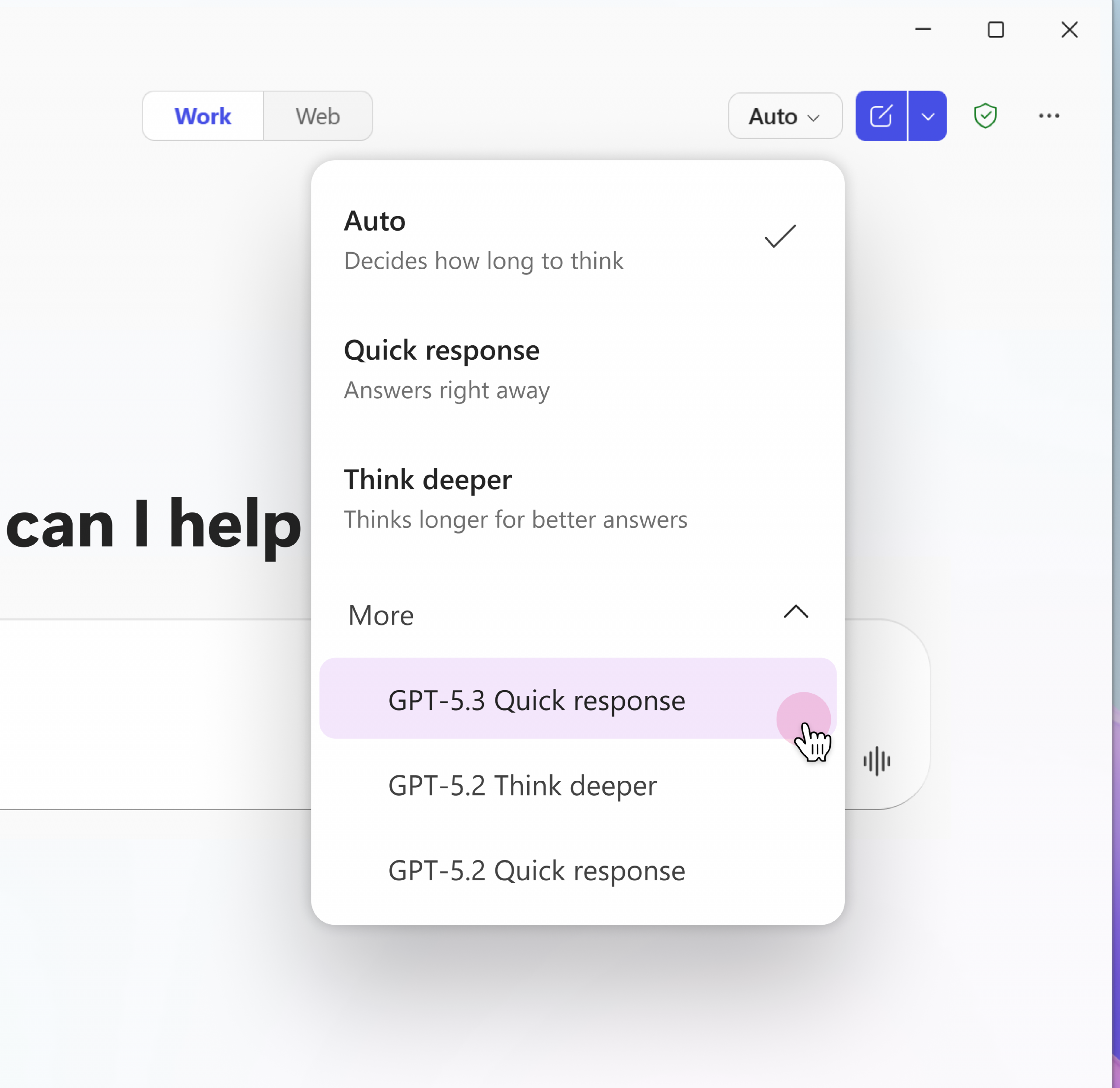
Microsoft Rolling Out GPT‑5.3 Instant to Microsoft 365 Copilot Users
Read more: Microsoft Rolling Out GPT‑5.3 Instant to Microsoft 365 Copilot UsersMicrosoft has started rolling out OpenAI’s GPT‑5.3 Instant across Microsoft 365 Copilot and Copilot Studio, bringing a noticeable upgrade in speed, clarity, and task‑aligned responses. This update is now live…
-
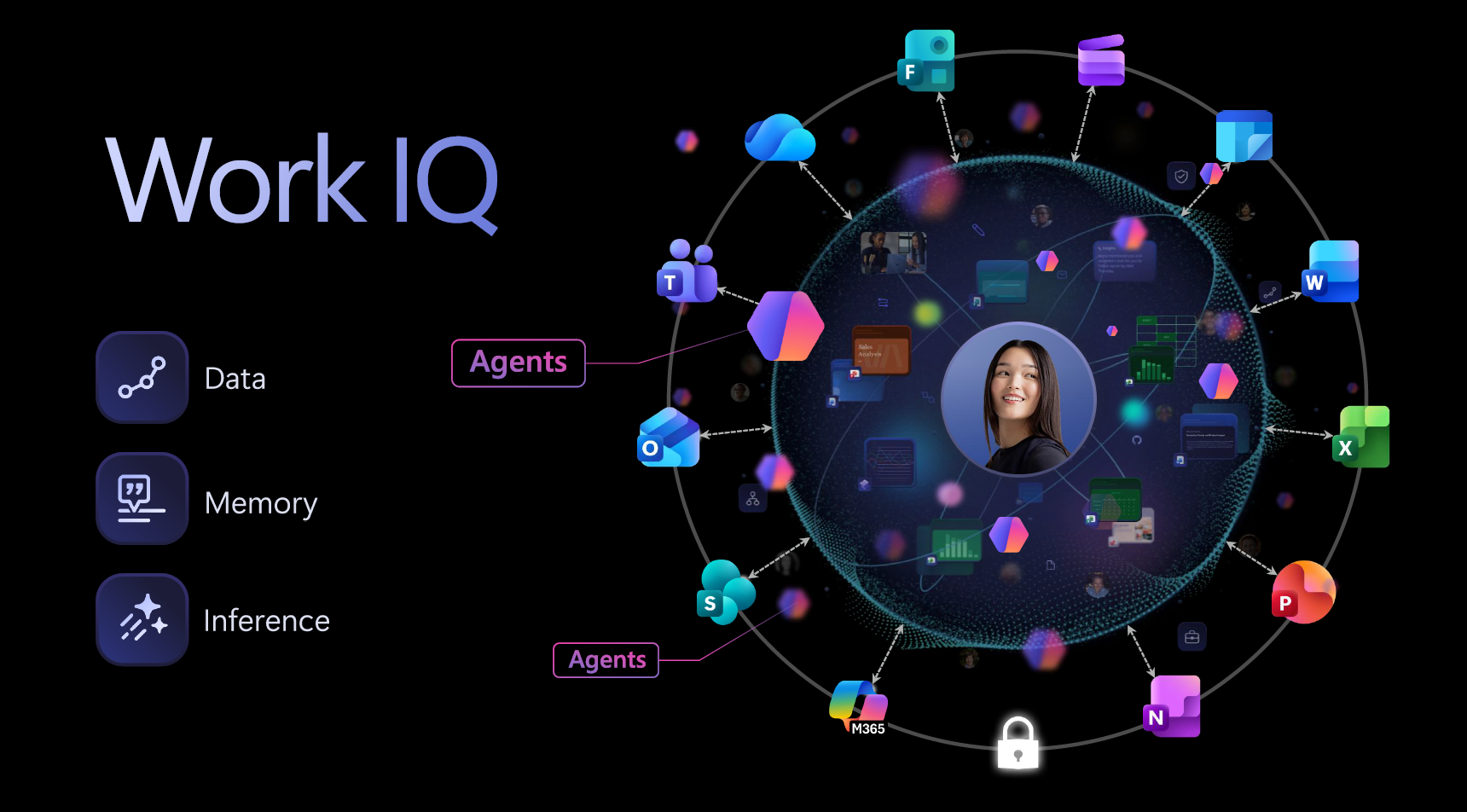
Why Context is the Most Valuable Layer in Enterprise AI
Read more: Why Context is the Most Valuable Layer in Enterprise AIIf you’ve been following Microsoft’s AI story over the last few months and especially if you have attended any of Microsoft’s city hopping AI Tours, you’ll have noticed a subtle…
-

Windows 365 Devices: ASUS, Dell, and Microsoft Expand the Cloud PC Ecosystem
Read more: Windows 365 Devices: ASUS, Dell, and Microsoft Expand the Cloud PC EcosystemMicrosoft’s Cloud PC vision took another confident step forward this week with the introduction of two new Windows 365‑powered mini PCs from ASUS and Dell – compact, secure, cloud‑first devices…
-
Ways to Build Agents: Nube to Pro
Read more: Ways to Build Agents: Nube to ProWhilst at Microsoft’s AI Tour this week, I was asked my many people, the difference between building agents in AI Builder (in the Copilot App), Copilot Studio and Azure AI…
-
What are Microsoft 365’s New AI Watermarks?
Read more: What are Microsoft 365’s New AI Watermarks?Microsoft is soon rolling out a new (optional) AI watermarking policy across Microsoft 365 – and while the headlines make it sound dramatic, the real story is more nuanced. The…
-
Are you leaking company data to non-sanctioned AI Apps?
Read more: Are you leaking company data to non-sanctioned AI Apps?We repeatedly hear stories around personal and corporate data being leaked on the web through the un-sanctioned use of consumer grade AI tools like Grok, ChatGPT and others. A report…
-
Microsoft AI Tour London
Read more: Microsoft AI Tour LondonMorning all. I’ll be at the AI Tour in London today talking and showcasing two of my favourite Microsoft technology areas. Dropby the device booth to say hello, the Copilot…
-
AI Prompting Guide: Get Better Results with Copilot and ChatGPT
Read more: AI Prompting Guide: Get Better Results with Copilot and ChatGPTGenerative AI is now woven into the way we work both at work and home. Whether you’re drafting content, analysing data, or simply trying to get unstuck, tools like Microsoft…
-

Microsoft Expands Copilot Connectors: What the New Integrations Mean for Microsoft 365 and Enterprise AI
Read more: Microsoft Expands Copilot Connectors: What the New Integrations Mean for Microsoft 365 and Enterprise AIMicrosoft has expanded the Copilot Connector catalog with 35 new connectors so Microsoft 365 Copilot can reach many more external systems and data sources directly, with new developer tooling and…
-
Is AI Forcing the Network conversation organisations have been avoiding?
Read more: Is AI Forcing the Network conversation organisations have been avoiding?Artificial intelligence is no longer just changing applications – it’s exposing the limits of enterprise network infrastructure. In their Q2 earnings report, Cisco’s leadership team described the current campus refresh…
-
What are Copilot connectors?
Read more: What are Copilot connectors?A Copilot connector is the plumbing that brings your organisation’s external content into Microsoft 365 so Copilot can ground answers in real, company-specific data. Practically speaking, a connector extracts or…
-
Cisco updates contract terms in Response to Market Volatility
Read more: Cisco updates contract terms in Response to Market VolatilityCisco’s recent update to partner contract terms, prompted by rising memory prices, has caught attention across the partner and customer community. Of course any change that vendors make that has…
-

Cisco Live Amsterdam 2026: AI‑Ready Networking to Reshape Enterprise Infrastructure
Read more: Cisco Live Amsterdam 2026: AI‑Ready Networking to Reshape Enterprise InfrastructureWhilst I wasn’t able to make it this year, Cisco Live EMEA in Amsterdam was full of annoucements and updates to their products sets. The message to customers and partners…
-
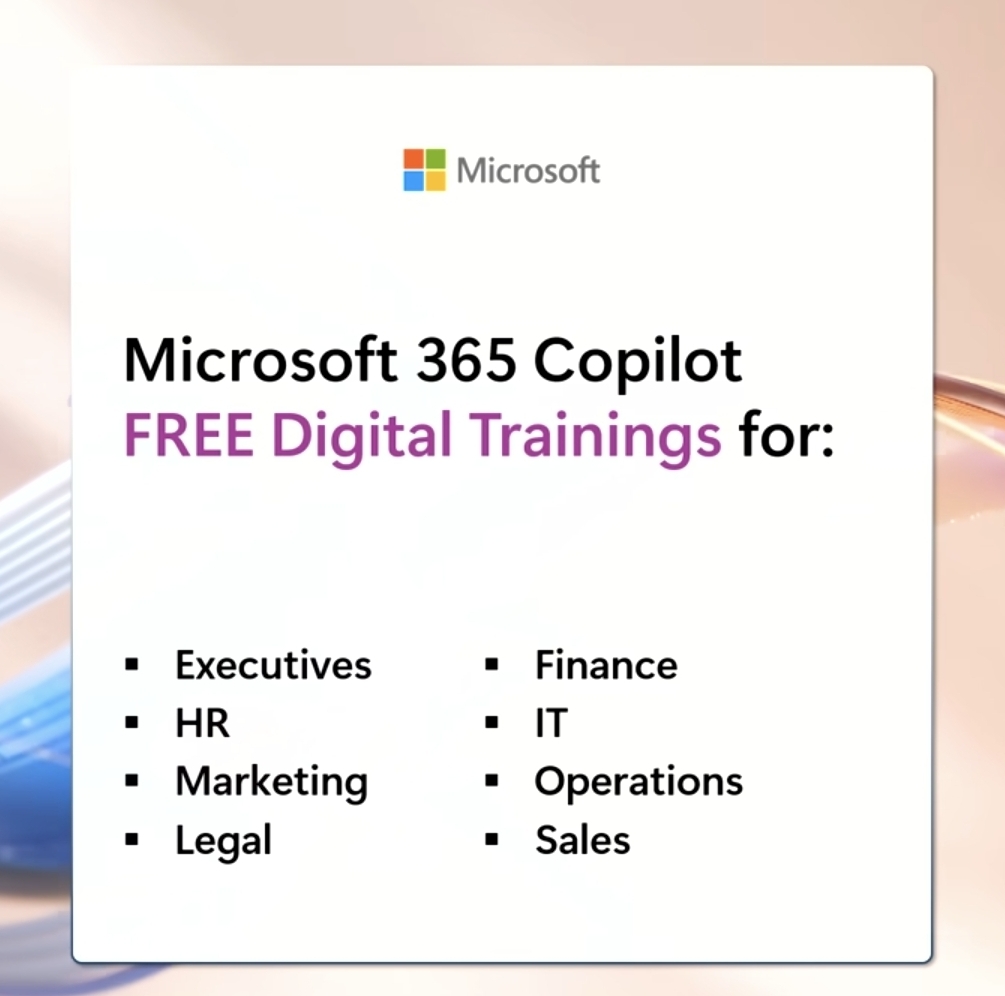
2026 Role‑Based training for Microsoft 365 Copilot users
Read more: 2026 Role‑Based training for Microsoft 365 Copilot usersI’m a huge believer in role‑based learning because it gives people practical, relevant ways to bring AI into the work they already do. Wherever you are on your Copilot journey…
-

How OpenAI and Anthropic Just Triggered the Next Big Shift in Software
Read more: How OpenAI and Anthropic Just Triggered the Next Big Shift in SoftwareThe last week has felt like a turning point in the AI landscape. Not because of a single product launch, but because two of the biggest players in the industry…
-
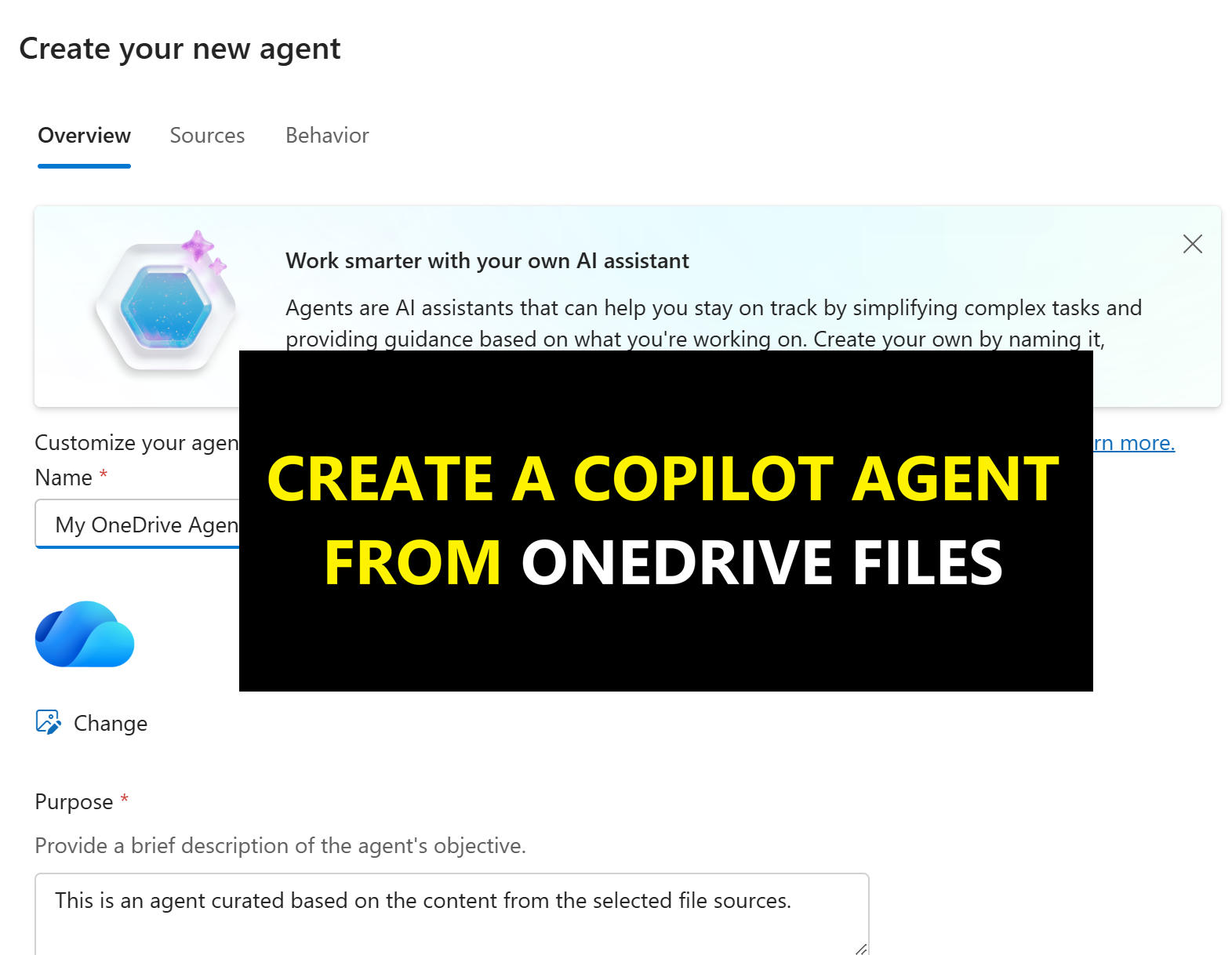
Create Agents in One-Click from your OneDrive
Read more: Create Agents in One-Click from your OneDriveMicrosoft has now made it possible to create grounded knowledge “agents” directly from OneDrive. If you’ve not seen this yet, it allows you to select up to 20 OneDrive for…
-
Microsoft Q2 FY26 Earnings: Cloud & AI Power Record Growth
Read more: Microsoft Q2 FY26 Earnings: Cloud & AI Power Record GrowthMicrosoft has opened 2026 with a landmark quarter that firmly positions them as the global leader in enterprise cloud and AI adoption. In the earning report, Microsoft has achieved milestones…
-
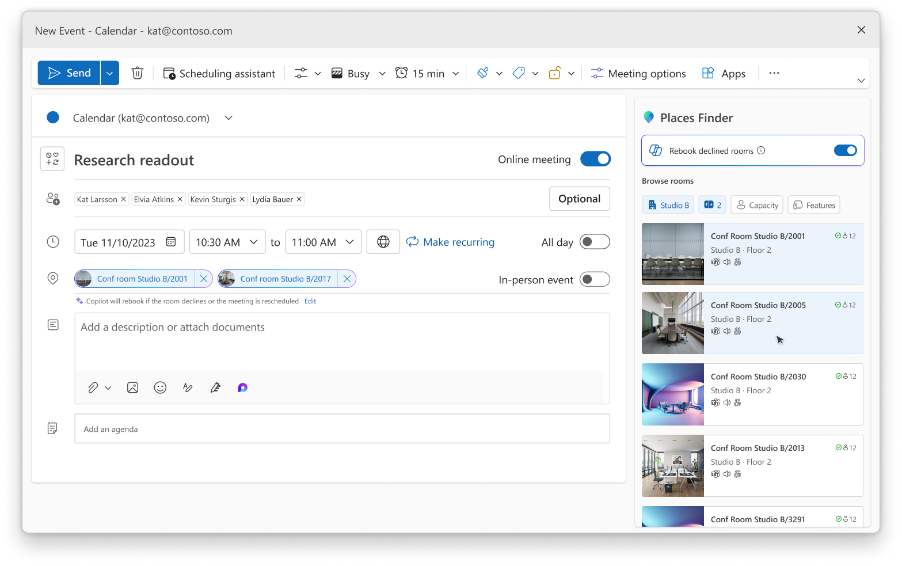
Microsoft Teams Licensing Updates: More Premium Features for Everyone
Read more: Microsoft Teams Licensing Updates: More Premium Features for EveryoneMicrosoft has announced some big changes to the Teams licensing model, aimed at making more advanced features available to everyone along with updates to their Places products set which is…
-
M365 Copilot Image Generation Levels Up, and Video Summaries are coming to Copilot Notebooks
Read more: M365 Copilot Image Generation Levels Up, and Video Summaries are coming to Copilot NotebooksMicrosoft has kicked off 2026 with two significant enhancements to Microsoft 365 Copilot – both providing a clear signal to how improvements in multi-media creation in AI will support creativity,…
-
Satya Nadella’s Call for an “AI Reset” – What Business Leaders Must Prioritise in 2026
Read more: Satya Nadella’s Call for an “AI Reset” – What Business Leaders Must Prioritise in 2026Following Satya Nadella’s looking forward to 2026 post, this blog explores the detail behind it and why 2026 must move beyond AI slop and shift toward trusted, outcome‑driven AI projects…
-
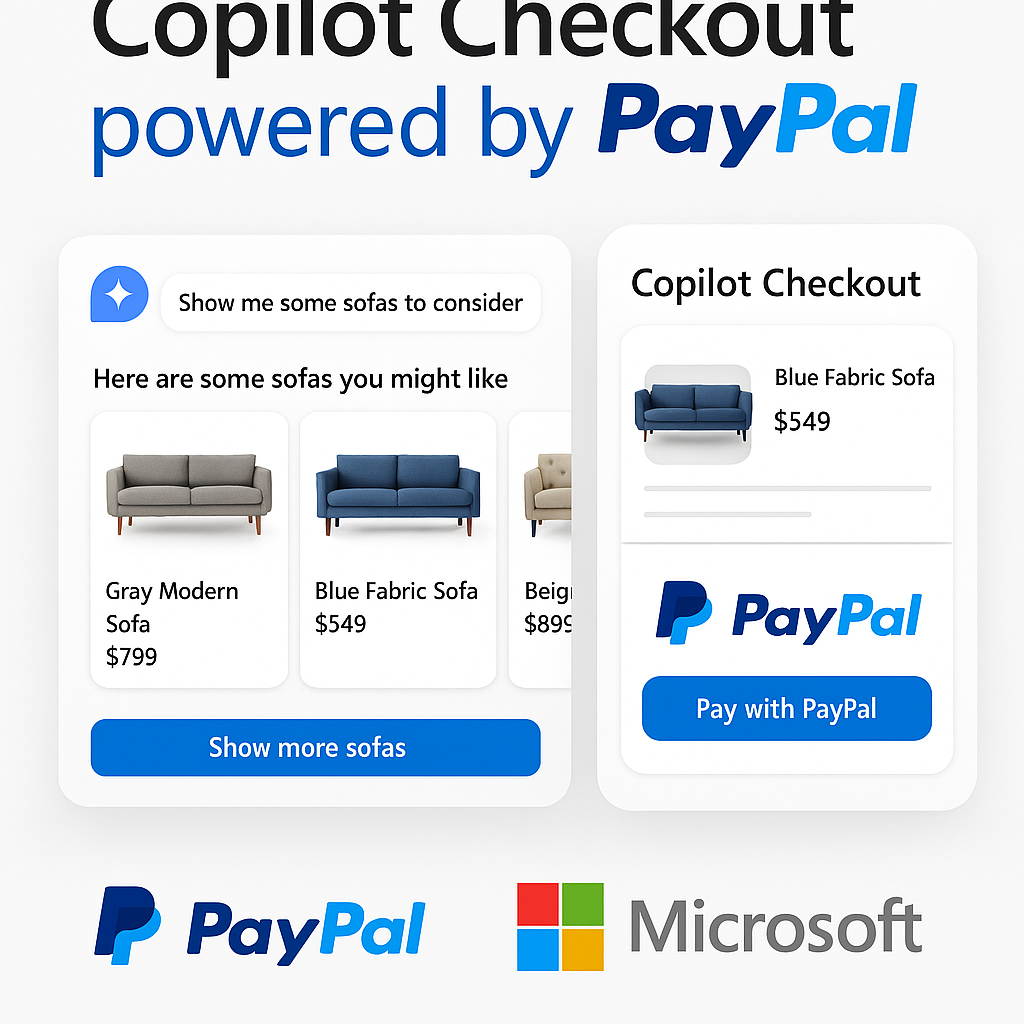
What is Copilot Checkout? Microsoft and PayPal’s new AI-Powered Commerce Experience.
Read more: What is Copilot Checkout? Microsoft and PayPal’s new AI-Powered Commerce Experience.Microsoft and PayPal have officially joined forces to launch Copilot Checkout, a groundbreaking integration that redefines the online shopping experience. This collaboration merges Microsoft’s conversational AI capabilities with PayPal’s trusted…
-

What is Copilot Real Talk Mode? And how to use it.
Read more: What is Copilot Real Talk Mode? And how to use it.Back at the “Fall update in October”, Microsoft announced that a new talk mode called “Real Talk” was coming to Copilot. This has been available in the US for a…
-
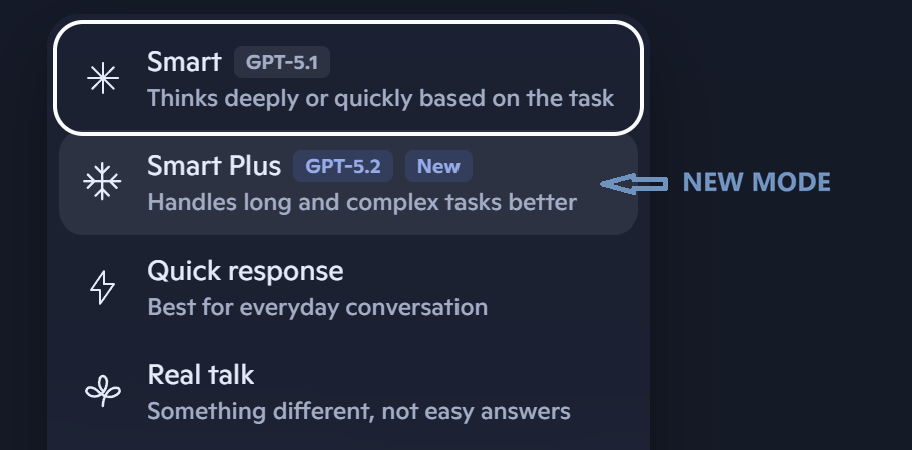
Copilot gets free GPT‑5.2 upgrade with “Smart Plus” mode
Read more: Copilot gets free GPT‑5.2 upgrade with “Smart Plus” modeMicrosoft has begun rolling out GPT‑5.2 across Copilot on the web, Windows, and mobile as a free upgrade. It sits alongside GPT‑5.1 rather than replacing it, giving users a clear…
-
Automatic Alt Text on Copilot+ PCs: A Small Feature with a Big Accessibility Impact
Read more: Automatic Alt Text on Copilot+ PCs: A Small Feature with a Big Accessibility ImpactMicrosoft has rolled out a useful update to the Office Suite apps like Word, Excel and PowerPoint which creates automatic, “on‑device” Alt Text generation for images. This is a great…
-
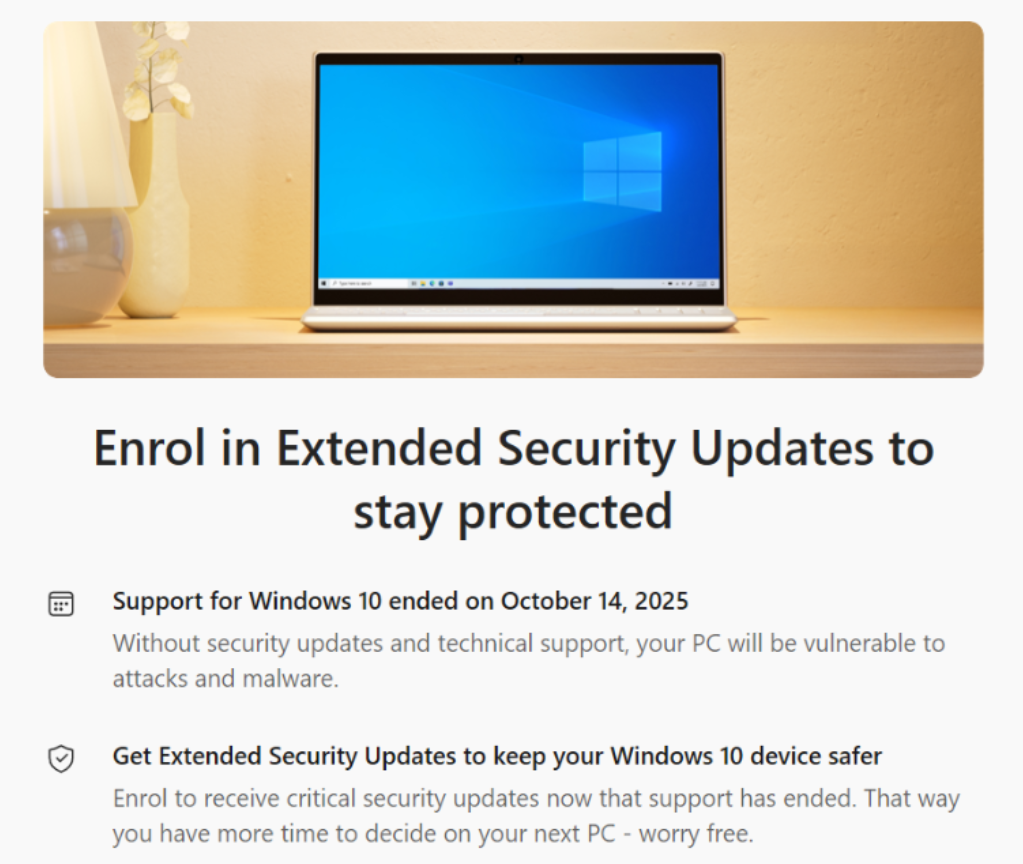
How to get free security updates for Windows 10
Read more: How to get free security updates for Windows 10If you are a home/consumer user using Windows 10 – because you are unwilling to, or unable to (due to hardware restrictions) to upgrade to Windows 11, and not able…
-
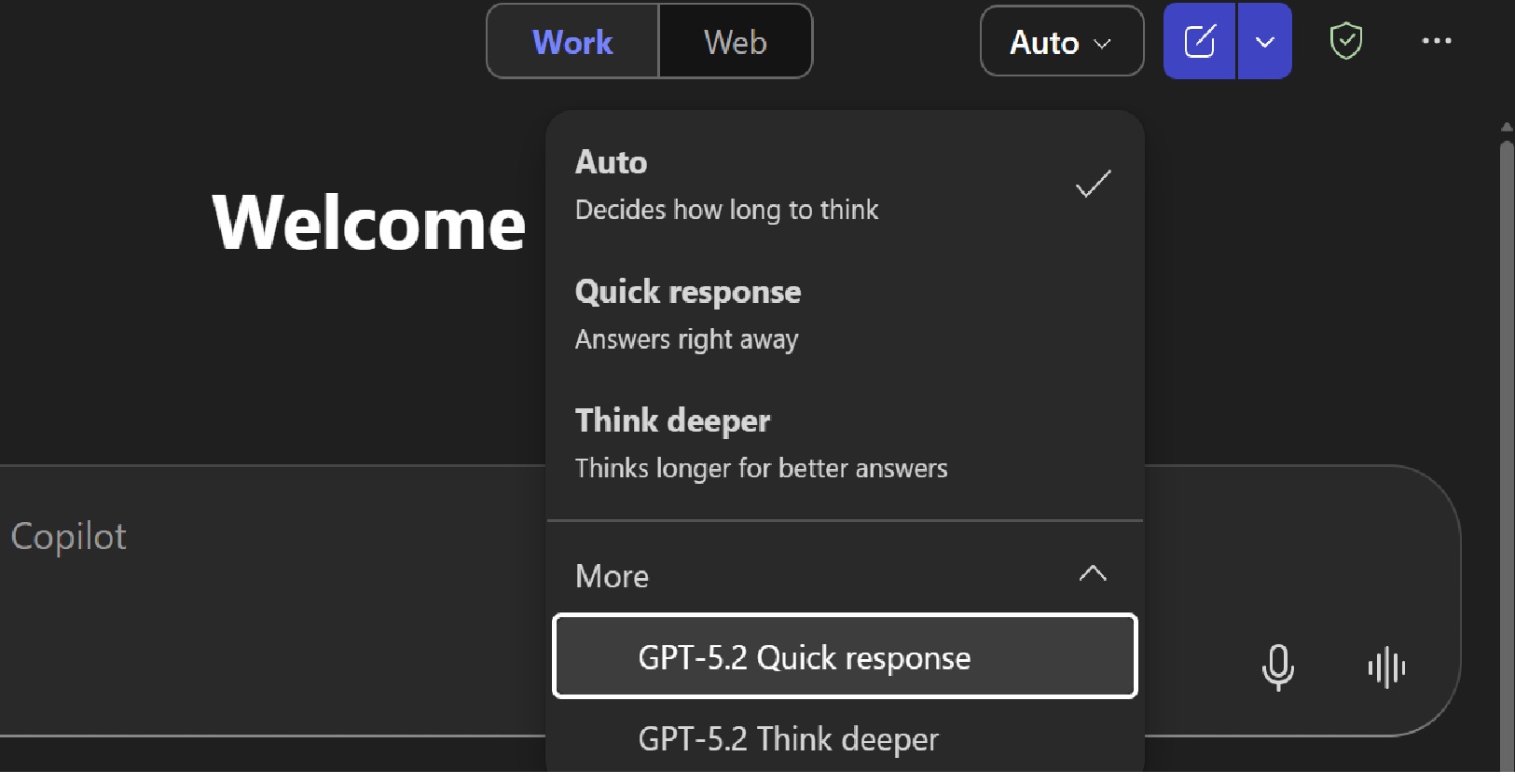
GPT-5.2 now available in Microsoft 365 Copilot
Read more: GPT-5.2 now available in Microsoft 365 CopilotMicrosoft has just (11th Dec) started rolling out OpenAI’s GPT‑5.2 across Microsoft 365 Copilot and Copilot Studio, marking another significant leap in AI-powered productivity. The differences between GPT5 and GPT5.2 provide “a…
-
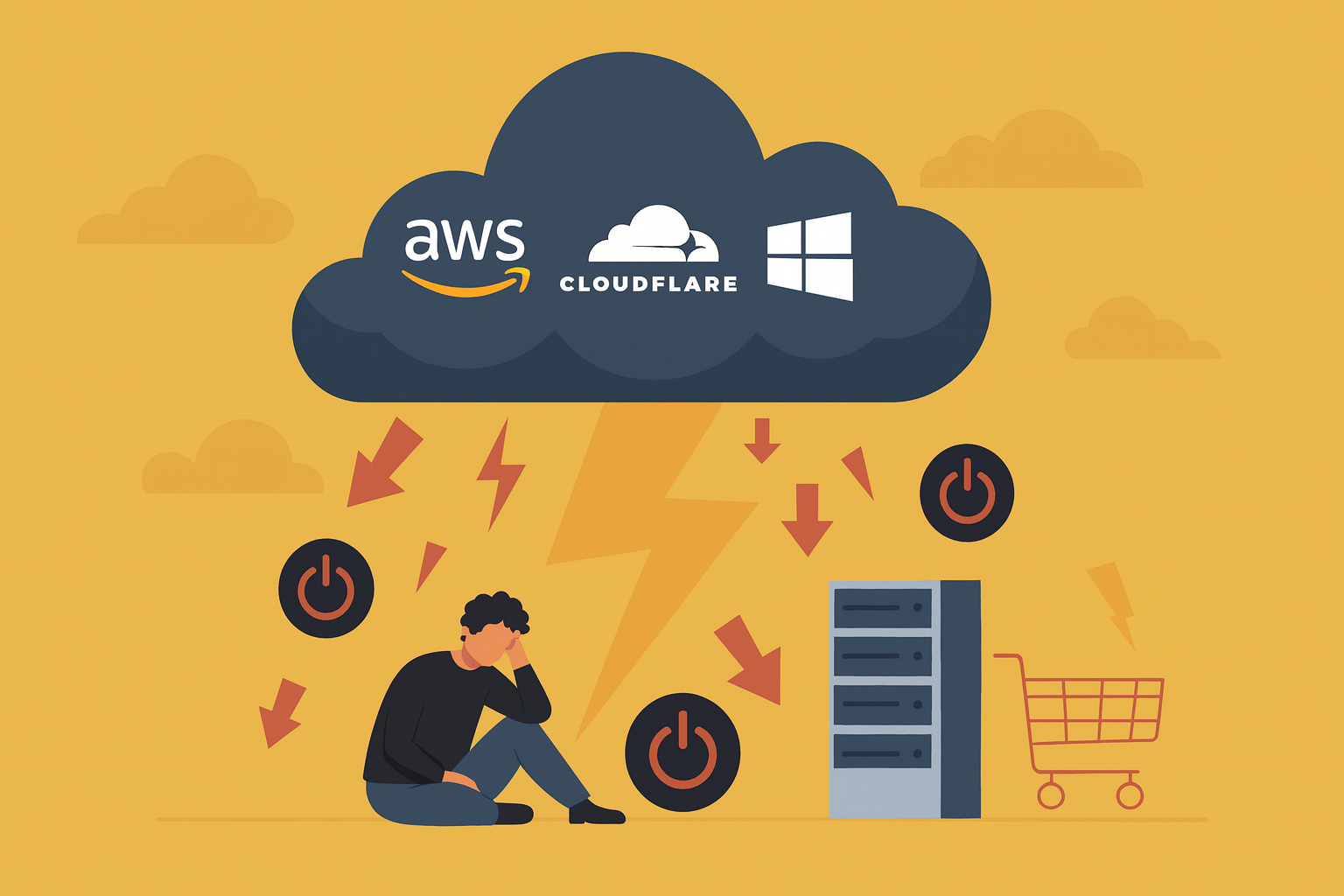
When the Cloud Sneezes: a look at the ‘Outage Season’
Read more: When the Cloud Sneezes: a look at the ‘Outage Season’The past few months have been a bruising reminder that even the biggest cloud providers can stumble. AWS, Microsoft Azure, and Cloudflare have all suffered major outages, disrupting any services…
-
More Anthropic Models coming to Microsoft Copilot
Read more: More Anthropic Models coming to Microsoft CopilotMicrosoft is making a major change to how AI models are integrated into Copilot experiences. From 7 January 2026, Anthropic’s models will be enabled by default for Microsoft 365 Copilot…
-
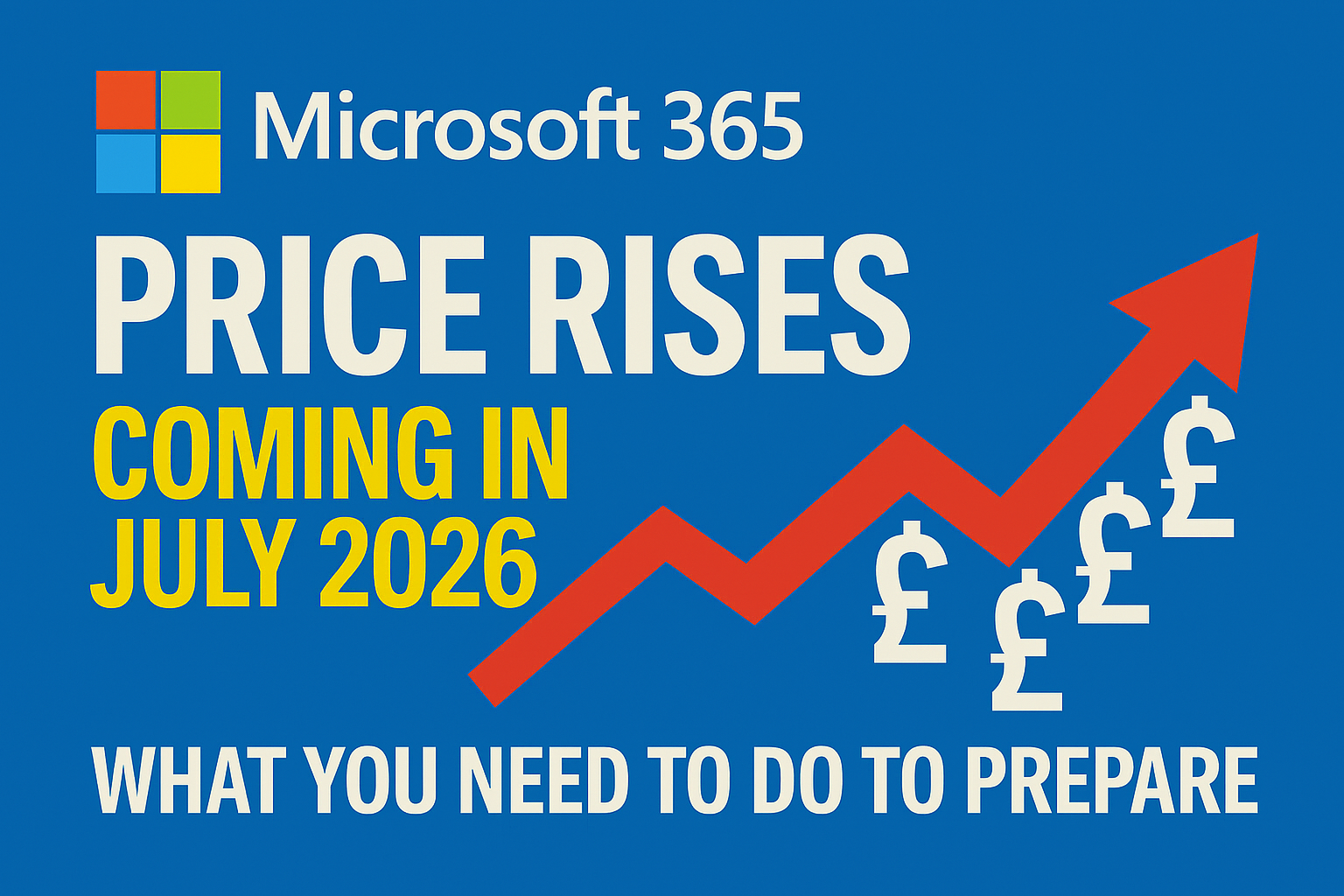
Microsoft 365 Price Changes: Preparing for July 2026
Read more: Microsoft 365 Price Changes: Preparing for July 2026With over a 1,000 new features and updates across the Microsoft 365 stack in the last couple of years, Microsoft has confirmed that the commercial Microsoft 365 suite will undergo…
-
Microsoft Ignite 2025 – “The Agentic Shift”
Read more: Microsoft Ignite 2025 – “The Agentic Shift”Microsoft used Ignite 2025 to tell the world that “agents are now the primary interface for enterprise work“. The focus throughout Ignite was about evolution from chat-bots to multi-discipline teams…
-
What is Work IQ?
Read more: What is Work IQ?Microsoft Ignite 2025 focus this year saw Microsoft fully committed to Agentic AI as the next platform layer. Across all of the briefings, keynotes, technical sessions, and partner announcements, Microsoft repeatedly…
-
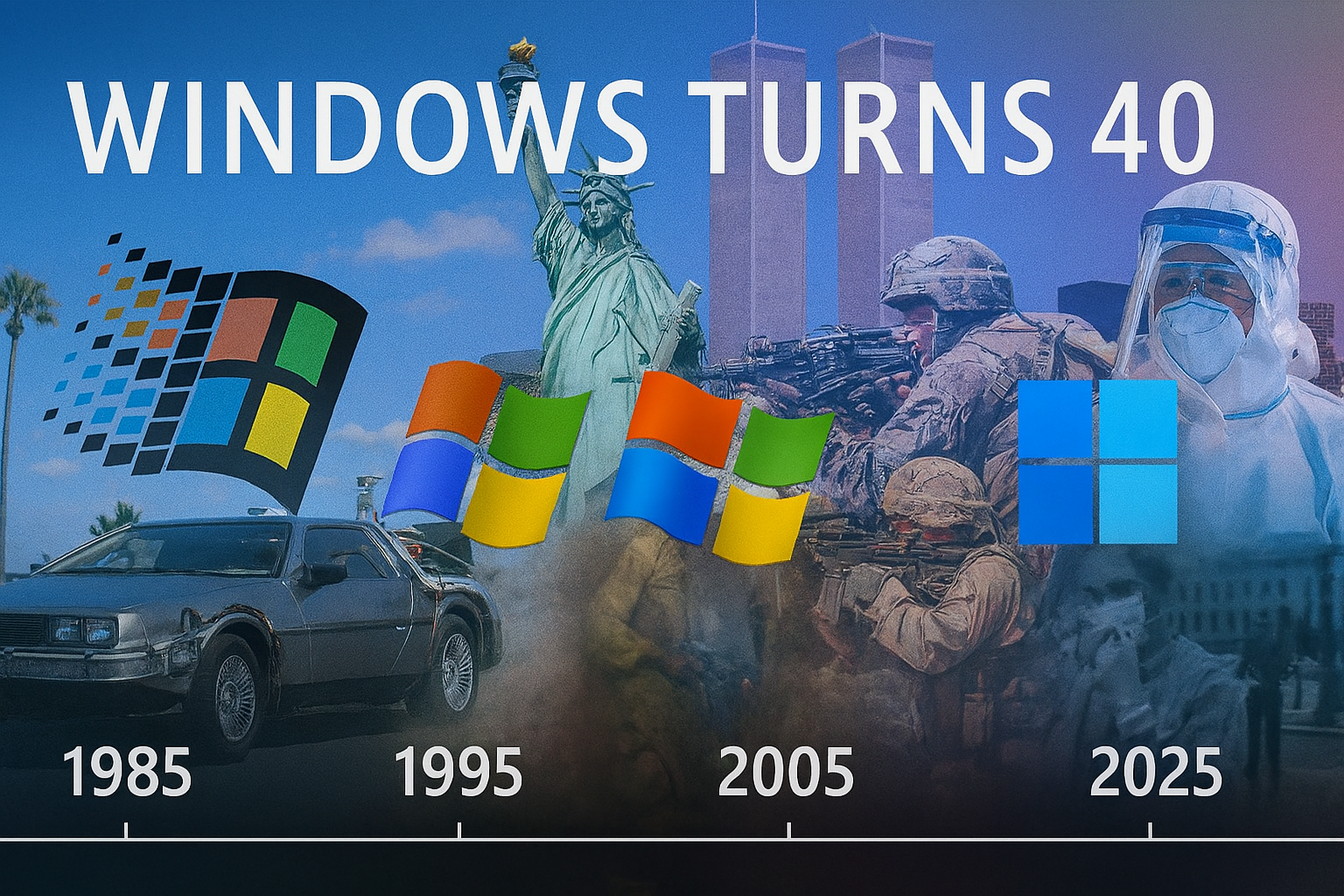
Windows at 40: Milestones that changed computing for ever
Read more: Windows at 40: Milestones that changed computing for everIt was Forty years ago (now that makes me feel. Old) that Microsoft launched Windows 1.0. This was a graphical shell that was layered over MS-DOS. Whilst it was clunky,…
-
With Security Copilot now part of Microsoft 365 E5 – what do you actually get?
Read more: With Security Copilot now part of Microsoft 365 E5 – what do you actually get?At Ignite this week, Microsoft announced that Security Copilot will now be included in Microsoft 365 E5 (and E5 Security) at no additional cost. Security Copilot delivers “AI-powered, integrated, cost-effective,…
-
Sora-2 now in Microsoft 365 Copilot
Read more: Sora-2 now in Microsoft 365 CopilotAt Ignite 2025 this month, amongst a long list of AI and Security updates, Microsoft announced that OpenAI’s Sora 2 text-to-video model is now integrated into Microsoft 365 Copilot in…
-
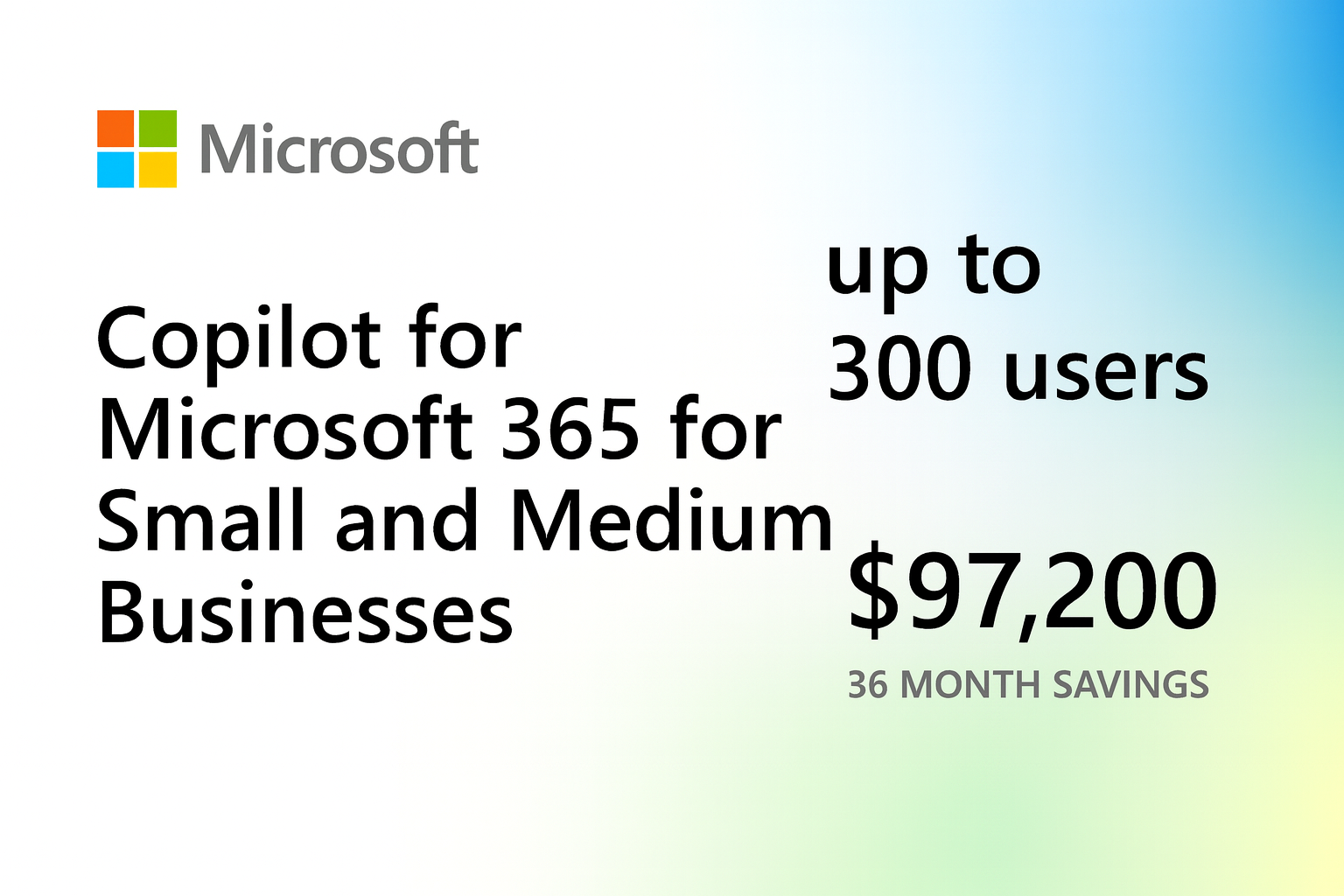
Microsoft 365 Copilot for small and medium businesses
Read more: Microsoft 365 Copilot for small and medium businessesMicrosoft has just announced a much more affordable aka cheaper (but fully featured license) for small and medium businesses. From December 1st, Microsoft 365 Copilot Business becomes available to organisations…
-
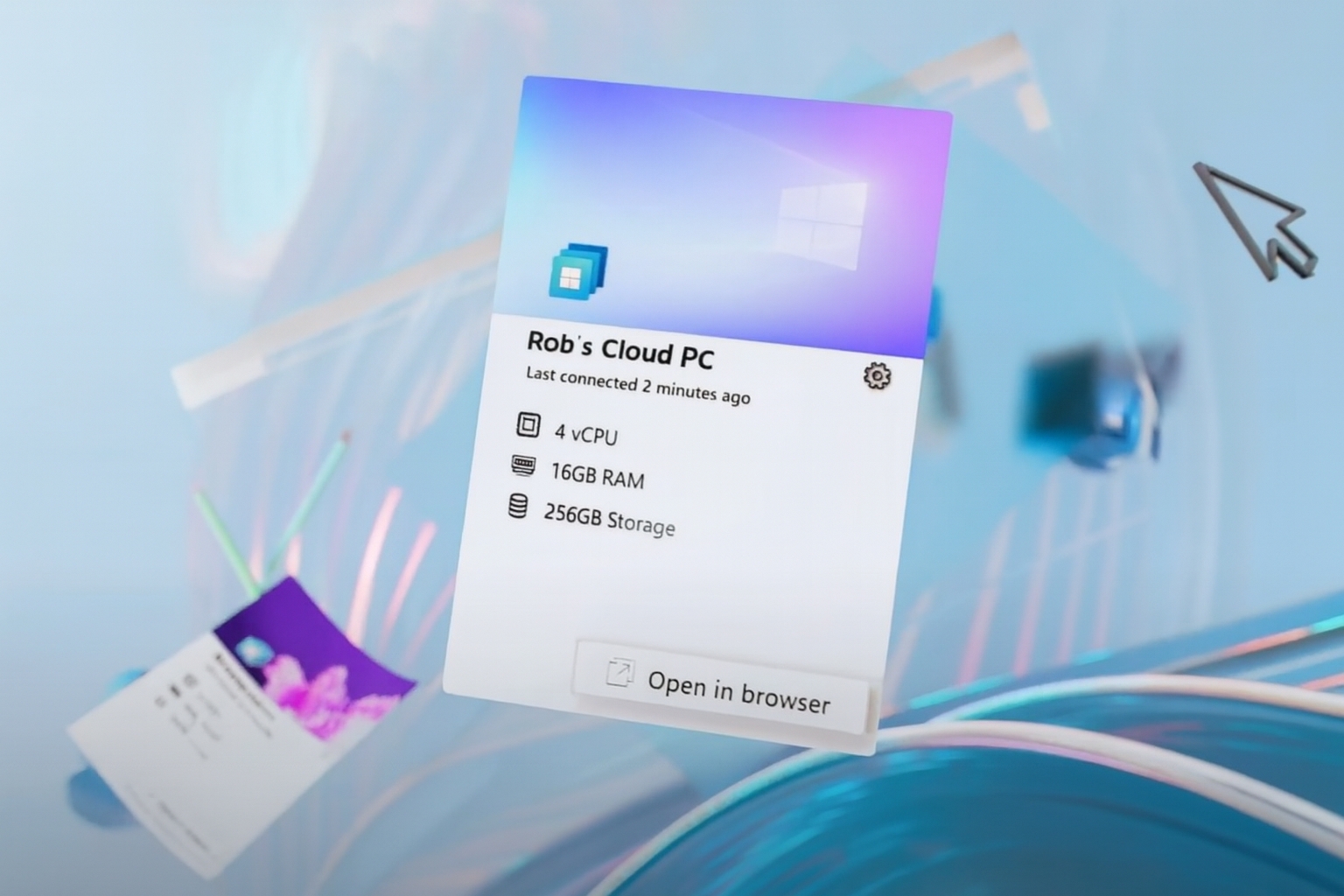
Windows 365: What, Where and Why?
Read more: Windows 365: What, Where and Why?As Windows 365 settles well into its forth year, there have been huge advancements in capability, connection methods, endpoint innovation, and licensing options – with even more expected as Microsoft…
-
AI Explained: 9 Key Concepts You Need to Know in 2025
Read more: AI Explained: 9 Key Concepts You Need to Know in 2025Artificial intelligence, whilst a phrase used in most of our daily lives, can feel huge, strange, unknown, scary, exciting and sometimes even intimidating. In this post I decided I would…
-
Cisco 360 Partner Program: Driving Partner and Customer Value in in the AI Era
Read more: Cisco 360 Partner Program: Driving Partner and Customer Value in in the AI EraThis blog summarises the key updates from Cisco Partner Summit 2025 regarding the Cisco 360 Partner Program and its impact on partner profitability, customer value, cross-selling, AI specialisations, and new…
-
Cisco Partner Summit 2025: The Infrastructure Behind the Digital and AI Era
Read more: Cisco Partner Summit 2025: The Infrastructure Behind the Digital and AI EraLast night I tuned into aspects of the Global Cisco Partner Summit on demand, (the live event taking part in San Diago this week). Day one messaging to partners was…
-
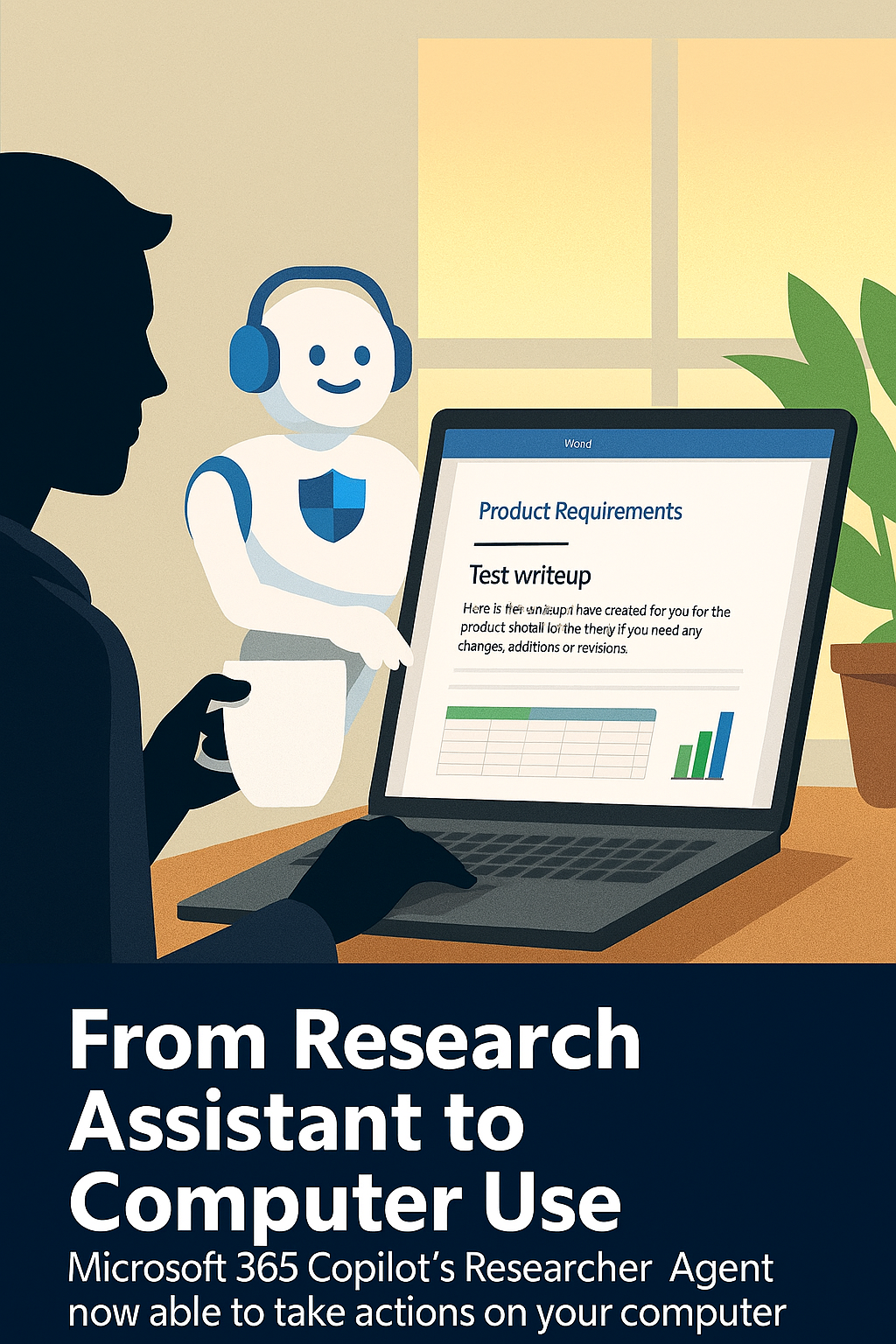
Copilot Researcher Agent gets “Computer Use”
Read more: Copilot Researcher Agent gets “Computer Use”Yes, the Copilot Researcher Agent, once focused purely on gathering and summarising information, can now take action on your device through a capability called Computer Use. This provides secure interaction…
-
Windows 11 bringing new “Ask Copilot” to the taskbar
Read more: Windows 11 bringing new “Ask Copilot” to the taskbarWindows Insiders in the Dev and Beta channels can start testing a new Copilot search experience which is available through the Windows Search bar. To get started go to Settings…
-
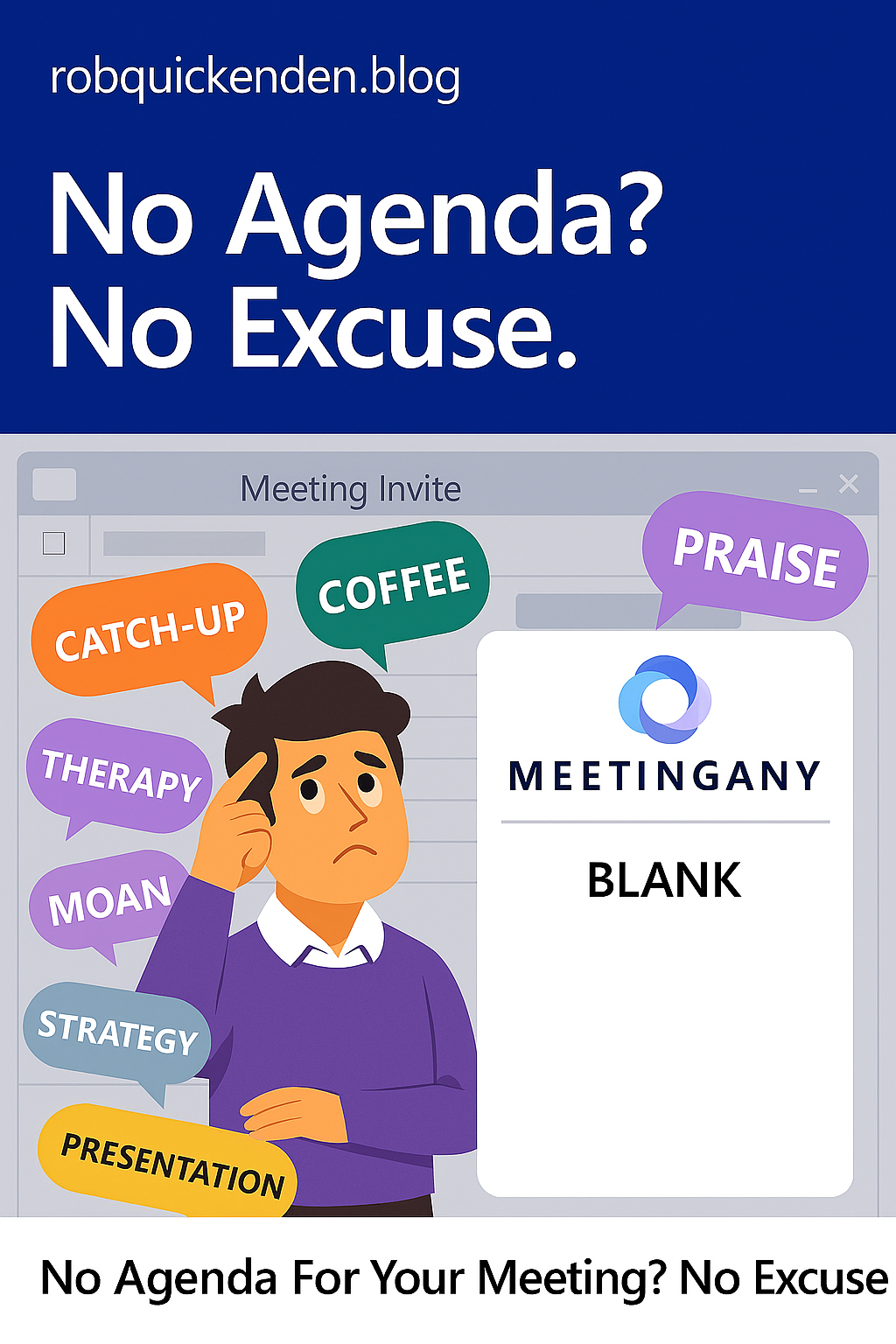
No Agenda? No Excuse. Copilot can now help with agenda creation.
Read more: No Agenda? No Excuse. Copilot can now help with agenda creation.Let’s talk about one of my biggest pet peeves: the agenda-less meeting invite. You know the type. A calendar ping lands in your inbox with a vague title like “Catch-up”…
-
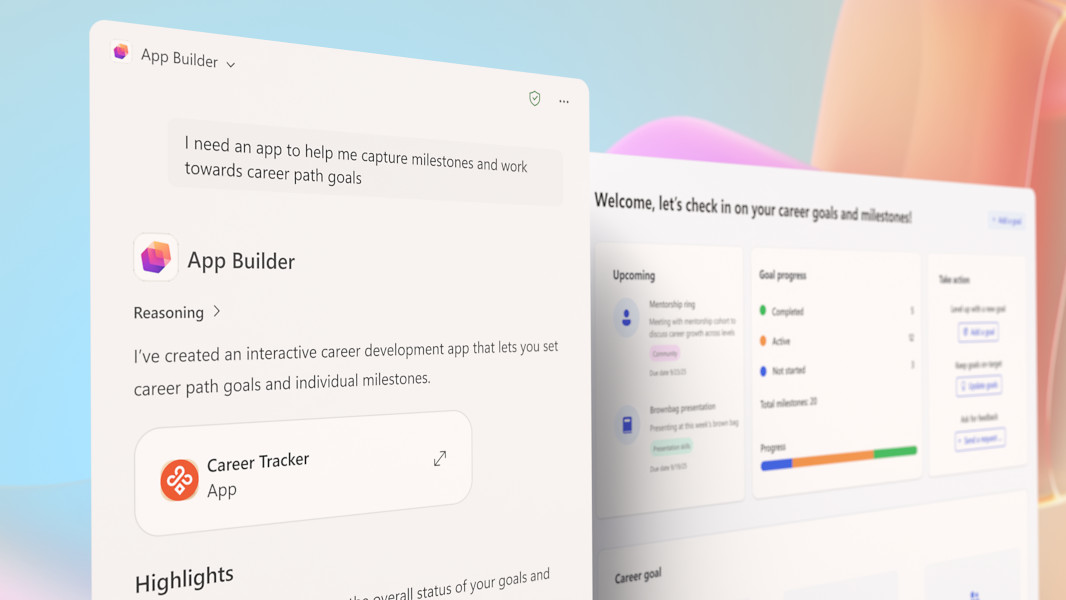
Microsoft “App Builder” & “Workflow” Agents
Read more: Microsoft “App Builder” & “Workflow” AgentsMicrosoft is expanding its Copilot Frontier Programme with two powerful new agents. These are the App Builder and Workflows Agents. These put “app creation” and automation directly into the hands…
-
Cyber Resilience – the new Trust Currency
Read more: Cyber Resilience – the new Trust CurrencyTL;DR – UK Cyber Threats Surge The UK’s National Cyber Security Centre (NCSC) has published its annual threat review, and the numbers are staggering but not surprising as we have…
-
Teams Mode for Microsoft 365 Copilot is here.
Read more: Teams Mode for Microsoft 365 Copilot is here.Microsoft Teams continues to evolve at a rapid pace. Known as “Teams Mode for Microsoft 365 Copilot” this essentially means Copilot is coming to Teams Group Chats as a participant…
-

Microsoft introduces Mico – Copilot’s new face and voice
Read more: Microsoft introduces Mico – Copilot’s new face and voiceIn a live YouTube stream on 24th October, Microsoft unveiled a wave of new consumer features for Copilot (dubbed fall update) – headlined by the official debut of Mico, a…
-
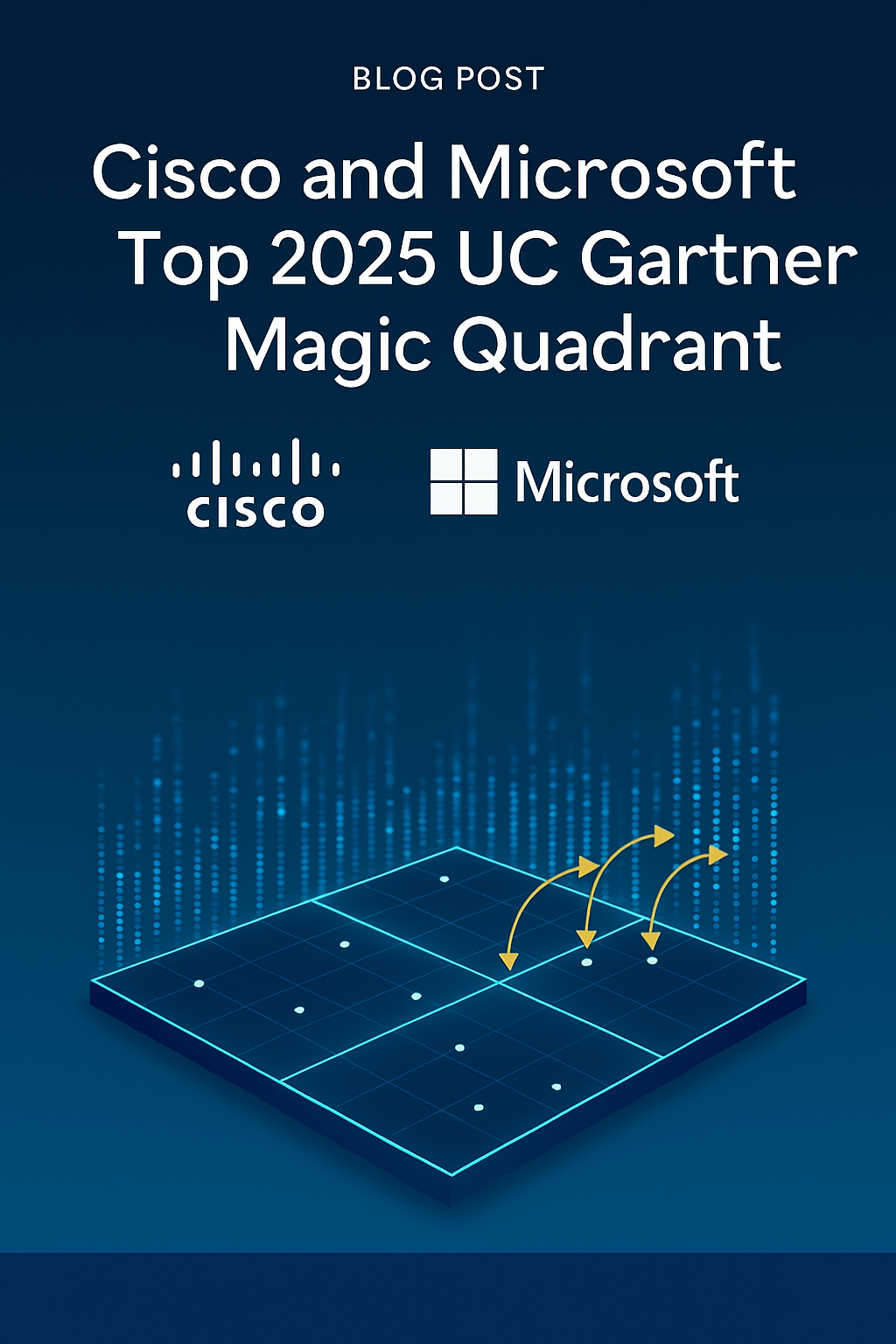
Cisco and Microsoft top 2025 UC Gartner Magic Quadrant
Read more: Cisco and Microsoft top 2025 UC Gartner Magic QuadrantTL:DR As a Cisco and Microsoft leading partner, it’s great to see that, yet again, both Microsoft and Cisco remain Leaders in the Gartner Magic Quadrant for collaboration platforms with…
-
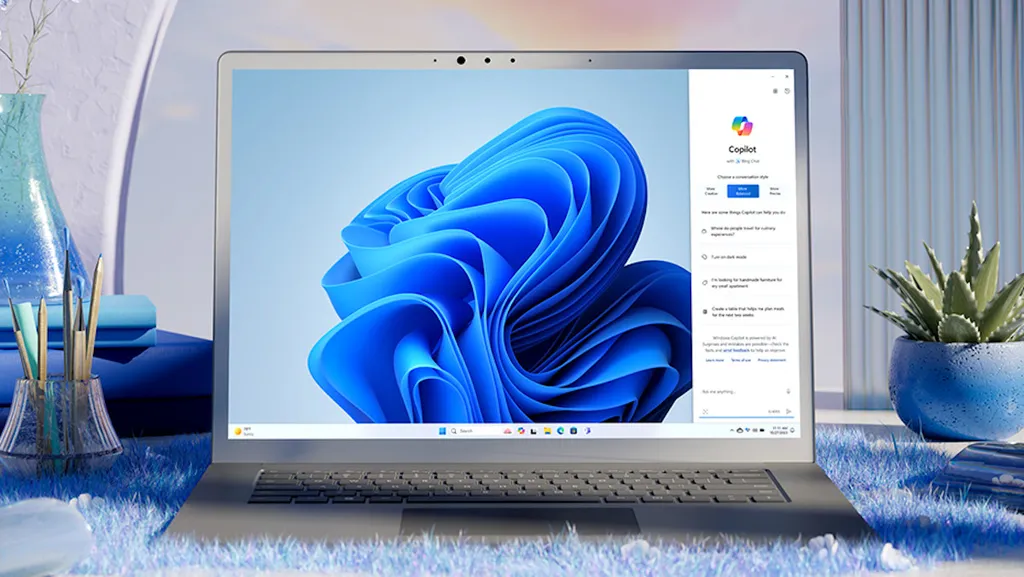
MAKING EVERY WINDOWS PC AN AI PC
Read more: MAKING EVERY WINDOWS PC AN AI PCOn October 14th 2025, Windows 10 officially reached end of support. If you still have a PC/Laptop running Windows 10, it will not suddenly stop working – but unless you…
-

IDC – Cisco lead in Enterprise Wireless LAN technology.
Read more: IDC – Cisco lead in Enterprise Wireless LAN technology.Cisco has again been recognised as a Leader in the IDC MarketScape for Enterprise Wireless LAN – with Cisco “helping organisations rise to this moment by delivering smarter, more secure…
-
Windows 10 End of Support – What it means for Office Apps
Read more: Windows 10 End of Support – What it means for Office AppsAs of yesterday, 14 October 2025, Windows 10 has officially reached its end of support. Of course, Windows 10 will not just stop working, but after yesterdays monthly security updates,…
-
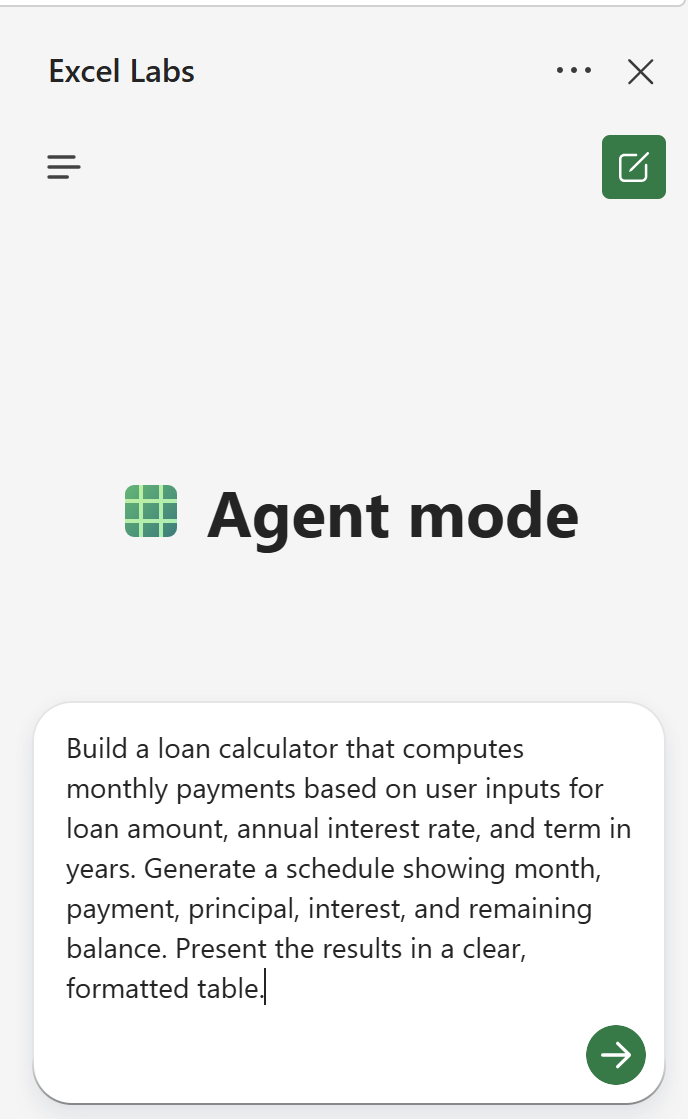
Excel’s new “Agent Mode”
Read more: Excel’s new “Agent Mode”Agent Mode in Excel is a new “preview” feature Excel (online) for Microsoft Copilot Subscribers (Microsoft 365 Commercial, Personal, Family and Premium) that enables users to build and edit workbooks along side…
-
What’s new in OneDrive + Copilot?…. Lots.
Read more: What’s new in OneDrive + Copilot?…. Lots.This week was Microsoft’s third annual OneDrive digital event (October 8th, 2025), where their key message was that OneDrive is much much more than “just” file storage. Whether you are…
-
What is ‘Bring Your Own Copilot’ to Work (BYO-Copilot) ?
Read more: What is ‘Bring Your Own Copilot’ to Work (BYO-Copilot) ?AI tools being used in the workplace is no longer a question of if but how and what. The question is what if you could allow this in a safe…
-
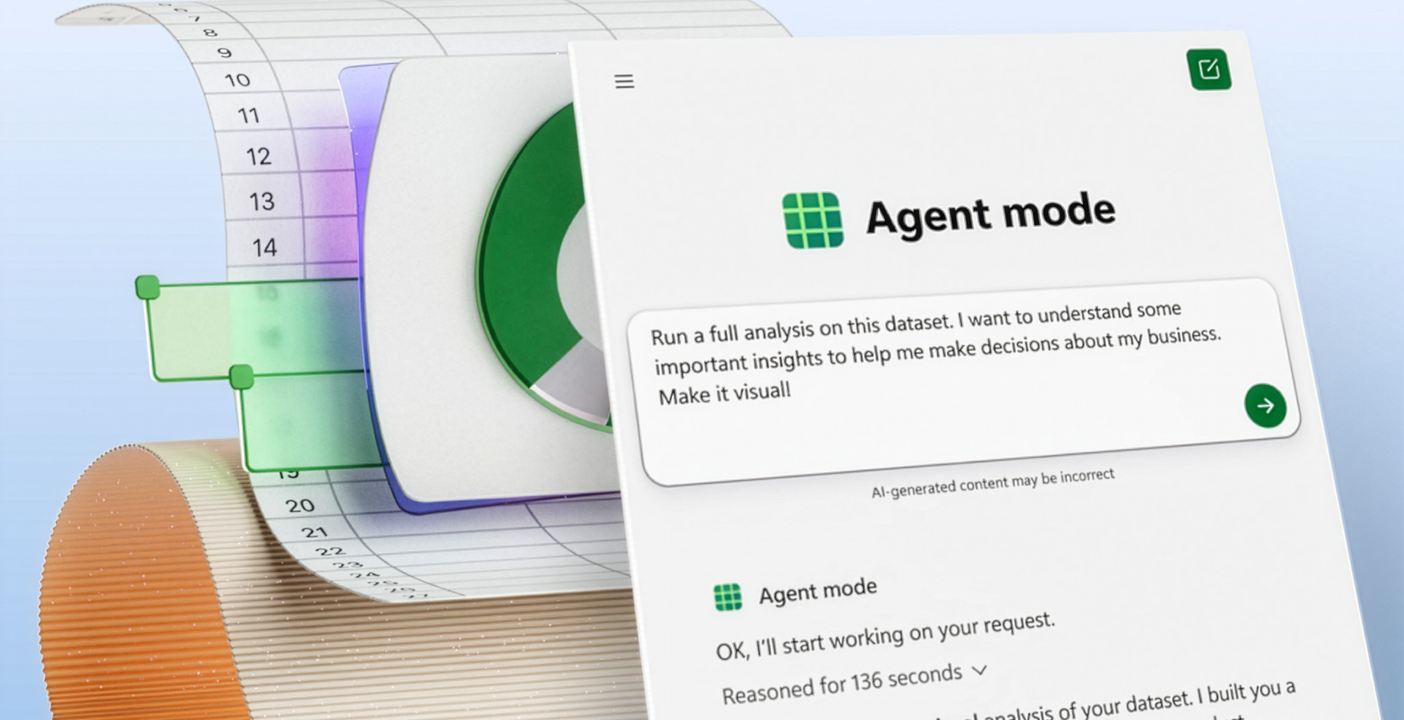
It’s Agent Mode the new way to do human-agent collaboration?
Read more: It’s Agent Mode the new way to do human-agent collaboration?Microsoft Copilot development just doesn’t sleep… This time they have just announced “agent mode” which they claim could be game changer in the way we (humans) work with AI agents…
-
Cisco Webex One 2025 – Chatbots to Agents
Read more: Cisco Webex One 2025 – Chatbots to AgentsWarching this year from the sofa, #Cisco #WebexOne showcased just how far their open ecosystem, agentic AI and plarform integrarion has come. This is my short reflection from the Webex…
-
What is the SharePoint Knowledge and what does it do?
Read more: What is the SharePoint Knowledge and what does it do?The responses and workflows you get back from AI is only as good as the content it can reason over or leverage. If your content (data) is not in good…
-
Beyond OpenAI: Microsoft Copilot add Claude support
Read more: Beyond OpenAI: Microsoft Copilot add Claude supportMicrosoft has started to broaden their AI horizons by adding their first (not Open AI) model into Copilot. Microsoft are integrating Anthropic’s Claude models into Microsoft 365 Copilot which marks…
-

What is Cisco’s Sovereign Critical Infrastructure?
Read more: What is Cisco’s Sovereign Critical Infrastructure?Cisco yesterday announced what they referred to as a “significant milestone” in Europe’s journey toward digital sovereignty. Their Sovereign Critical Infrastructure portfolio is a comprehensive, air-gapped solution designed to give…
-
Microsoft Power Platform Licensing Guide
Read more: Microsoft Power Platform Licensing GuideMicrosoft have made their monthly-updated Power Platform Licensing Deck publicly available. Now, you might think this is not worthy of a blog post, but for many organisations, this information has…
-

Teams in Microsoft 365 is back for good (but it’s your choice)
Read more: Teams in Microsoft 365 is back for good (but it’s your choice)It’s back! Starting November 1, 2025, Microsoft Teams is officially “back” in the Microsoft 365 and Office 365 Enterprise suites globally, but the choice to have it not sit with…
-
Microsoft Copilot Consumer brings Memory Management and Google Drive Integration
Read more: Microsoft Copilot Consumer brings Memory Management and Google Drive IntegrationMicrosoft Copilot is adding with two new major updates (this time for the consumer experience) that bring it closer to the more personalised AI experience users have been asking and…
-
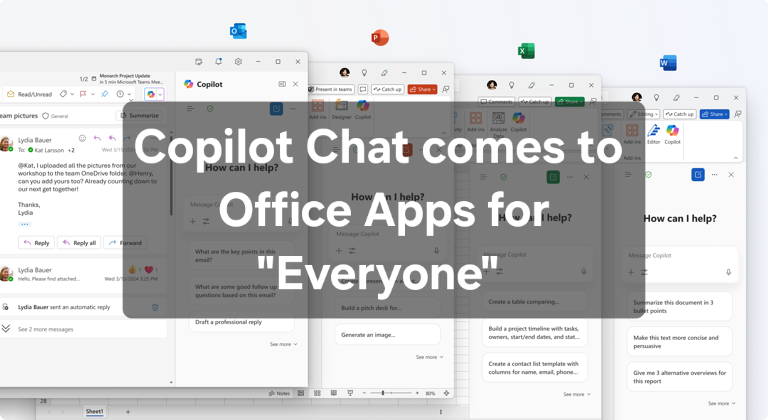
Copilot Chat comes to Enterprise Office Apps for all
Read more: Copilot Chat comes to Enterprise Office Apps for allMicrosoft is in the process of Copilotizing Business / Enterprise versions of your Office apps (Word, Excel, PowerPoint, Outlook, and OneNote) even for users that don’t have a Microsoft 365…
-
Microsoft simplifies Copilot add-ons with reduced pricing
Read more: Microsoft simplifies Copilot add-ons with reduced pricingMicrosoft has confirmed in a blog that they are streamlining its Copilot add-on portfolio by incoprating their specific role-based solutions into the core Microsoft 365 Copilot subscription. Starting mid-October, Copilot…
-
Is Microsoft about to kill DocuSign?
Read more: Is Microsoft about to kill DocuSign?Microsoft (after months of testing) is launching native eSignature support in Microsoft Word. How does this compete and compare to wider known tools such as Adobe Sign. Where where does…
-
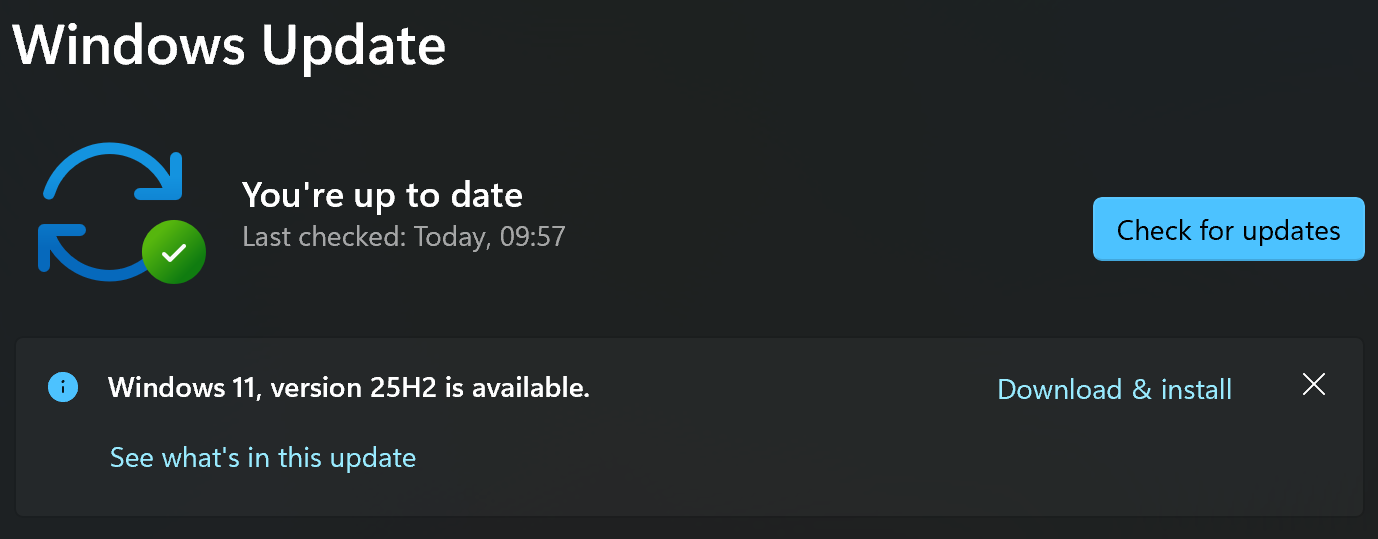
Windows 11 25H2 Release Preview: What you need to know
Read more: Windows 11 25H2 Release Preview: What you need to knowWindows 11’s annual feature update—version 25H2 (Build 26200.5074)—is now available in the Release Preview Channel. This signals that the update is nearly finalised and ready for broader deployment later this…
-
Will OpenAI’s “gpt-realtime” set a new benchmark for AI Voice?
Read more: Will OpenAI’s “gpt-realtime” set a new benchmark for AI Voice?OpenAI has introduced gpt-realtime, a new cutting-edge speech-to-speech model, alongside the general availability of its Realtime API. This release marks a significant step forward in the evolution of voice AI, particularly for…
-
GPT-5 Chat & Reasoning vs Copilot Researcher Agent
Read more: GPT-5 Chat & Reasoning vs Copilot Researcher AgentWith all the new AI models in Microsoft Copilot along with the first party agents that serve spefici functions, it can be confusing to know which tool to use for…
-
Teams Facilitator Agent: A Virtual Chair for Teams Meetings
Read more: Teams Facilitator Agent: A Virtual Chair for Teams MeetingsTeams has a powerful new capability called the Facilitator Agent – a Copilot-driven meeting assistant designed to make collaboration smoother, smarter, and more productive. Think of it as a virtual…
-
Governing Agents in a Low‑Code World: From Assistants to Autonomous Colleagues
Read more: Governing Agents in a Low‑Code World: From Assistants to Autonomous ColleaguesWe are in the middle of rapid shift – AI agents are no longer just reactive helpers waiting for a us to give them a prompt. Instead, they are becoming…
-
Windows 95 Turns 30 today
Read more: Windows 95 Turns 30 todayOn 24 August 1995, Microsoft launched Windows 95 with a level of hype that rivaled Hollywood blockbusters. Thirty years later, its legacy still echoes through every Start menu click and…
-
Unlock Insights with Excel’s COPILOT() Function
Read more: Unlock Insights with Excel’s COPILOT() FunctionMicrosoft has introduced the =COPILOT() function in Excel, embedding AI directly into spreadsheet cells. This formula turns natural-language prompts into structured outputs—no VBA, no complex formulas—so anyone can perform advanced…
-
Why buy a Microsoft Surface? Q&A – Summer 2025
Read more: Why buy a Microsoft Surface? Q&A – Summer 20251: What is a “Copilot+ PC” and how does it differ from a regular PC? A Copilot+ PC is Microsoft’s new category of Windows 11 computers designed from the ground…
-
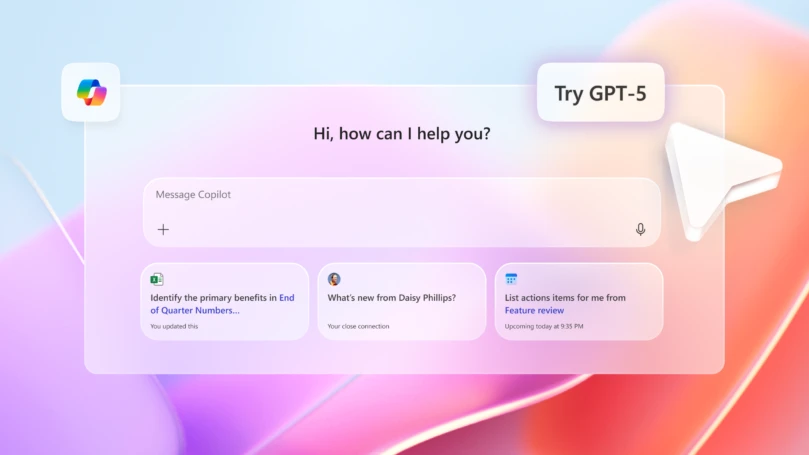
Microsoft 365 Copilot now powered by GPT-5
Read more: Microsoft 365 Copilot now powered by GPT-5Yes… Microsoft are updating Microsoft 365 Copilot with support for GPT-5 across the Microsoft Al stack. This is live now and rolling out across Microsoft 365 Copilot and Copilot Studio…
-

Microsoft is now a $4 trillion company
Read more: Microsoft is now a $4 trillion companyLast week, Microsoft crossed $4 trillion market valuation, becoming the second company after Nvidia to hit the milestone. This was off the back of their FY25 earning report in which…
-
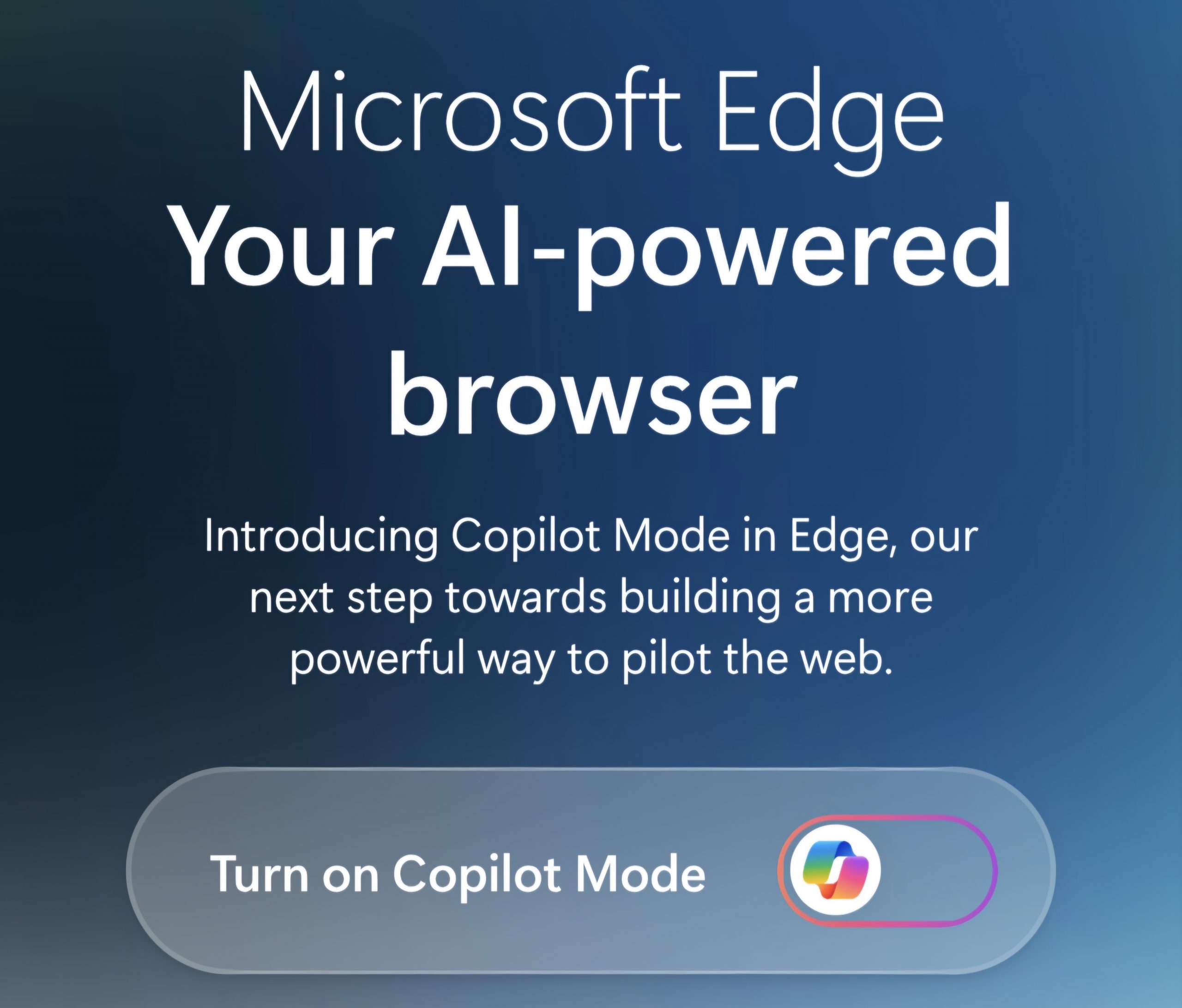
What is Copilot Mode in Edge?
Read more: What is Copilot Mode in Edge?After being in preview for a while, Copilot Mode has now officially arrived in Microsoft Edge (just as Google have announced their AI mode). This shows the shift away from…
-
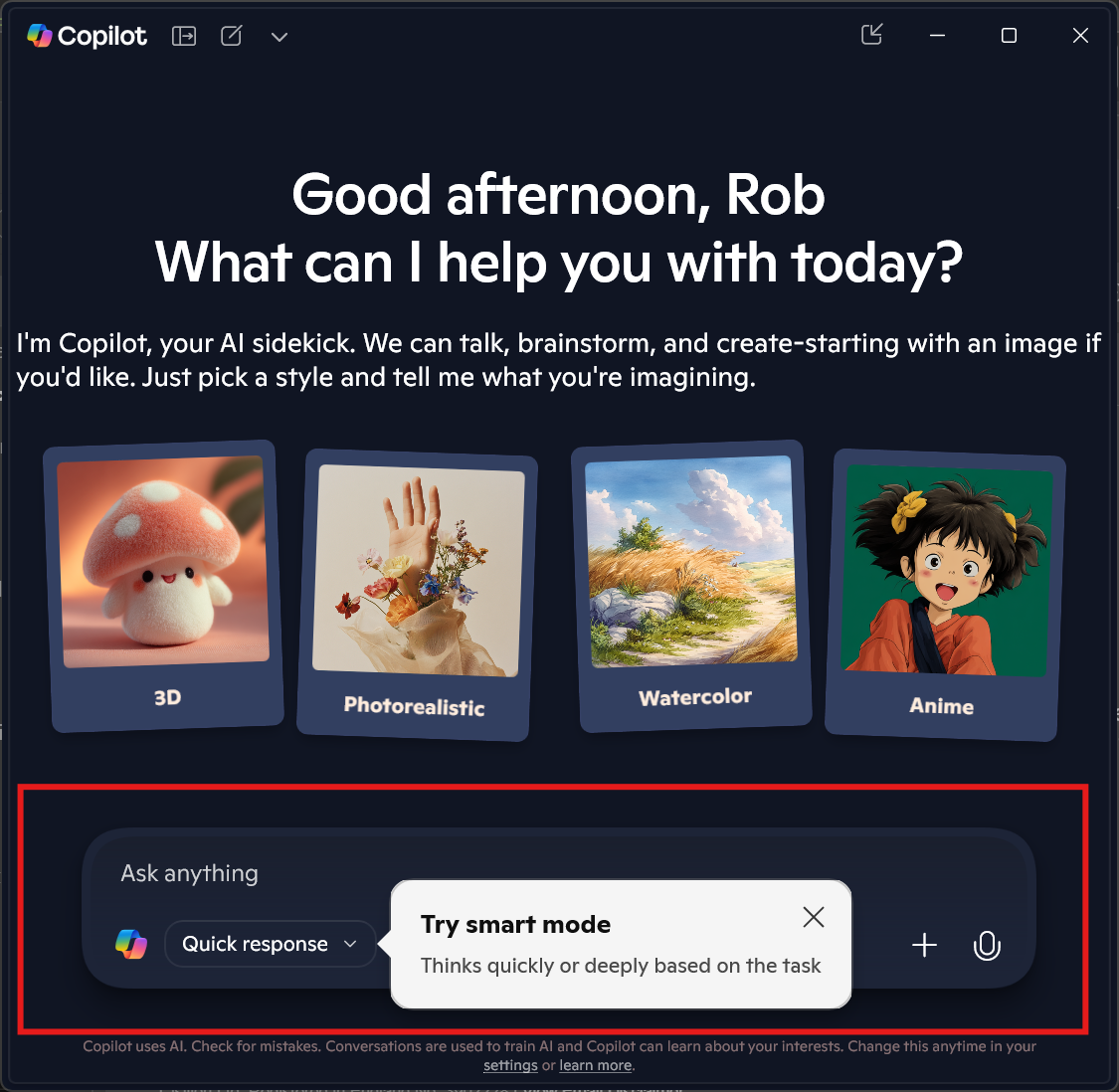
What is Copilot Smart Mode?
Read more: What is Copilot Smart Mode?It snuck in quietly, like all meaningful innovations do. I didn’t see a press release, or announcement – and just saw it “pop” up for me today with one small…
-

Palo Alto to buy CyberArk for $25B: Reinforcing the AI-Era of Identity Security
Read more: Palo Alto to buy CyberArk for $25B: Reinforcing the AI-Era of Identity SecurityPalo Alto Networks has agreed to acquire Israeli identity-security specialist CyberArk for $25B which marks the largest acquisition yet by Palo Alto with this deal taking their total acquisition spree…
-
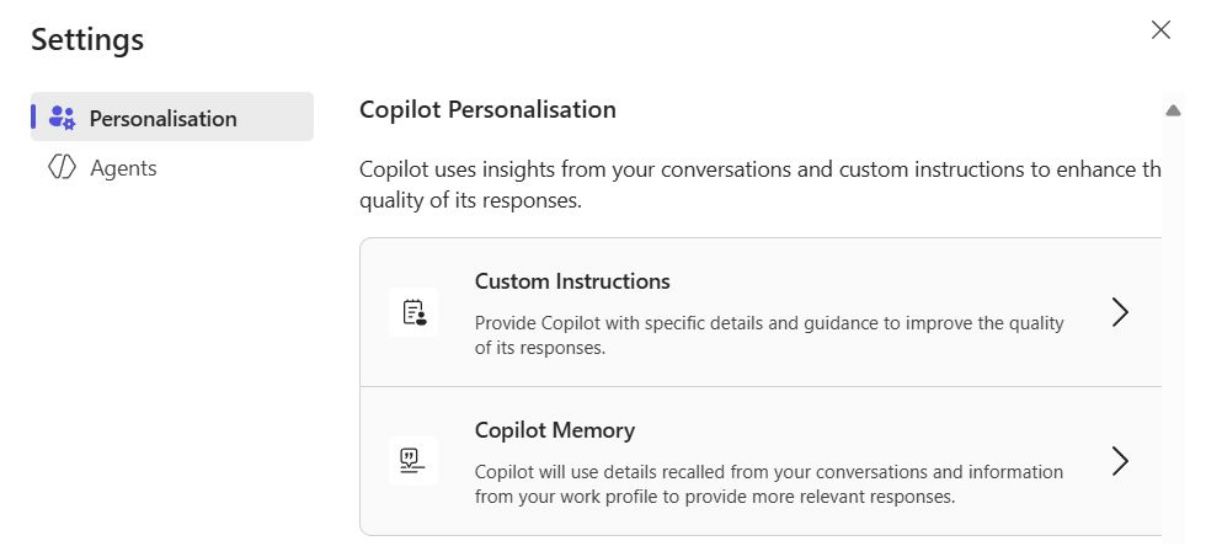
Copilot Memory is Rolling Out
Read more: Copilot Memory is Rolling OutWhat Is Copilot Memory? Copilot Memory is a new capability within Microsoft 365 Copilot (similar to what ChatGPT has) that allows Copilot to remember key facts about your preferences, working…
-
Recap in Teams gets “eyes” to capture screen sharing content
Read more: Recap in Teams gets “eyes” to capture screen sharing contentComing soon, Copilot in Teams will improve on its intelligent meeting recap feature by incorporating content shared on screen into the AI-generated summary. This will ensure that slides, dashboards, and…
-
Why Microsoft Is Phasing Out Passwords for good.
Read more: Why Microsoft Is Phasing Out Passwords for good.TL;DR Microsoft is removing password support from its Authenticator app this summer. As of June, you haven’t been able to add new passwords; in July autofill stops working; and by…
-
What actually is Agentic AI?
Read more: What actually is Agentic AI?So, I was delivering an AI awareness session earlier this week to 120 eight- to ten-year-olds at my sons’ school. In the Q&A bit, one of the children asked me…
-
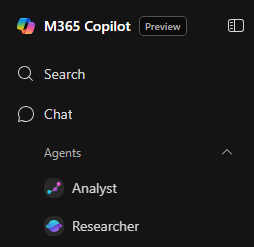
Inside Copilot’s Researcher and Analyst Agents
Read more: Inside Copilot’s Researcher and Analyst AgentsTL:DR Microsoft 365 Copilot now includes two advanced AI agents – Researcher and Analyst that became generally available in this month ( June 2025). These agents use powerful reasoning models…
-
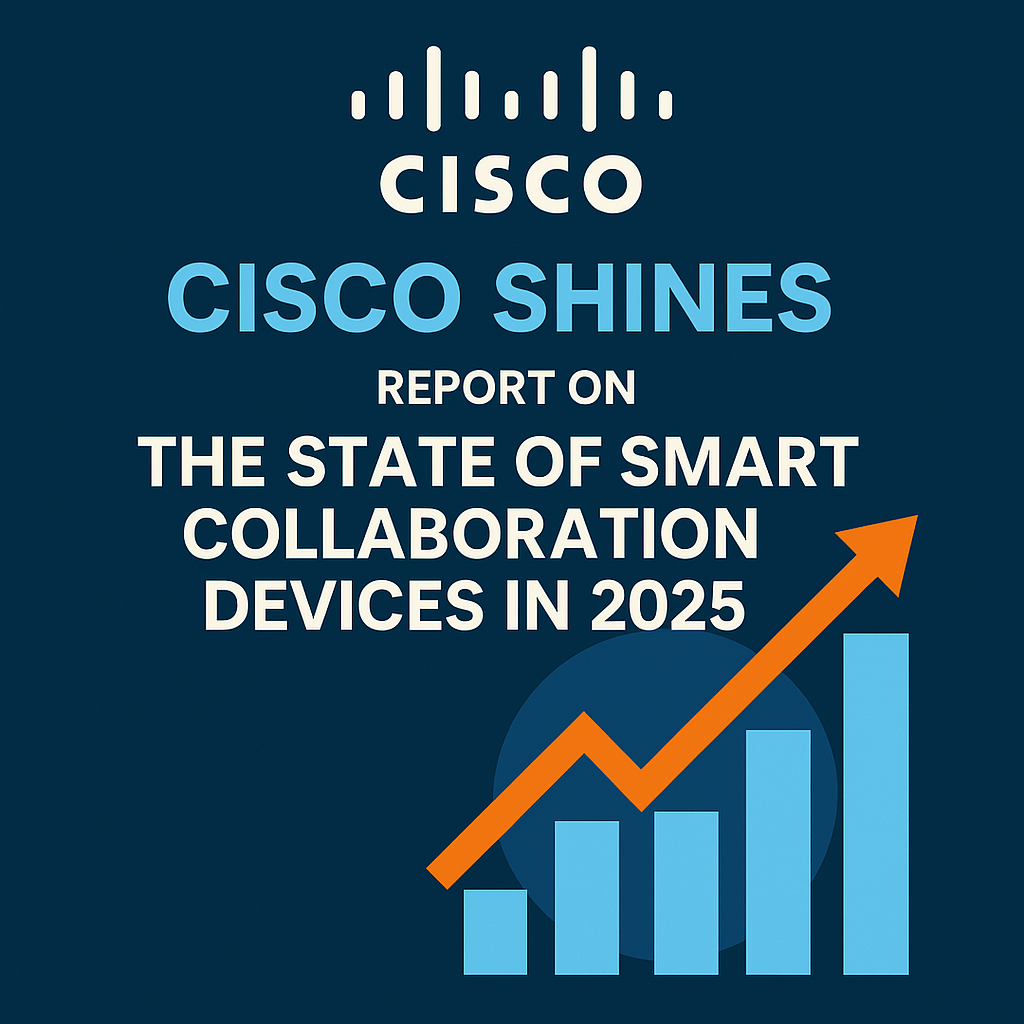
Cisco Shine: Report on The State of Smart Collaboration Devices in 2025
Read more: Cisco Shine: Report on The State of Smart Collaboration Devices in 2025Yesterday I read the “Omdia Universe: Smart Collaboration Devices 2025 report“. This was promoted by Cisco who, as you may know are currently the fastest growing Microsoft Teams Room MTR…
-
Cisco Live 2025: AI Takes Center Stage and Networking Gets a Boost
Read more: Cisco Live 2025: AI Takes Center Stage and Networking Gets a BoostCisco Live 2025 is happening this week in San Diego (after five years in Vegas) with around 22,000 attendees. As you’d image from any tech event at the moment, the…
-
Copilot & Teams will finally understand your business jargon!
Read more: Copilot & Teams will finally understand your business jargon!One of the most frustrating thing about Teams intelligent Recap and Copilot in meetings is in its ability to not understand company acroymns and internal “language” or terms. Scheduled to…
-
Microsoft confirm Cisco are fastest growing Teams Room partner.
Read more: Microsoft confirm Cisco are fastest growing Teams Room partner.Cisco has been named as the fastest-growing partner for Microsoft Teams Rooms. This was announced by Ilya Bukshteyn, VP for Teams calling, devices, and premium experiences at Microsoft at an…
-
Microsoft releases new Calendar app for commercial customers
Read more: Microsoft releases new Calendar app for commercial customersAfter years of silence around bringing more functionality to the Windows 11, Microsoft have quietly announced a new Calendar app for Windows 11. This doesn’t replace the Calendar Fly out…
-
Chip to Cloud: Microsoft Surface’s End-to-End Security
Read more: Chip to Cloud: Microsoft Surface’s End-to-End SecurityMicrosoft Surface is more than a premium class device. Surface is a manifestation of Microsoft’s holistic, Zero Trust security philosophy. Secure by design and Secure by default. This blog explores…
-
What is TPM2 and why Windows 11 requires it
Read more: What is TPM2 and why Windows 11 requires itWith Windows 10 support ending in <5 months, I thought I’d talk a little about what Trusted Platform Module (TPM) is, its role in Windows 11, and how it fits…
-
Windows 365 now 20% cheaper until October 2025
Read more: Windows 365 now 20% cheaper until October 2025With support for Windows 10 ending on 14th October 2025, Microsoft has introduced a strategic initiative aimed at easing the transition to modern computing environments and to encourage more oganisations…
-
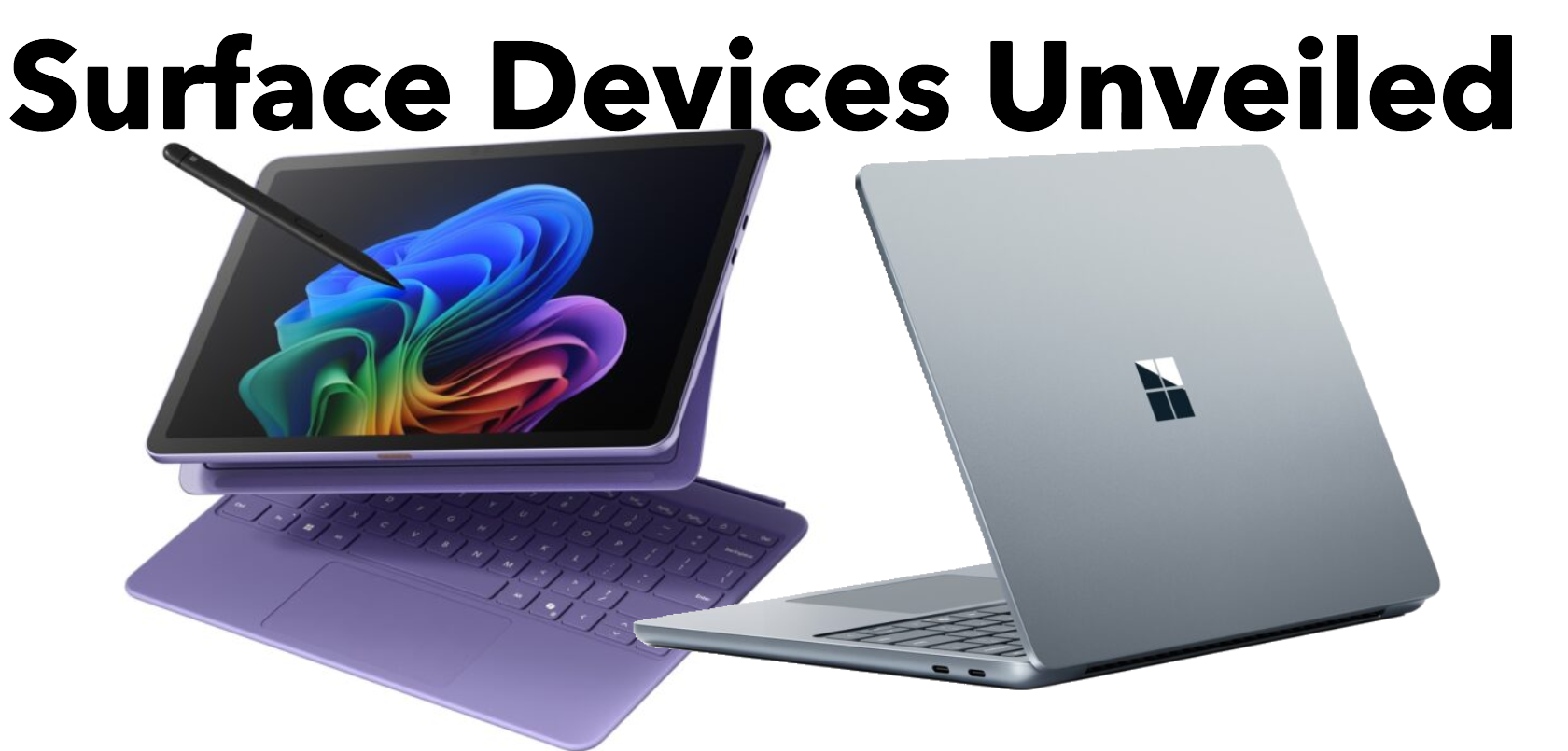
New Surface Copilot+PC devices announced
Read more: New Surface Copilot+PC devices announcedMicrosoft has today announced new (smaller) Copilot+ PC Surface Pro and Laptop 13″ which amongst other things provide a more cost effective Windows-powered alternative to the Apple iPad Pro 11-inch which…
-

Star Wars Day & AI: A New Hope for the Digital Age
Read more: Star Wars Day & AI: A New Hope for the Digital AgeEvery May 4th, us starwars fan unite under the rallying cry, “May the 4th be with you!”. Just as the ‘real 1st episode’ A New Hope sparked an adventure in…
-
27th April – Morse Code Day
Read more: 27th April – Morse Code DayMorse Code Day is “celebrated” every year on April 27th to honor Samuel Morse, the inventor of Morse code, who was born on this day in 1791. This day recognises…
-
Tick-Tock: Upgrade to Windows 11 Before October 2025
Read more: Tick-Tock: Upgrade to Windows 11 Before October 2025With the end of support for Windows 10 on October 14, 2025 (less than six months away), the time has come to embrace the next generation of computing for work…
-
2025 Work Trend Index Report – AI agents will make every employee an “agent boss”.
Read more: 2025 Work Trend Index Report – AI agents will make every employee an “agent boss”.Microsoft has just released its annual Work Trend Index report, and as anticipated, its focus is boldly centered on the transformative impact of generative AI in the workplace. The report…
-
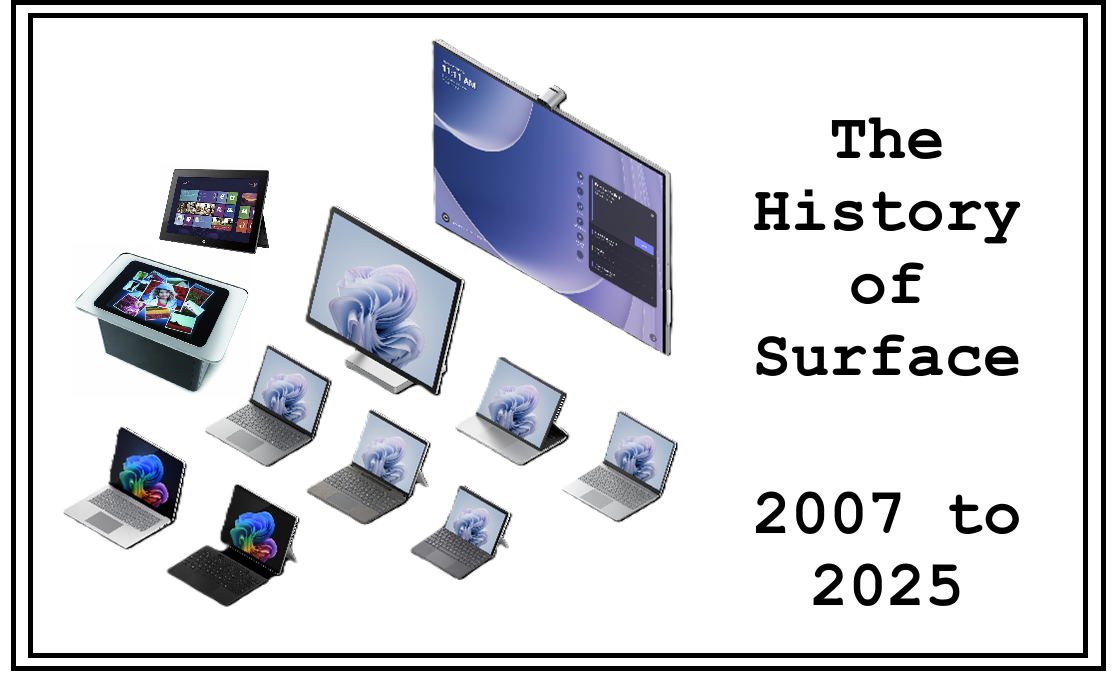
50 Years of Microsoft: The Surface Evolution
Read more: 50 Years of Microsoft: The Surface EvolutionIntroduction This blog post looks back at the history and evolution of Microsoft Surface dating back to 2007 and the iconic Surface Table to today’s sleek and beautiful Surface Copilot+…
-
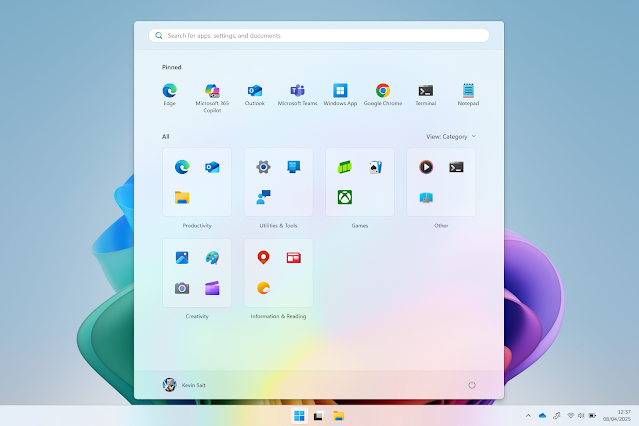
New Start Menu in testing for Windows 11
Read more: New Start Menu in testing for Windows 11Before we start, why should we get excited about a change to Start Menu? Afterall, it is something that has been under constant critique since Microsoft changed it up (ok…