Microsoft has been recognised over the last 12 months as leaders in 8 Forrester Wave catagories.
Did you know, Microsoft analyse over 24 trillion security signals every 24 hours offering a uniquely comprehensive view of the current state of security.
This is backed by over 8,500 security experts from across 77 countries that provide a critical perspective on the security landscape and helps protect against industry and state nation attacks.
Microsoft say that “When you have comprehensive security, you have the freedom to grow your enterprise to match your vision. Comprehensive security is not only coverage, but also best-in-breed protection, built-in intelligence, and simplified management”.
1. Unified Endpoint Management
Microsoft Endpoint Manager brings together Microsoft Intune for cloud endpoint management and Microsoft Endpoint Configuration Manager for endpoints on-premises, empowers organisations to protect their apps and devices across platforms for a resilient, productive workforce.
Image (c) Forrester Research 2021
2. Extended Detection and Response (XDR)
Extended detection and response (XDR) is an early-stage market, and current vendor capabilities reflect that. XDR products have variegated feature sets based on their maturity, native portfolio, and vision for the SoC which is thought will likely replace (longer term) SEIM.
Microsoft Defender combines SIEM and XDR to increase efficiency and effectiveness while securing your digital estate. It allows IT to get insights across their entire organisation with their cloud-native SIEM, Microsoft Sentinel. Customer can leverage integrated, automated XDR to protect end users with Microsoft 365 Defender, and secure their multi cloud infrastructure with Microsoft Defender for Cloud.
Image (c) Forrester Research 2021
3. Identity as a Service
The shift to hybrid or fully remote workforces has also accelerated user access that bypasses enterprise networks. To manage these changes, organisations are looking to IDaaS providers to serve as their primary identity provider (IDP).
Image (c) Forrester Research 2021
4. Security Analytics Platforms
In the past, vendors offered traditional SIEM systems as on-premises hardware or software deployments. In 2020, Azure Sentinel became the industry’s first cloud-native SIEM on a major public cloud.
Most of the vendors included in Forrester’s evaluation of the security analytics platform market deliver their products via SaaS or cloud-hosted models. This change has enabled vendors to more quickly roll out new capabilities to their customers and decrease the management overhead for these systems.
Image (c) Forrester Research Q4 2020
5. Enterprise Email Security
Microsoft were positioned as a leader for Enterprise Email Security, Q2 2021 receiving among the highest scores in the strategy category. Microsoft Defender for Office 365 also received the highest possible score in the incident response, threat intelligence, and endpoint and endpoint detection and response (EDR) solutions integration criteria, as well as in the product strategy, customer success, and performance and operations criteria.
Image (c) Forrester Research 2021
6. Endpoint Security Software as a Service
Microsoft 365 Defender received one of the highest scores in the strategy category. Forrester notes that “the focus on endpoint security has increased as cyber risks shift from the network to the endpoints, prompted by increasing amounts of homeworkers and the bulk movement of data from enterprise network-connected data centers to edge devices.”
Microsoft Defender for Endpoint is seamlessly built into Microsoft 365 Defender, and their XDR offering brings capabilities for identities, endpoints, cloud apps, email, and documents.
Microsoft 365 Defender delivers intelligent, automated, and integrated security in a unified security operations (SecOps) experience, with detailed threat analytics and insights, unified threat hunting, and rapid detection and automation across domains – detecting and stopping attacks anywhere in the kill chain and eliminating persistent threats.
Image (c) Forrester Research 2021
7. Unstructured Data Security Platforms
Microsoft has significantly increased their investment in building risk management and compliance solutions, inclusive of information protection and data loss prevention (DLP). They delivered new solutions, such as Microsoft Information Protection, Endpoint DLP, and product features, including trainable classifiers, the “know your data” dashboard, and enhanced sensitive information types, to name a few. Additionally, Microsoft continues to invest in extending the Microsoft Information Protection ecosystem with continued innovation via their SDK. Over 200 partners now extend this protection capabilities to various industry or vendor specific use cases.
Image (c) Forrester Research 2021
8.Cloud Security Gateways
Microsoft Defender for Cloud (formally Cloud App Security) received the highest possible score in the strategy category.
Defender for Cloud is focused on helping organisations gain visibility of all their cloud apps, discover shadow IT, protect sensitive information anywhere in the cloud, enable protection against cyber threats, assess compliance, and manage security posture across clouds.
Image (c) Forrester Research 2021
Read the digital defence report
To find out more read the Microsoft Digital Defence Report.
Microsoft has annouced a Windows centred event on April 5 which will be led by Windows Chief Product Officer, Panos Panay and is focused on how “Windows Powers the Future of Hybrid Work”
Registration is open now
The official web registration page for the event is already live with the virtual event scheduled for 4PM UK time (8:00 AM US Pacific Time).
Whilst not much is known about the content of the event, it will likley be aimed at commercial customers and will highlight many of the new ans upcoming features (currently being tested and developed with Windows Insiders) designed to improve and enhance the Windows 11 experience and tablet experience.
It won’t just be about Windows 11
The event will likley not only be about Windows 11. Since this is about the future of work, expect to hear about further hybrid work enhancements use this event to across other aspects of Microsoft 365 and (as in previous events) may be some surprise new product announcements. There will also likley be updates to device management tools and further enhancements to Windows 365 Cloud PC and Azure Virtual Desktop services.
The Microsoft’s webpage for the event also states that there will be break-out sessions which will deep dive into demos around upcoming enhancements to Windows tools for productivity and collaboration, management, and security.
Watch it live on April 5th
I will be watching live (hopefully), and will share any key news and updates after the event. Leading Windows sites and of course the Windows blog will also be updates and the event unfolds.
This link will download calendar file so you can quickly add it to your calendar.
Following on from a packed January of new features, the slew of updates and enhancements to Microsoft Teams and Cisco Webex isn’t slowing down. Here’s my pick of the new features for Feb 2022 across the two big collaboration, meetings and calling platforms.
Microsoft Teams
Like most of the platforms, focus in Feb would adding some love to existing features and enhancing others. Main ones include enhancing the hybrid meeting experience, big updates to Teams Room devices on Android and bringing intelligence and convenience settings to physical meetings with the new “knock knock features”.
General Updates and New Features
Mute Notifications in Meetings
Subtle but vital, it’s now possible to mute notifications during meetings, so you can better focus. In addition to this, you can also now see the user’s “local time” allowing you to be more considerate of your colleague’s/customers/partners availability. Finally, the last general feature to hit the general release is the ability to pin chat messages,change chat density, and also respond to group approvals requests within Teams Approvals.
Meeting Experiences
New mobile meeting experiences on iOS
In line with what was already supported on Android, it’s now also possible to join a Teams meeting with a single tap on both your Apple iOS device and Microsoft Teams Rooms using the companion feature. With this feature on, audio on your device will be automatically turned off to ensure echo does not happen. The “landing” experience on your iOS device will be optimised for engagement activities to make it easier to raise a hand or react, chat, see all participants, and access Microsoft Whiteboard. In addition to simply joining a meeting, Microsoft have also made it easy to access meeting and device controls, which includes the ability to cast a PowerPoint, control room cameras and more.
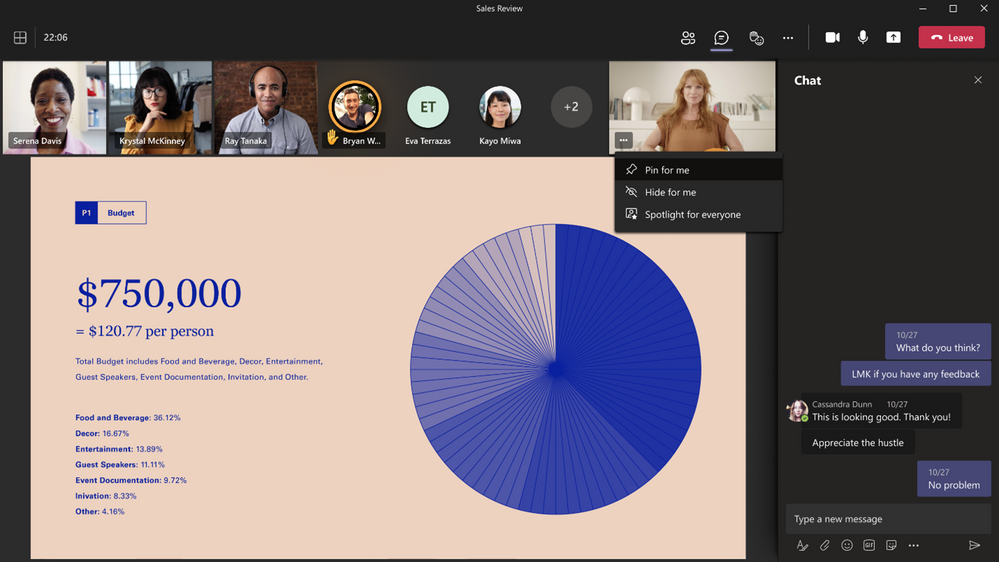
Microsoft have also made it possible to pin to the meeting stage or hide your own video in meetings. This allows you to see your own video in the increased size on your screen or to hide your own video (for you) during a meetings. This is designed to reduce distractions during calls and meetings while still having your video available for other participants to see. This is done by clicking on the ellipsis (…) in your video feed and selecting Pin for me or Hide for me.
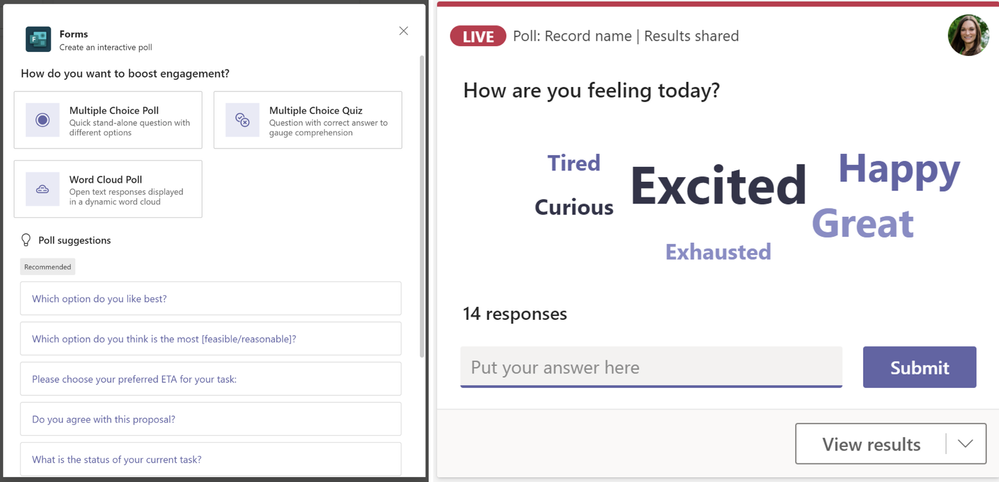
Word Cloud Poll – adds support for open-text question polls in Teams meetings. When using polls in meetings, this new option is great for more open engagement with attendees, since it allows you to collect attendees’ open-ended responses before, during, or after a meeting, with the results being automatically aggregated and displayed as a word cloud.
“Word Cloud” Poll
Teams Walkie Talkie on Phones
Microsoft added the addition of Walkie Talkie function already available on mobile, to Teams phones devices which allows users to use instant push to talk to speak to colleagues or other departments. Walkie Talkie on Teams phone devices can only be used to communicate with colleagues that are part of the same Teams channel so think of it like a silo’d communications group. Walkie Talkie can be added to the App Set up Policy and assigned to Teams Phones devices from the Teams admin center.
New to Teams Devices
Teams Rooms, can now be configure to automatically release reserved conference rooms that are not being used. In addition there is also a new featured known as a “check-in knock-knock” notification on the Teams Room front room display, which will alert over-running meeting dwellers that their meeting is over and people are waiting to come into the room.
Microsoft also more added support for content sharing on Teams Rooms for Android, as well as increasing the number of video feeds displayed. HDMI ingest sharing, also makes it way to more Android Room devices as does far-end camera control for remote meeting attendees. Android Teams Room devices also now support adaptive dual screen display whereby the videos of remote participants span both screens (in meeting rooms with dual screens) when content is not being shared.
Teams Rooms on AndroidHDMI Ingest on Android Rooms
Cisco Webex
Updated to Webex are also coming thick and fast and Feb 2022 is all focussed on innovations that make hybrid work even better. In Feb’s updates, these including voice optimisations for all voices, a new Webex App integration within HubSpot (which joins app integrations from Zoom and Teams), new Socio capabilities that aim to unify the physical and virtual event experiences. There’s also welcomed changes to Cisco’s flagship Room Panorama devices.
New “All voices” audio optimisation
Aimed to “give all meeting attendees an equal voice”, Webex has added “optimise for all voices” to their intelligent audio capability. This enhancement will allow users to be able to hear anyone in the meeting, no matter where they are in the room at the same volume level. For example, if there are a few people sitting away from the microphone, their voices will still be heard loud and clear by all remote meeting participants.
Realtime translation and transcription expanded with 13 new languages
Webex now makes it easier to create a more inclusive, collaborative and accessible experience in meetings and webinars with attendees from around the world, as well as those with hearing disabilities, with real-time translation. This month Webex have added 13 new spoken languages taking the total to over 100 caption languages in the Webex app.
Webex Live Captions and Translation
Redesigned Sildo “poll” experience
Cisco released a redesigned Slido experience in meetings to make it easier to create engaging real-time polls, quizzes, and also to host Q&As. Silo was integrated into Webex last year following an acquisition and provides a simple to use, adaptive and extensive experience.
Cisco Slido Polls in Webex
Webex Room Panorama
Aimed to bridge the gap between hyrid meeting experiences, Cisco Webex can now bring a full immersive experience with panoramic view to cloud registered Webex Room Panorama devices. Webex now supports up to 9 point-to-point calls with exceptional live video feed of far end participants, including control of remote meeting rooms, on the two 82” screens which make up the Panorama. Shared content is displayed on the 65” top screen.
Cisco Webex Room Panorama
Room Panorama features directional, stereo audio, intelligent table microphone array, HD content sharing to provide even more flexibility, better replicate in-person experiences, and to bring the full panoramic experience to boardrooms and executive meetings rooms.
Microsoft describe their Laptop Studio as a “Portable Device with a Seamless Transition Between Laptop and Canvas…. Your Own Portable Studio with a Large Touchscreen & Top Performing Graphics“.
In this hands-on review, I put one of these devices through the paces for two weeks as my daily device, to see how this new form factor device, which blends the best of Surface Studio 2 and Surface Book performed.
Spec Tested: Surface Laptop Studio – 14.4″ Platinum | 11th Gen i7 | 32GB RAM | 1TB SSD
My First Impressions
Being a long-term user/fan/enthusiast of Surface, then the first thing I was presented with when un-boxing the Surface Laptop Studio is how familiar, yet unique and different at the same time it is. Laptop Studio is a natural modern evolution of all the best things that makes a Surface a Surface and they have done a great job putting together their latest flagship devices. Its simply a thing of beauty with grunt and muscle to go along side the good looks.
At first glance you’d be forgiven for thinking it is simply a bigger, slightly chunkier Surface Laptop that has been given the Windows 11 “rounded edges” treatment. But it is not. Then there is the fact there are many similarities not only to Laptop 4 but also to Apple’s latest MacBook Pro range. From the rounded corners, layout of the keyboard and ports and the large trackpad, these are all similar to that found on Apple’s MacBook Pro (after all both have been borrowing design ideas and innovation from each other for years).
Surface Studio Laptop in ‘Laptop Mode’
Microsoft are known for setting the design standard through innovation when it comes to their products. If it wasn’t for Microsoft Surface the 2-in-1 or ink driven UI may never have been born after all!
Laptop Studio is no different so when you look a little closer you notice that’s much more than meets the eye.
Blending the best of Studio and Laptop
Whilst Laptop Studio can be used just like a a normal clam-shell laptop, you can fold down the screen to turn the laptop into a tablet (aka Studio mode) for drawing and sketching.
Surface Laptop Studio in “Studio Mode”
There’s also a half-way house, where by you can simply just pull forward the screen into “Stage Mode” to use it as an angled touch canvas for taking notes, annotating work, playing games and watching films or box sets.
Surface Laptop Studio in ‘Stage Mode’
This is all made possible thanks to what Microsoft is calling a “Dynamic Woven Hinge,” which feels sturdy and makes it easy to flip the screen into its various modes of use.
Who is Laptop Studio designed for?
In all the promotional videos around Laptop Studio, Microsoft showcases digital artists using the screen in its various positions to draw on it in flagship apps like Adobe Creative Studio. They also show it being used flat when docked to a monitor, mouse, and keyboard for a complete hybrid experience of digital note taking and conventional computing.
Laptop Studio is clearly an evolution of what Microsoft had developed with Surface Book. With Laptop Studio, Microsoft have made it easier to change between modes and there’s no need to separate the screen from the base unit, though I did often find some advantages in that since I could separate tablet component and move around leaving the base connected to a monitor and dock.
Surface Slim Pen 2
Ok, some personal advice. Do not buy, test or be given (you never know) a Surface Pro, Book, Studio or Laptop Studio without a Surface Pen. To me, the touch screen and ability to use digital ink is what stands Surface out from the crowd. Inking is it’s thing and with Surface Laptop Studio and Surface Slim Pen 2 – that experience just got even better.
Surface Slim Pen 2, is of course a must-have for graphic designers or just the more artistic users but for me (who’s been using Surface since the days of Surface RT) it’s still a must and I’d say that it’s a necessary extra for anyone buying a Surface.
Surface Pens have always been great with their 4096 levels of pressure sensitivity and inter-changable nibs, but the best thing about Surface Slim Pen 2 that is now has haptic feedback which works in a growing number of apps – from drawing and inking in Whiteboard or OneNote you now get distinct vibrations which mimic the resistance felt when using different types of pencils, pens, markers and highlighters. The haptic feedback makes it feel much more like you are drawing on a real sheet of paper or canvas that a screen and their is remarkable improvement when comparing the canvass feel I was used too on my Surface Book 2.
Like I said, Surface Pens are not just for artists. I see the pen as a vital tools for taking notes, marking up documents or making quick edits to Office docs. The pen can also double up as a more natural tool for reviewing, editing and presenting. As an example, in Microsoft Word, you can use the pen to delete sentences by simply crossing them out, in PowerPoint you can simply ink and draw on the slides and with Edge you can write and draw directly on web-pages or use the pen to annotate notes etc. You can also program the pen to launch apps on a click and of course you can use it as a trust PowerPoint clicker in presentations.
Surface Pens are also designed to work with well known third-party programs including the Adobe Creative Suite, Sketchup and many others.
Surface Pen Slim 2 storage and charging
Surface Slim Pens are magnetic and charge wirelessly. On the Laptop Studio the pen is designed to be stored under the front lip on the keyboard area where it magnetically sticks nicely sticks and charges.
Ports and Charging
The Laptop Studio is actually also pretty slim on ports, with just two Thunderbolt 4 USB-C inputs, a headphone jack and Microsoft’s proprietary Surface Connect port for using the included charger. You can, however also charge the device via the USB-C port with a compatible power cable). The latest Thunderbolt 4 USB-C ports are ideal for connecting to 4K monitors and for connecting to external files from hard drives.
Keyboards and Touchpad
The Keyboard on the Surface Laptop Studio is probably the best they have ever made, and Microsoft keyboards (even on the Laptop Go) are really good. The keyboard has great depth and travel and is responsive with the keys well spaced. As you’d expect it has the usual back-lighting which can be customised or tuned off and you get all the usual volume and media controls above the function keys.
The haptic touch pad brings another similarity from the MacBook Pro. Haptic touchpads, uses a touch-sensitive pad that vibrates to simulate a click instead of buttons that sit beneath the trackpad. I found the trackpad worked really well, with everything from clicking links and browser tabs in edge to pinching to zoom into webpages or office documents felt responsive and natural. Just like a traditional click-based trackpad, the haptic touchpad responded well to our inputs no matter where on the touchpad I clicked or pinched.
Microsoft provide the ability for you to adjust the intensity of the touchpad rumble. It isn’t a killer feature by any means, but it is a nice upgrade which I hope becomes standard on Surface devices moving forward.
Screen and Multi-Media
The display on the Surface Laptop Studio is simply a thing of beauty. As well as looking modern and sharp, the colours are vibrant, blacks black and detail is crisp and sharp whether you’re working in Office apps, inking or drawing or watching a film or box set on Netflix.
The screen is a 14.4-inch, 2400 x 1600 resolution, 120Hz display with the usual Surface 3:2 standard aspect ratio, which means you can comfortably watch 8K films or National Geographic documentaries on Disney Plus! The 120Hz does wonders for image quality and smoothness since the 120hz refresh rate is double that of most mainstream laptops and non-gaming monitors, which essentially means the display is twice as responsive.
It’s not just gaming and film watching though that benefits from a 120Hz display. I noticed that when scrolling through webpages or word documents or using a digital graphics apps like Microsoft Whiteboard, the display felt much more responsive and smoother that it does/did on my Surface Book 2 which is standard 60Hz display like most mainstream laptops.
Laptop Studio also has an impressively high quality set of quad Dolby Atmos speakers which is far from what you’d expect on a laptop! From watching StarWars films, to playing games and listening to Spotify, the audio was loud, crisp and clean with no distortion or tinny sounds/vibrations at full volume.
In usual day to day Microsoft Teams Calls, audio comes through clearly and colleagues gave no complaints about my own audio when using the built-in dual microphones.
Power & Performance
Microsoft position the Surface Laptop Studio as Microsoft’s most powerful Surface yet, and based on using the device for 2 weeks, I wont argue with that statement!
I’ve been using this device for pretty much everything this past two weeks and it has handled everything I threw at with ease with no slowing down or performance drag. The device I have been using is equipped with an 11th Gen Intel Core i7-11370H processor and 32GB of RAM and was running the GA build of Windows 11.
In the two weeks I had the device – I used it every day and didn’t reboot it once. Most days I had at least 8-10 apps open including Microsoft Teams, PowerPoint, Word, Excel, PowerBI Desktop, Power Automate Desktop, Paint3D, Camtasia and Edge (with far too many tabs open). This was connected to my Surface Dock where it also powered a ultra-wide 4K screen and allowed me to switch seamlessly between the apps without any signs of struggling or slowdown. I also managed to do some graphics rich editing in Camtasia with the other apps running in the back-ground without any effort at all.
I managed to spend an evening (once the kids were in bed) using Laptop Studio as a mini gaming station by pairing my son’s Xbox controller via Bluetooth and using the device in its’ “stage mode”. It was a real pleasure to use and something I could easily get used too.
Battery Life
Given the amount of power in the Surface Laptop Studio, you’d think the battery was going to let it down. It doesn’t.
I spend a day in our London office last week and risked not taking a charger with me. I’m never one to believe the claims made by manufacturers around battery life, but in my “day out”, the Laptop Studio lasted me just over 8hrs 30 mins of usage which was spend mainly in Office apps and Teams video meetings (webcam on), on a wireless internet and with my Poly Voyager Focus 2 Bluetooth headphones connected.
This is felt was pretty impressive when you consider that kept the device in its default 120Hz mode and was connected to Wi-Fi all day too with my web-cam on for a good 2-3 hours.
In my experience, the Laptop Studio’s runtime is just a tad less than on the Surface Laptop 4 and was about the same as the Surface Book 2 (which is nearly 3 years old now). Surface Pro X (which runs ARM) has been my personal best so far consistently giving me over 9 hours of continual use.
Pricing
Ok – so Laptop Studio is hardly an entry level device but pricing depending on what you desire / need isn’t as bad as you might think, but some of the key models and pricing are illustrated below for business.
Model
Code
Price (Ex VAT)
i5/16GB RAM/256GB SSD
TNX-00004
£1,126.90
i7/16GB RAM/512GB SSD/NVIDIA G-FORCE RTX A2000
ABR-00004
£1,425.42
i7/32GB RAM/1TB SSD/NVIDIA G-FORCE RTX A2000
AIC-00004
£2,239.31
i7/32GB RAM/2TB SSD/NVIDIA G-FORCE RTX 3050
AI5-00004
£2,131.43
Sample Surface Laptop Studio Business Pricing [Feb 2022]
Alternatives – of course, the thinner sleeker Surface Laptop 4 or Surface Pro 8 makes for good alternatives for everyday users who don’t need loads of power but still need and good all-rounder device. Personally, I’d always go Pro over Laptop and I don’t think I could live within pen and ink!
Summary
In my opinion, Surface Laptop Studio is the best Surface device Microsoft has ever made.
Suppose I had better back that statement up right!?
Ok – well, it’s has the perfect combination of style, performance and battery whilst still being one of the best looking devices you’ll ever see or use. It’s sleek and flexible 2-in-1 design combined with (optional) Slim 2 Pen make it an especially great choice for graphics, drawing, inking and sketching and the haptic touch-pad and updated keyboard feels great for everyday use. Finally the super sharp 14.4-inch 120Hz display brings both detail, colour and sharpness to every app or use and really shows its self off when used for digital editing, gaming or watching 4K or 8K movies.
Like the Surface Book they are not the cheapest of the range but for that you have the Laptop 4, or Surface Pro, but here is my top 5 reasons to buy one (or get your manager to buy you one).
Their Best Ever – The 2-in-1 design makes this the best Surface Microsoft have every made and it is a no-brainer upgrade from the Surface Book
Powerful and Sleek – but will still get you through (just) a working day, but supports USB-C charging if you need it,
Simply gorgeous and really turns heads
Can handle anything and everything you through it without compromise.
A true digital canvass – it handles graphics, video editing and drawing apps with a breeze and the Slim Pen 2 turns it into a true digital canvass.
Cisco has released an updated version of their SD-WAN software which now supports the optimal routing of Microsoft SaaS apps including Microsoft SharePoint, OneDrive, and Teams on their SD-WAN. Cisco’s Vipella SD-WAN solution is the first SD-WAN solution to be certified for this.
Note: At time of writing, this feature applies to Cisco’s Viptela SD-WAN solution and is not currently supported in the Cisco Meraki SD-WAN portfolio. This may change.
With this update to the Cloud OnRamp feature, Cisco SD-WAN “further integrates Cisco’s support for Microsoft’s Informed Network Routing technology that lets organisations share Microsoft 365 app feedback telemetry with networking vendors and to receive network link telemetry from them”, according to Jeevan Sharma, Manager, Product Management, Enterprise Cloud & SD-WAN group at Cisco in a blog about the enhancements.
Known as Cloud OnRamp for Microsoft 365, it uses “proactive and continuous link probing to assess the best performing path at any point in time. It also allows network admin to utilize Microsoft URL categories granularity for categorizing the Microsoft 365 apps into Optimize, Allow and Default categories, while active link probing makes sure that the best performing path is always selected”.
How it works
This latest update to Cisco’s SD-WAN software, which continually monitors and controls the connectivity, management, and services between data users (remote or office based) and cloud and data centre services, now includes support for more Microsoft SaaS applications specifically SharePoint (and OneDrive) and Microsoft Teams.
Cisco SD-WAN customers can leverage Cisco’s Cloud OnRamp to intelligently route Microsoft 365 traffic, to provide the fastest, most secure, and most reliable end-user experience. This is done by ensuring that all connectivity paths to Microsoft 365 from each WAN / Internet connection at the branch, office, regional hub and/or data center is monitored continuously for performance, and application traffic is then dynamically routed to the best-performing path without requiring human intervention. Cisco Cloud OnRamp also provides real-time and historical visibility into SaaS application performance.
“I am excited to announce that the integration between Cisco SD-WAN and Microsoft Informed Network Routing now includes support for Microsoft Teams and SharePoint app telemetry. This update will help us deliver an improved end-user experience through enhanced cloud connectivity. The partnership between Microsoft 365 and Cisco SD-WAN further enhances your Microsoft Teams and SharePoint experience by optimizing routing and path selection beyond traditional network telemetry probes”
Jeff Mealiffe | Principal Architect | Microsoft 365 Core Networking | Cisco
Microsoft and Cisco Partnership
Cisco SD-WAN is Microsoft Network Partner Program (NPP) certified and is also a Microsoft 365 networking partner. As part of this program, Cisco SD-WAN aligns with the Microsoft’s Connectivity Principles aimed at helping Microsoft 365 customers achieve optimal end-user experience.
What is SD-WAN?
SD-WAN technology is available from leading network and vendors such as Cisco, Palo Alto etc, and typically include routers and switches or virtualised customer-premises equipment (vCPE). They run together using a connected software stack that handles things like policy, security, networking functions, and other management and security functions.
Cisco SD-WAN technology enables enterprises to build a scalable and carrier-neutral WAN infrastructure, allowing them to reduce WAN transport costs and network operational expenses. Cisco SD-WAN enables IT to apply business-centric, application-aware, and differentiated routing policies – providing end users at the remote offices, branch direct connectivity to performance-intensive trusted app, such as Microsoft 365, while routing generic Internet traffic via SWGs, CASBs, or the customer’s VPN connected data center.
Cisco published their Q2 financial results which were announced on the 16th February 2022. with overall revenues up 6% to $12.7B and GAAP operating income up 8% to $3.5B.
We continue to see incredibly strong demand across our portfolio, emphasizing the criticality and relevance of Cisco’s innovation
Chuck Robbins | Cisco Chair and CEO
In the full report, which you can see here, Cisco said that they continued to see “robust demand, with momentum once again across all geographic regions and customer markets”.
They reported their 3rd quarter of consecutive growth and 33% order growth YoY in Q2.
TL;DR
Internet for the Future increased 42%
Secure, Agile Networks increased 7%
End to End Security increased 7%
Optimised Application Experiences increased 12%
Hybrid Work (Collab) decreased 9%
Q2 Summary
Cisco reported their 3rd quarter of consecutive growth with >30% growth and 33% order growth year-over-year in Q2.
Overall Cisco’s product sales continued to grow in Q2 (up 9% overall to $9.35m).
Secure Agile Networks (Enterprise Networking in the old world) grew 7% with most of the growth coming from data centre switching which experienced a double-digit growth in their Nexus 9000 product range in Q2.
Campus switching also grew well, led by double digit growth in their Meraki Wireless networking.
Collaboration Sales which includes WebEx, declined by 9% which continues to track a downward trend in their collaboration devices, meetings and voice services
End to End Security sales grew 7% with growth reported across their portfolio with products making up their “Zero Trust” portfolio seeing “double digit” growth.
Optimised Application Services which includes products like ThousandEyes grew 12%
Internet of the Future (which includes routed optical networking and 5G services grew a whopping 42% the biggest growth across their product portfolio
Services Product Growth
There isn’t much to report here other than Services Sales declined 1% in Q2.
Subscription Revenues
Cisco said that subscription revenues grew 7% year on year to $5.5B as they continue to transform themselves into more of a software business and remove the reliance on hardware only sales. Cisco said that Subscription reviews accounted for a total of 44% of their revenues in Q2 with annualised recurring revenue (ARR) up 11% to $21.9B
Supply Chain Issues Continue
Cisco said that supply chain issues will continue to impact Cisco in H2 (which ends in July 2022) and its expected to impact shipments and fulfilment throughout 2022.
Like most vendors at the moment and something my employer Cisilion is seeing as a continue challenge with our customers, Cisco have been badly affected by the supply chain issues stemming from the global shortage of semi-conductors.
Microsoft has launched their first Cyber Signals, a new quarterly cyber intelligence brief that highlights the latest cyber security threats, tactics, and strategies and is aimed at Chief Information Security Officers, Chief Information Officers, Chief Privacy Officers and other senior security opps teams.
Microsoft Cyber Signals Report
The brief is built using Microsoft’s extensive threat and data and research which leverages insights from more than 24 million security signals as well as intelligence data mined from the monitoring of 40 nation-state groups and over 140 threat groups. Microsoft has focused the first edition specifically on identity, which they believes is “the battleground for security” and the biggest weakest link in most organisations security posture.
In the briefing, Microsoft state that “Our identities are made up of everything we say and do in our lives, recorded as data that spans across a sea of apps and services. While this delivers great utility, if we don’t maintain good security hygiene our identities are at risk. And over the last year, we have seen identity become the battleground for security.“
Perhaps the biggest point raised in this Cyber Signals report is the worrying low adoption of strong identity authentication across organisations. This includes multifactor authentication (MFA) which are proven to reduce the risk of compromised identity by 99.9%.
Here are they key highlights from the report.
Only 22% of customers using Microsoft Azure Active Directory (Azure AD), Microsoft’s Cloud Identity Solution, have implemented strong identity authentication protection as of December 2021.
Microsoft Defender for Endpoint blocked more than 9.6 billion malware threats targetting enterprise and consumer customer devices
From January 2021 through December 2021, Microsoft blocked more than 25.6 billion Azure AD brute force authentication attacks and intercepted 35.7 billion phishing emails with Microsoft Defender for Office 365.
The full brief also examines how nation-states are using spear phishing attacks and targeted social engineering to obtain passwords and other sensitive data. It also details the latest Ransomware attack trends and how they are being along with guidance and recommendations for how to stop the attacks.
“Microsoft ended 2021 with 71 billion cyberattacks blocked.”
Microsoft Cyber Signals
Much of the research explained by leading security chiefs including Christopher Glyer – the principal threat intelligence lead at the Microsoft Threat Intelligence Center which employs nearly 4,000 security experts and threat hunters.
The Microsoft Teams desktop app will soon be getting a new “Compact” Chat mode that will let you see 50% more messages on screen. Compact mode will only work on chat messages initially and wont apply to Channel messages.
Microsoft have said that this new Compact mode will start rolling out in the Teams desktop app this month and once it’s available, the option will appear in Settings > General > Chat Density where you will be able to choose between “Comfy” (the current experience) and “Compact.” as shown below.
New Chat Density Options in Microsoft Teams
Enabling the Compact Mode will reframe the message to show 50% more chat messages than the default/current view which Microsoft call “comfy”. This new setting can be enabled now for anyone in the “preview” channel for Microsoft Team and you can see the difference in the two images below.
Compact Mode vs Comfy Mode
This will start rolling out to all users later this month (Feb 2022).
Windows 11 officially launched on October 25th 2021 and ever since that day, Microsoft have been working hard ensure it’s shipped by default with all new modern PCs as well as of course through the free upgrade on supported Windows 10 devices.
Whilst there are still some niggles and bugs reported by users such as task bar functionality and the controversial move of the start menu (which can me moved back to the left if preferred), feedback continues to make a difference and Microsoft are still hard at work on features and updates which will be part of the first major update later this year (currently being tested by #WindowsInsiders as usual).
Microsoft announced, as part of their FY22 Q2 earnings call, a new Windows blog post which highlights the scale and growth of the Windows market, user satisfaction and adoption.
The blog post cited a number of stats including the rapid adoption rate of Windows 11 stating that “Windows 11 also has the highest quality scores and product satisfaction of any version of Windows we’ve ever shipped.”
The PC is more important than ever
According to Microsoft, people are spending 40% more time on their Windows 11 PC when compared to how people used Windows 10. Whilst Microsoft don’t provide substantial details around how the data is collected, its likely as a result of the huge amount of telemetry data that Microsoft have across their product use. Of course Windows 11 has only really “existed” during these COVID-19 times, which is likely to be part of the reason people are spending more time on their devices than pre pandemic.
Over 1.4 Billion Windows devices
In the earnings call, Microsoft said they exceeded expectations for device shipments in Q2 and also exceeded their personal computing segment. Microsoft shared figures for Windows 11, Windows 10, Microsoft Teams, and their other services in a call to investors.
The big stat that was called out was that the total number of devices running Windows now stands at over 1.4 billion devices.
More Personal Computing earnings (Q2 FY2022)
Windows OEM licensing was up by a massive 25% this quarter driven by continued growth in the PC market, despite the on going global chip shortage.
Related to the above, Microsoft Surface revenue also grew by 8%, driven by unprecedented demand for Surface Laptop and Surface Pro 8.
Other OEMs like HP, Lenovo and Dell, Lenovo have also recently published record growth numbers which also help drive that a Windows 11 number upwards.
Microsoft has introduced a new political correctness (PC) feature tool to help users make their writing more “inclusive”.
The feature, which is now available in Word (though disabled by default) as well as on some Microsoft’s web-based apps offers tips on better PC writing, by highlighting phrases or words that might cause offence.
In the latest update, a purple line appears under the text that Microsoft’s powerful AI determines might “imply bias”, and provides alternatives to the phase being written.
Just like other spelling and gramme tools, this feature can be disabled.
What PC terms can it help with?
Among the areas that this new feature looks for are bias around age, culture, gender, sexual orientation and socioeconomic status.
Examples include, changing “blacklist” and “whitelist” to “accepted” or “allowed list,” or swapping the gender-specific terms such as “postman” to “postal worker.” Similarly words such as “humanity” or “humankind” will now be suggested in place of words like “mankind,” and Word will prefers terms like “expert” or “teacher” over words like “master”.
Microsoft provides users will full control over the feature, allowing you the ability to turn on or off all or some inclusivity features. This means you could have checks in place for gender bias but ignore ethnic slurs if you wish.
As of today (14th Jan 2022) Microsoft Defender for Endpoint Plan 1 is now included within Microsoft 365 E3/A3 licenses.
Microsoft Defender for Endpoint (Plan 1) extends Microsoft 365 security by including world class threat and attack prevention capabilities to help you deliver against your Zero Trust strategy, reduce cost (by negating the need for additional products) and simplifies security management.
Defender for Endpoint Plan 1 includes the following key features (among others).
Next generation, born in the cloud, antivirus, anti malware and anti ransomware protection that leverages all the intelligence of the Intelligent Security Graph to help keep users endpoints secure and protected.
World class attack surface reduction capabilities that harden the device, prevent zero day attacks, and provide granular control over access.
Device based conditional access which leverages Azure AD and the Intelligent Security Graph to provide additional layers of protection and breach protection and forms a key part of your Zero Trust Security architecture.
Microsoft Defender is a Top right Magic Quadrant leader for Endpoint Protection.
Gartner Magic Quadrant for Endpoint Protection
What’s included in Defender for Endpoint Plan 1
The following diagram from Microsoft illustrates the key services and features included within both Plan 1 (now part of Microsoft 365 E3 and A3) and Plan 2 (part of Microsoft 365 E5 and A5 or available as an add-on).
Defender for End Point Plan 1 vs Plan 2.
Microsoft Defender for Endpoint Plan 1 supports client endpoints running Windows 7 with Extended Security Updates, 8.1, 10, 11, macOS, Android, and iOS.
What about Plan 2?
Microsoft say that Plan one provides a strong baseline and leading edge protection against modern day, zero day and every advancing threats.
For the complete set of endpoint security capabilities, as shown above, Microsoft advise that organisations strongly consider Microsoft Defender for Endpoint Plan 2.
“Plan 2 builds on Plan 1 and provides a best in class EDR solution including automated investigation and remediation tools, advanced threat prevention and threat and vulnerability management (TVM), and hunting capabilities which which combined with the wider Microsoft Defender suite provides seemless, integrated and cross architecture protection”.
To find out more, please refer to the official Microsoft documentation.
2021 saw the release of Windows 11 and Microsoft moving to a twice annual update model (outside of security and critical updates).
As we close out 2021 around the world and welcome in 2022, I wanted to share my list of things that I hope may come to Windows 11 this year.
If you haven’t made the move to Windows 11 yet and have not seen it, then in summary, other than a pretty major UI change, Windows 11 really refines a lot of what’s good about Windows 10 without compromising too many of its strengths, adds new functionality to enhance productivity and brings the OS up to date in terms of design, leading edge security baselines and performance.
Like Windows 10, the OS will be reguarly serviced and Microsoft have already confirmed that the next major update to Windows 11 will ship in the second half of 2022. As usual, Windows Insiders will be at the front of the line, testing and feeding back through the development phase as usual.
Below is a summary of some of the top changes to Windows 11 I’m hoping to see in 2022.
What I hope to see in 2022
I will keep this based on what is either public knowledge (Insider MVPs have strict NDAs so we can’t share anything told or shared under NDA).
1. Finishing the build…
22H2 will most likely see Microsoft continue to “finish” off the OS with the features, fixes and changes that either didn’t make it into the initial release or have been niggles/annoyances fed back by the user community via blogs, tweets and the formal Windows feedback hub. Much of these niggles at the top of the feedback lists are associated with finally delivery a consistent system wide dark mode across the OS including to legacy UI components, performance issues around WinUI and the return of the missing functionality, especially those centred around the start menu and Taskbar (like drag and drop).
2. Make the Widgets more useful
Widgets in Windows 11 seemed a really promising concept, but so far have failed to really add anything useful to the OS. They have lots of potential though I think.
Since live tiles in Windows are no more with Windows 11 (which I do kinda miss), Widgets, are essentially auto-updating tiles which reside within a hidden tray that slides out from the left side of the screen when you tap or click on the Widgets button. It builds on the weather/news taskbar app that shipped in Windows 10 21H1.
Within the Widgets is a Top Stories module that shows a selection of six stories from different news outlets like BBC, the Express, The Mirror, and more. Unfortunately it seems more like a never-ending stream of mainly irrelevant stories from different media outlets around the world. These can be personalised broadly by filtering th news from a list of interest topics that Microsoft provide.
The idea of being able to quickly pull up a Widget to monitor CPU performance, jot down a note or add something to a to-do list is pretty useful, so it’s annoying that this aspect of the OS feels so unfinished and rushed. Hopefully it will change and I think allowing users more control over the content and news sources and allowing third party apps like Spotify etc, Widgets would make widgets a really useful part of Windows 11.
From the feedback I have seen via Feedback Hub, Microsoft is likley to give the widget panel some much needed attention in 2022 (especially since the latest Insider Dev build broke widgets entirely).
3. Release the Android App Support
Other than for Windows Insiders in the USA, one of the flagship features annouced at the launch of Windows 11, Android App support has still not been released so I expect this to make its way to everyone in version update 22H2.
This is important since it was a significant part of Microsoft’s marketing plan around the annoucement of Windows 11. Microsoft showed a native Android version of Tiktok running on the same Windows desktop as Excel during the official unveiling of Windows 11 in June 2021.
Like many, I remain skepticle as to how this will materialise, whether it will live up to hype and if people will use it. It will also be interesting to see if it will be limited to apps from the Amazon App Store (a much more limited. Set of apps to the wider Google Play store).
In short, I think that if Microsoft wants to convince more comsumers to migrate to Windows 11, they needs to deliver this native Android app support sooner rather than later.
4. “Inbox” App Refreshes
Windows Insiders have seen some of the native ‘in-box’ apps updated in recent builds, such as MS Paint and Notepad and others are likley to get the modern Windows 11 UI updates such as media player, sound recorder etc. The native Mail & Calendar apps are also expected to be replaced with Microsoft’s new lightweight Outlook client in 2022.
5. More love for Windows on ARM
Windows on ARM (for devices like the Surface Pro X) seems to have been a bit neglected since Windows 11s launch, and we haven’t seen truck loads of ARM powered laptops hit the market.
Microsoft are due to release a formal devkit for ARM in 2022, in time for the next Surface Pro X which will likely ship with Qualcomm’s Snapdragon 8cx G3 chip. If Microsoft are serious about the future of ARM then 2022 is the year to make it a thing…as it still feels a little like an ‘experiment’.
What’s your top 5?
This is just my top five from a core functionality perspective. There are other little niggles as always with anything new and everyone has and is entitled to their view an opinion.
What ever you like, don’t like, love or hate, make sure you use the feedback hub in Windows 11 to tell the engineering team. As a Windows Insider MVP, I can tell that the Windows engineering team really do care and what to hear your feedback. It’s hard to make an OS that delivers everything to everyone (over a billion users), but that’s the goal so keep the feedback coming.
Santa was kind this year and allowed me to get my hands on a Surface Duo 2. Before I drive into the formal review, I’d like to summarise by saying that Surface Duo 2, whilst very much similar and samey is much better and more refined better than the original Duo. Whilst a Dual Screen may not be for everyone, it’s different and is great once you to adapt to it.
IMO, having two screens available will (once you get used to it) leave you wondering how you ever made do with just one before. It’s a convenience and multitasking experience that once you get used to is hard to let go of.
The Duo certainly get’s attention and is simply an awesome blend of Surface and Android then this device is worth every penny or cent.
The original Surface Duo was released in 2020 and whilst a thing of beauty (it looked gorgeous, was pretty responsive and a real “wow piece”, it lacked (for most) some key things such as NFC, and decent cameras which stopped me for replacing my daily driver (a Samsung S20) for the Duo.
The Surface Duo 2
Surface Duo 2 is simply the most beautiful bit of mobile technology I have ever set eyes on. It is a work of art, the Picasso of devices, and you just want to touch it and use it. The original Duo only came in a white (Glacier) , but the Duo 2 adds another colour option of black (called Obsidian) which is also stunning.
As I said in the intro, having two screens available to you (once you get used to it) will leave you wondering how you ever made do with just one before. It’s a convenience and multitasking experience that once you get used to is hard to let go of.
Surface Duo 2 is simply the most beautiful bit of mobile technology I have ever set eyes on.
Under the hood, Microsoft have given us a flagship mobile chipset (the Qualcomm Snapdragon 888), 2 beautiful screens, NFC, fast charging, the latest Bluetooth, 8GB of RAM and updated cameras (both on the front and in a new 3-camera cluster on the rear). There’s also a glance bar on the sides to see notifications. These hardware improvements have enabled me to use the Surface Duo 2 as my day-to-day device, which the original Duo fell short of.
Yes it is bigger than my “old” Samsung S20 Ultra, but it does feel ok in my pocket (now that my Surface Bumpers have arrived). Unlike the original, the Surface Duo 2 arrived with Android 11 waiting to be installed which, combined with the updated guts makes it feel super fast and responsive with no noticeable lag.
One week in and I haven’t experienced any major quirks, and my only annoyance is that the battery is still not as good as I would have hoped (more on that later) but then I have been using it (ok, showing it off) a lot and of course the Duo has to power two screens.
Design and Feel
The Surface Duo 2 feels more polished than the Surface Duo does. It still looks every bit Surface Duo, Microsoft have clearly listened to feedback and made a number of key refinements over the first generation.
Surface Duo 2 (left) vs Surface Duo (right)
One of the most noticeable changes (you can’t miss it), is the camera bump on the back of the device. Microsoft have added a powerful triple-lens camera setup (there was no rear camera in the original Duo), which means the cameras do protrude from the back of the device (like with most phones). This was a slight concern to me when I first started using the device, mainly because it’s so noticeable compared to the original Duo! The cameras are surrounded with a tough plastic material, which extends beyond the glass back of the camera. This means that camera lenses are not in direct contact with the back of the left side of the device when it closes. Its does stick out though and you can’t help think “I hope I dont damage it”.
With Duo 2, Microsoft has also addressed one of the most annoying things about the original Duo which was that you had to open the device just to check the time or see if you had any notifications – a problem you don’t get with single screen phones. Surface Duo 2 has notification displays (called the Glance bar) that wraps around the edge of the device and are activated with a simple tap of the unlock button to show the time or a missed notification.
The Screen(s)
Like the original Surface Duo, the Duo 2’s selling point and USP is centred around the dual-screen design.
Two screens make every day tasks so much easier. Everything from reading an eBook across two screens feels more natural, whilst being on. Teams Call and making notes in OneNote on another is simple a fluid. Another great example is when you are reading and email or on a web page with links. With dual screens, clicking a link means these can open on the second screen to read later. As I have said a few times now, having two screens at your disposal massively changes the ways in which you can multitasking on your device.
The displays themselves are simply beautiful and clear. Like many other aspects of the Surface Duo 2, the screens have been upgraded too. The original Duo had two 5.6-inch AMOLED displays with a 1,350 x 1,800 resolution, which “combined” into an equivalent single 8.1 display with a 1,800 x 2,700 resolution.
With Surface Duo 2, there are two 5.8-inch displays, which open up to a “combined” 8.3 inch single screen. Each display gives 1,344 x 1,899, which with a combined resolution of 2,688 x 1,892.
Each display on the Duo 2 has a 90Hz refresh rate and up to 800 nits of brightness. Duo 2 can also deliver over 87% of the DCI-P3 colour gamut which is actually slightly better than the Surface Laptop Studio, a device designed specifically for art and graphics focussed tasks.
Gesture support for the Surface Duo 2 is unchanged from the original. This is good becuase it works well, allowing for example, for you to swipe up and drag towards the middle of the two displays to have an app span both screens. Additionally, most Microsoft apps (and a few third party ones), take full advantage of the dual displays on the Surface Duo. I find apps like Outlook most useful on a dual screen whereby you can have your email list and your current emails side by side which makes scanning through and responding to email much easier and similar to what you’d expect on a Windows/Mac desktop app.
Surface Duo 2 (left) vs Surface Duo (right)
Microsoft Teams is another app that leverages the full potential of the dual screen capability of the Surface Duo. With Teams on a Surface Duo, you can have chat open on one display, with your video call open on the other which makes the mobile Teams experience much more aligned to how we tend to use apps and multitask in a Teams meeting. The Amazon Kindle app is good example of a non Microsoft app that has also been optimised for dual screen devices.
The launcher screen (which is the home screen UI)even allows you to group and launch apps side by side as I have shown in the example below from my original Surface Duo device.
App grouping on Surface Duo
The hinge mechanism on the Surface Duo 2 is the same as on the original Duo. It’s slick and smooth with just enough resistance to prevent it opening by accident and once open, it stays open and in place.
The Camera(s)
When you are paying this kind of money for a flagship phone, you expect decent cameras, and this was one area the original Surface Duo fell short. Whilst I’d day that Surface Duo is not really aimed at the average iPhone or Samsung S series customer, if you are going to use it as your primary device (whether that is work, personal or both), you don’t want to have to carry a second camera around just to be able to take good photos.
The Surface Duo 2 has two cameras, a 12MP front facing camera, and a triple-lens camera on the back which encompasses a 12MP wide lens, a 12 MP telephoto lens and a 16MP Ultra-Wide angle lens.
The camera bump does mean, however that you can no longer fold the device back completely but it’s a small price to pay for awesome cameras.
The image below is one I took while visiting Kew Gardens in London over the Xmas break.
Image Captured With Surface Duo 2
If you’ve seen or used the original Duo, you will notice the photo quality is a huge improvement from the original and was one my biggest disappointments.
Specifications and Performance
With Surface Duo 2, Microsoft have put a decent flagship chipset inside. The original device, while an innovative bit of technology, struggled IMO to grab the attention needed because the chipset components used weren’t at the specification the device or the price-tag commanded.
This time, Microsoft have got it right – and includes the Qualcomm Snapdragon 888 chipset, a leap ahead of the Snapdragon 855 which makes up the guts of the original model. RAM in the Surface Duo 2, has increased from 6GB to 8GB, but this is lower in comparison to what other vendors are heading for with their top end devices. Highend Samsung devices for example, now ship with 12GB.
Does it matter? Well, it may not be a RAM related thing, but I’ve read reviews from others seeing performance issues with Duo 2 where the phone gets “stuck” in a the camera app when taking lots of photos, or more precisely when switching from camera to another app and back again. I have not seen this myself yet but it’s something I’ll be on the look out for.
So far though, from my week of use, the Surface Duo 2 works and performs extremely well. I am comparing most of the day to day use with my previous daily device (the Samsung Galaxy S20) and it is at least on par with this, but far more fun to use.
Battery Life
Like all mobile phone makers, battery life gets close attention, and the published numbers are never (in true day-to-day life) accurate.
Microsoft claim “up to 15.5 hours of video playback and 28 hours of talk time”, which definitely sounds impressive. Here’s how the Duo 2 performed for me over Christmas Day and Boxing day….
Though out these two days, I took lots of photos and videos of the kids, family and friends, did a fair bit of web browsing, WhatsApp messaging and general “showing off” of the device, and it did fall short of Microsoft’s claims but faired better than I actually thought it would…
The Surface Duo 2 lasted 11.5hrs before the battery got to the critical 10% level. I didn’t try it with single screen only (why would I), but in essence I’d say it performed about as well as my 1 year old Samsung S20. I think I will still need to bring a battery charger with me for a full day out (fortunately the Duo 2 does support fast charging).
Gaming…..
Another big use case of the Duo is gaming, after all this is a device made by the same company that built the Xbox and of course they have recently just released their Xbox Cloud Gaming service. With Surface Duo, You can play games using the second screen as a controller or you can stream console games using an Xbox controller.
Pricing
Microsoft Surface Duo 2 is available to buy (at time of writing) from £1,349 – which gets you the base/standard configuration with the Snapdragon 888 chipset, 8GB of RAM and 128GB of storage. For another £150 you can get the 256GB version and there’s also a version with 512GB RAM if you really need that much!
Unlike the original device, Surface Duo 2 doesn’t come with the Bumper case that is designed to protect it from falls and knocks – the first thing I did was spend another £38 on one in an attempt to keep it looking new and shiny. Many may not see this as a big deal, as the sides of the Surface Duo 2 are a more rugged plastic this time but its an expensive device so the bumper is the least it deserves to keep it looking pretty.
Yes, Surface Duo 2 is an expensive device, but it’s more competitive with the phones around it. As an example, the Samsung Galaxy Z Fold 3 costs £1,599, which is slightly more expensive than the same spec Surface Duo 2.
Any annoyances?
Just a few…
The Microsoft Launcher needs updating. It’s far out of date compared to the Standalone version you can run on any other android phone and other a couple of dual app launching shortcuts, lacks features of the standalone launcher.
The size of the camera bump (mainly its noticeable since the device is so thin) is overwhelming at first but when you use it you soon forget how good the cameras are (especially compared to the Duo 1).
Touch response is an issue at times on the Surface Duo 2 as it was on the original and an area of the software that Microsoft really needs to work on. Hopefully the upcoming Android 12 update and promised updates will address this.
Apps optimised for dual screens are few and far between. It’s a shame that not nearly enough app developers take advantage of the capabilities and flexibility of using dual screen technology effectively. This is not limited to Surface Duo of course – there simply aren’t that many of these type of devices in the market today.
Would I recommend?
In short Yes
Being a Surface Fan and Windows MVP, I am always going to say yes!!! but in all honestly, the Surface Duo 2 is a truly unique and beautiful device that delivers a really solid solution for IT professionals, senior managers or tech enthusiasts.
Surface Duo 2 addresses all the short comings of the original and is a device that allows you to replace your daily driver.
Just like the Surface line up for business, Surface Duo 2 hits the professional market spot well. If you are an IT enthusiast, love the Surface Brand and want a device that stands out from the crowd, delivers a powerful and unique experience over the run-of-the-mill iPhone or Samsung devices out there then this a device that will not disappoint.
2022 will celebrate 10 years of Surface
2022 will see Microsoft celebrate the 10 year anniversary of Surface. The first device launching in October 2012 with the Surface RT followed shortly after by the Surface Pro (I still have a working one in my office somewhere too).
Being a big fan of the Surface Family, and being a fan of the Surface Go 2 LTE for traveling and working on the go, I couldn’t wait to get my hands on the Surface Go 3 and put it through a days work to see how much compared to the Go2
Introducing the Surface Go 3
The Surface Go 3 is essentially an under the hood upgrade to last years’ Surface Go 2. Internally, the entry-level Pentium Gold 4425Y processor has been replaced with a Pentium Gold 6500Y chip, while the higher end model (the one I have been evaluating) has had its Core m3-8100Y chip replaced with a 10th-gen Core i3-10100Y chip. Being 10th-gen is key as this means it will run and support Windows 11 which the Surface Go 2 family will not (officially anyway).
Surface Go 3 (connected over cellular)
While not a power horse (and not designed to be), the Surface Go 3 is still the cheapest, smallest and lightest Windows 11 Surface device from Microsoft that gives you the full experience of Surface including Surface pen support, 10-point multi-touch and Windows Hello camera.
Same Quality Look and Feel
The Surface Go 3, looks almost identical to the Surface Go 2 which is no bad thing. There are rumours and “leaks” online that a black version is also coming very soon which will be nice as I am a fan of the Surface Pro X which I have in Black and feels a little more “Professional” in my opinion.
A year on, the Surface Go still looks modern, but the screen bezels, which are 13mm at the top and 12mm at the sides, are wide by modern standards and again I’m surprised these weren’t made a bit smaller. Surface is very popular in schools and one of the reasons for the larger bezels is to help with screen grip and reduce accidental tapping on the screen or so we are told!
The size of the Surface Go 3 is 245 x 175 x 8.3mm and weight is 544grams. The screen is the same 10.5inch, 1,920 x 1,080 IPS screen and the body is high quality, solid magnesium body, complete with “any angle” kickstand, single USB-C port, Surface Connect Port and, headphone jack port.
Specifications, Speeds and Feeds!
As with the Surface Go 2 before it, the spec sheet is only half the story and it is easy to dismiss the Surface Go range due to its specification when comparing to the big brother devices like the Surface Pro 7 or 8. Whilst I would have liked to see a “little more grunt” under the hood, the Surface Go, is, however, in my opinion, a great bit of modern workplace kit and deserves serious consideration when looking at future 2-in-1 purchases for both home and work – depending on the use case of course. Here’s the headlines:
Core Spec: The base model features just 64GB eMMC and 4GB RAM with no pen or keyboard. The higher end version (I really wouldn’t bother with the lower end one unless on a real tight budget) is built with a Intel Core i3 10th Gen/128GB SDD and 8GB RAM.
Battery: The Surface Go 3 improves on the battery life of the Go 2 and delivers 9hrs 31mins according to benchmark data. My own personal tests delivered me just over 8hrs of constant use with a blue tooth mouse and the Type Cover Keyboard attached, connected via wireless and with me in and out of Teams calls, Outlook and usual office type apps. That’s not bad considering the battery is only a little larger than the Surface Go 2’s (28Wh versus 27Wh) but not as good as Apple manage with their iPads.
Wireless: comms in the Surface Go 3 has been extend to Wi-Fi 6 and Bluetooth 5 which is powered by the Intel AX200 card, and there is also an NFC radio inside too. The LTE version also ships with Fast 4G support either in physical SIM or eSIM.
Keyboard: The Surface Type Cover keyboard is rightly regarded as a design classic and something that has been copied, cloned and built upon my most other OEM vendors. The Surface Type Cover keyboard is sleek, easy to type on, and very light and even has a backlight. Unlike the majority of it’s “clones”, it also has a trackpad for the full-on “mini laptop” experience.
Front FacingWebcam: The Webcam on the Surface Go is 5MP and is exceptionally good quality. The picture and video quality is crisp and colours are vibrant and low light support is good too. The camera also supports video recording at 30fps / 1080p. Generally the cameras on Surface devices are always fantastic – and the Go 3 is no exception. Combined with the highly effective microphone array, makes the Surface Go 3 ideal for videoconferencing apps like Teams (or WebEx or Zoom). The webcam also supports Windows Hello facial recognition.
Rear Camera: At the back of the device is average quality flash-less, 8MP camera that, like the front facing webcam, can shoot 1080p 30fps video. Quality is good and clear and great for school field trips etc.
Cost
Surface Go 3 starts from £369 (£30 cheaper than the Go 2) and as always with Surface devices, specification options, regional variations, promotions and volume, and accessories all affect the end price.
Note: Surface Go doesn’t ship by default with a Pen or the Type Cover Keyboard which to me are what makes a Surface a Surface.
Without these promos the price for commercial organisations is around:
Model
Typical Price (inc. VAT)
Surface Go 3: Pentium Gold/4GB/64GB eMMC [no extras]
£369
Surface Go 3: Pentium Gold/8GB/128GB SD [no extras]
Surface Go 3: Intel i3/ 8 GB / 128GB [plus Pen and Type Keyboard]
£740 [ish]
Surface Go 3 Consumer Pricing Table
Summary
Stay clear of the entry-level Surface Go 3. Yes, it is very cost effective, lovely to look and great if you just want to do web browsing type activities or use it for the occasional film or word doc etc.
If you are going Surface Go, go for the Core i3 model with 8GB RAM and 128GB SSD and dont forget the keyboard.
Finally bear in mind the use case. I love the Surface Go family but as a secondary device to my primary and not as a daily driver. They are great for school use – my 7 y/o uses my old Surface Go 2 for school work and loves it as its a “proper” laptop, runs Windows and he can use the pen to make “things come to life!”. I also work with many commercial organisations that use Surface Go for front-line staff due to the light-weight build, LTE options and good battery life.
Management of Surface Hub devices is now in public preview in the #MicrosoftTeams Admin Centre (TAC). This means you can now manage all these in one place..
Microsoft has rolled out an update for Microsoft Teams that brings the first set of “fluid” Loop Components. This has the ability to further innovate and disrupt the way people collaborate with their colleagues and perform daily tasks.
The update now introduces functionality from Microsoft Loop, a new set of fluid controls designed to further streamline the way people collaborate and cooperate on tasks in real-time. Loop brings about “portable components” that synchronise across the various aspects of the Microsoft 365 ecosystem.
As per this new blog post, “Loop components have now arrived for Microsoft Teams, unlocking a variety of opportunities to streamline workflows, as well as minimizing the number of apps workers are required to juggle“.
With Loop components, rather than share an entire document for co-authoring and collaboration through Office 365, users can instead post a specific paragraph, data table or list of actions into a Teams channel, where all members are able to view, edit and manipulate the content and see any changes and interaction in real-time. With Loop components, this content remains up-to-date wherever else the components have been deployed – which may be within a Loop page, Word document or PowerPoint presentation.
Microsoft Loop Components within Microsoft Teams
What is Loop?
Loop was first unveiled at Microsoft’s annual Ignite conference in November, and is made up of three elements: components, pages and workspaces.
Loop workspaces are shared spaces that contain everything relevant to a specific project. Loop pages, meanwhile, are described as “flexible canvases” where users can organise their various loop components and draw in files, links or data.
At the announcement, Microsoft said that “For years, the established patterns of work were clear. Communication took place via email and content creation was mostly documents, spreadsheets and presentations,”
“In the last 18 months, the world has changed, and we have adapted to a new working environment where people had to complement traditional communication tools and in-person collaboration with alternative solutions. But we need to go further. That is why we are reimagining Office, adding new apps to respond to new opportunities, and making Office a universal, interactive canvas.”
Loop components have the potential to change the way remote and hybrid workers collaborate with their teams, and colleagues in a significant way. Microsoft say that additional components are expected to be announced at Microsoft Build next year by both Microsoft and third party application providers which will provide more seamless and collaborative ways to collaborate across the apps and services.
I wrote a blog on the Loop announcement previously, which you can read here.
Microsoft’s SIP gateway service was officially released as of today today. This means organisations can now repurpose a wide range of ‘old’ SIP phones and use them with #MicrosoftTeams helping to reduce TCO of Teams Voice Migrations and drive value out of legacy hardware.
The new SIP Gateway Service (which has been in private preview for a few months) is a solution that enables core Teams calling functionality on compatible SIP phones including many from Cisco, Poly, Yealink and AudioCodes.
Microsoft SIP gateway
Breathing life into legacy handsets
The SIP Gateway supports the following core Teams calling functionality:
Inbound and outbound calls
Call transfer
Meeting dial-in and dial-out
Device level based “do not disturb”
Voicemail with message waiting
The SIP Gateway Service is FREE
Microsoft are making the SIP Gateway service for free, and any user can use the SIP Gateway so long as they meet the following requirements.
Licensed for Teams Phone via Office 365 E5, Microsoft 365 E5 or a standalone license.
Enabled for PSTN, which means a phone number in Teams assigned via Calling Plan, a Direct Routing or Carrier Connect (calling via third party apps not supported)
Common Area devices licensed via Common Area Phone license.
For the best experiece Teams Phones are recommended
In the official Microsoft Teams blog, Microsoft reminds us that while their SIP Gateway and Skype for Business 3PIP Gateway services provide valuable flexibility for organisations wishing to sweat their legacy SIP phone investments, Teams phone devices provide the most complete Teams experience.
What devices are supported
These are the currently supported phones (at time of writing).
As a continuation of Microsoft’s standardisation and integration of their security products across Microsoft 365 and Azure, several other products have now “completed” the name change branding to “Defender” in line with others which moved across earlier this year.
This is the currently “Defender” line up as of Dec 2021.
Previous Name
New Name
Microsoft Cloud App Security (MCAS)
Microsoft Defender for Cloud Apps
Microsoft Threat Protection
Microsoft 365 Defender
Microsoft Defender Advanced Threat Protection
Microsoft Defender for Endpoint
Office 365 Advanced Threat Protection
Microsoft Defender for Office 365
Azure Advanced Threat Protection
Microsoft Defender for Identity
Azure Defender for IoT
Microsoft Defender for IoT
Azure Sentinel
Microsoft Sentinel
Azure Security Center + Azure Defender
Microsoft Defender for Cloud
Azure Defender for Storage
Microsoft Defender for Storage
Name changes for Microsoft Security Products – Dec 2021
Microsoft’s comprehensive and extensive range of security products and suites are designed to protect organisations from threats across devices, identities, apps, email, data, and cloud workloads.
Microsoft Sentinel is a cloud-native SIEM tool; Microsoft 365 Defender provides XDR capabilities for end-user environments (email, documents, identity, apps, and endpoint); and Microsoft Defender for Cloud provides XDR capabilities for infrastructure and multi-cloud platforms including virtual machines, databases, containers, and IoT.
Windows 11, has the ability to display multiple clocks in the Taskbar. This can be useful in many situations, for example, if you work or communicate regularly with people in different time zones across the world.
Windows 11 can help here as it allows you to display up to two additional clocks from different time zones within the the Notification Center calendar. Here’s how to configure it.
Adding additional Time Zones to the Notification Centre
To add additional time zones to the calendar fly out in Windows 11 you need to follow these simple steps.
Open Settings
Click on Time & Language
Click the Date & Time on the right-hand side
Navigate to Related Links and click the Additional clocks setting
This then opens a legacy Windows Applet where you enter the additional times zones you’d like along with a friendly name like the example below.
Once you complete the steps, and click Apply or OK, the clock will now appear in the Notification Center (or when you press Windows key + N).
How to add multiple time zone clocks on Windows 11 To add another time zone clock on the Notification Center calendar, use these steps:
Microsoft has updated the SLAs for Teams Calling Plans, Phone System, and PSTN Audio Conferencing to four nines / 99.99%.
This reflects the continuous work Microsoft are doing in the background to provide the very best quality, reliability, availability and calling experiences. Microsoft say in their blog that “while it’s natural to do a simple comparison of SLAs throughout the industry, there’s richer story about the new SLAs for Teams Phone that goes beyond the nines”.
SLA goes beyond just phone systen
The Microsoft Teams SLA is actually made up of multiple Microsoft Teams components which are defined separately in the SLA;
Microsoft Teams (the core service) that includes chat, calling, meetings etc.
Calling Plans, Phone System, auto attendant service and PSTN Audio Conferencing
Voice Quality (if impacted by Microsoft network and not your own LAN/WiFi)
In this update, Calling Plans, Phone System, and Audio Conferencing have risen from the previous 99.9% to 99.99%. Voice quality SLA remains at 99.9% (which is about 44 minutes a year) and in line with the core Microsoft 365 SLA.
Financially Backed
When any of these metrics fall below 99.99% in a given month, Microsoft calculates the total downtime and pay-out service credit based on length of incident (in minutes) multiplied by the number of users potentially impacted by the incident or outage and provide monthly service credit back at up to 100%.
Here’s how Microsoft calculates SLA’s for Teams Voice:
Note; This SLA does not cover outages caused by a failure of third-party software, equipment, or services not controlled by Microsoft, or Microsoft software not being run by Microsoft as part of the service (e.g. third-party PBX solutions integrated into Teams). This also excludes Carrier Connect services so its important to check the SLAs with your provider (if you have one).